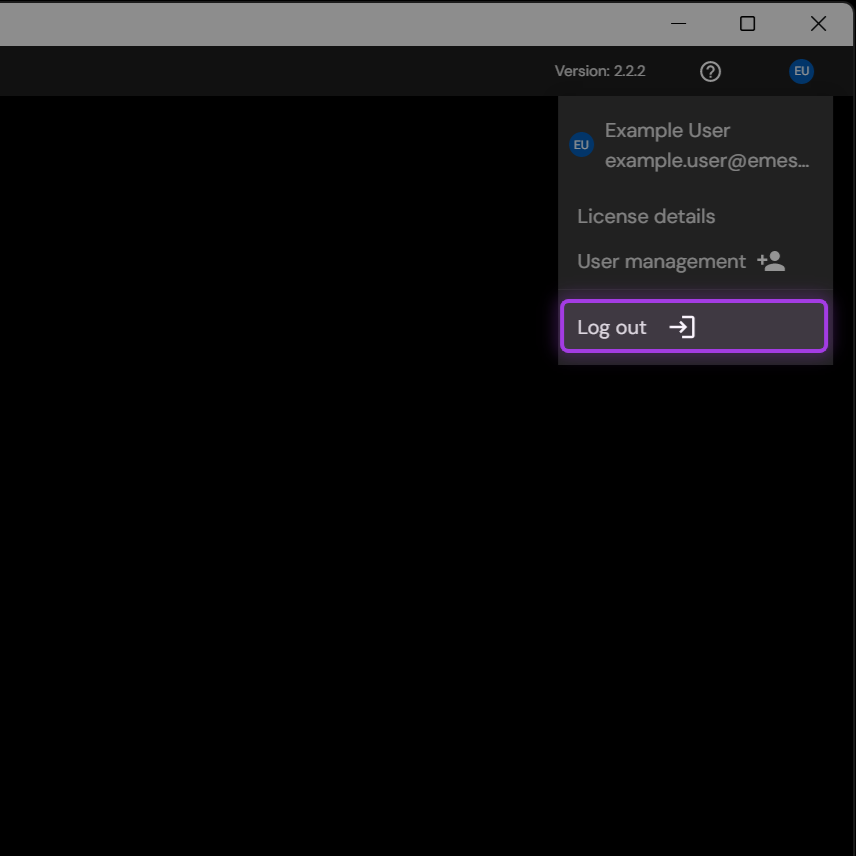
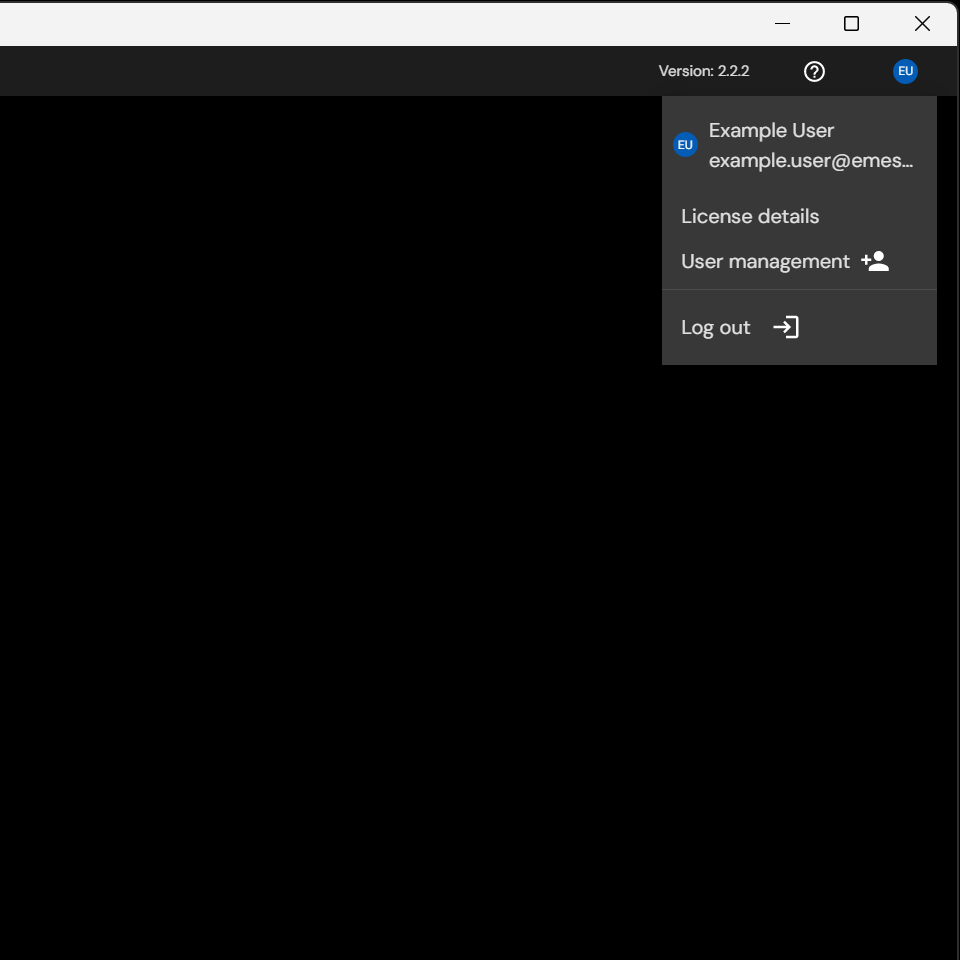
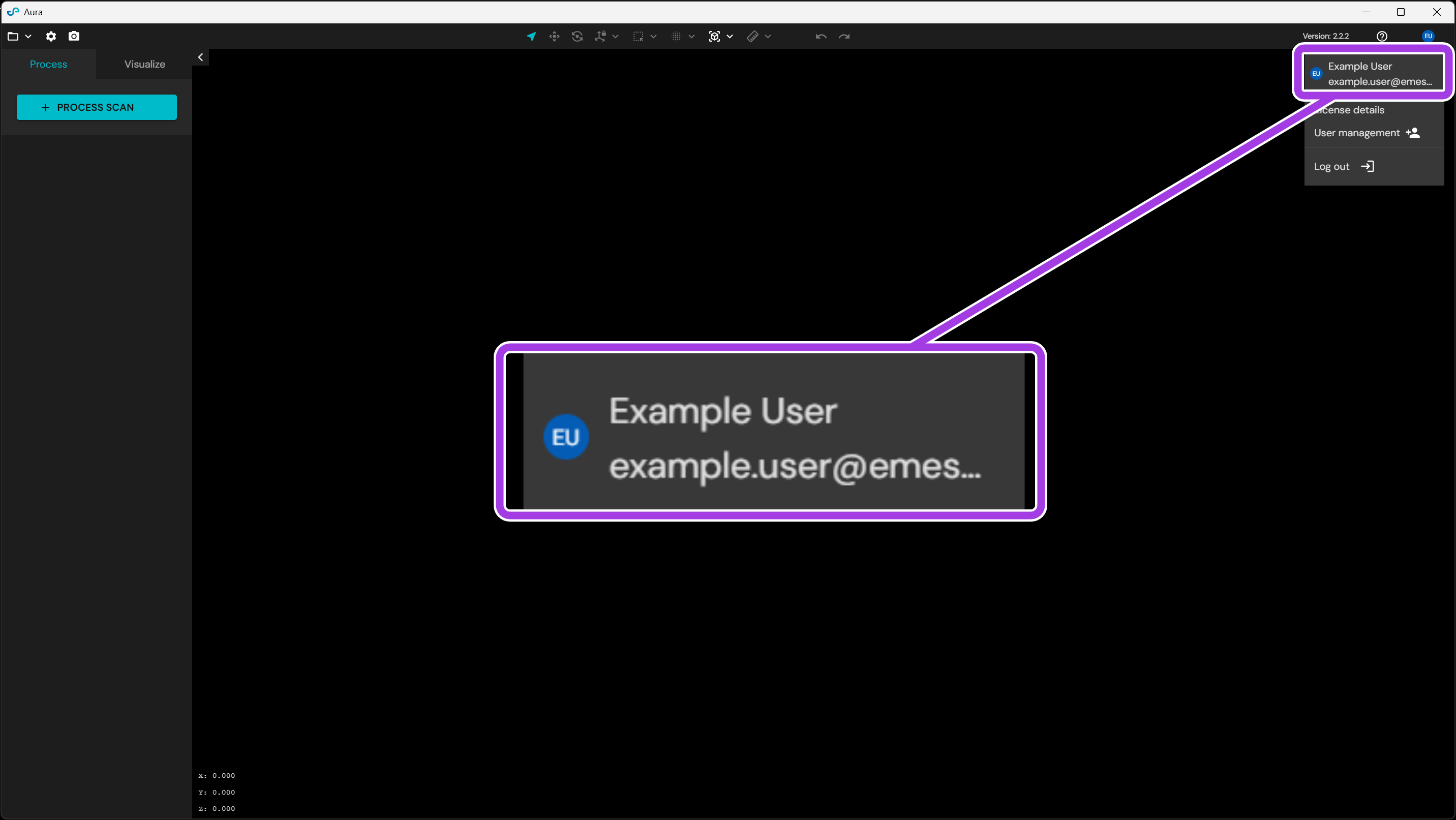
The User Profile menu is in the top-right corner of the Aura header. It shows the signed-in account and gives access to license details, Emesent User Management, and logout.
The menu connects Aura to the licensing entitlements of the organization, and gives access to the seats allocated to that organization. The menu does not show an account when Aura is not signed in. An Emesent account is necessary to process data in Aura 2.0 and later.
The menu contains the following elements:
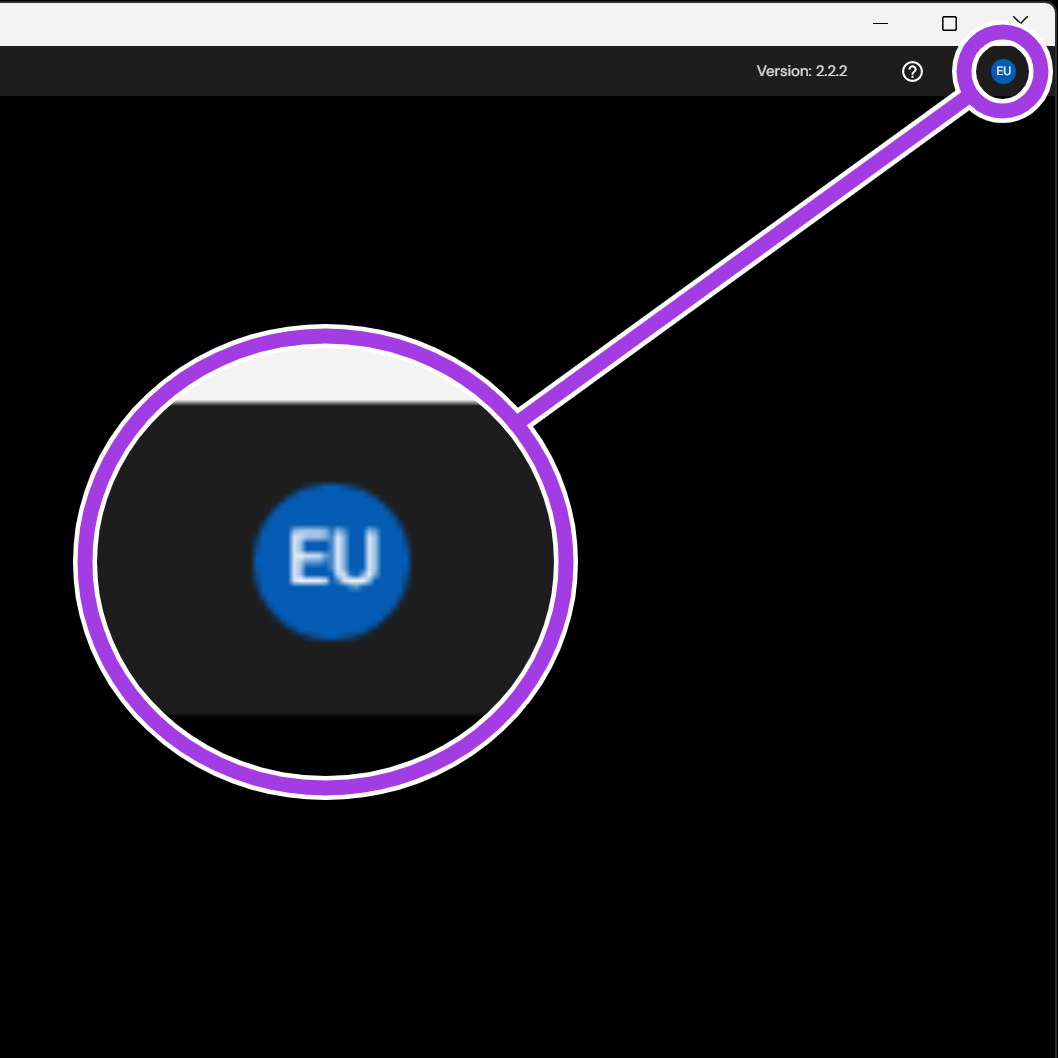
User profile icon
The user profile icon opens and closes the menu. The icon shows the initials of the signed-in account.
|
|
Account
The top of the menu shows the name and the email address of the signed-in account.
No account is shown when Aura is not signed in. Refer to How to log into Aura. If no Emesent account exists yet, refer to How to request access.
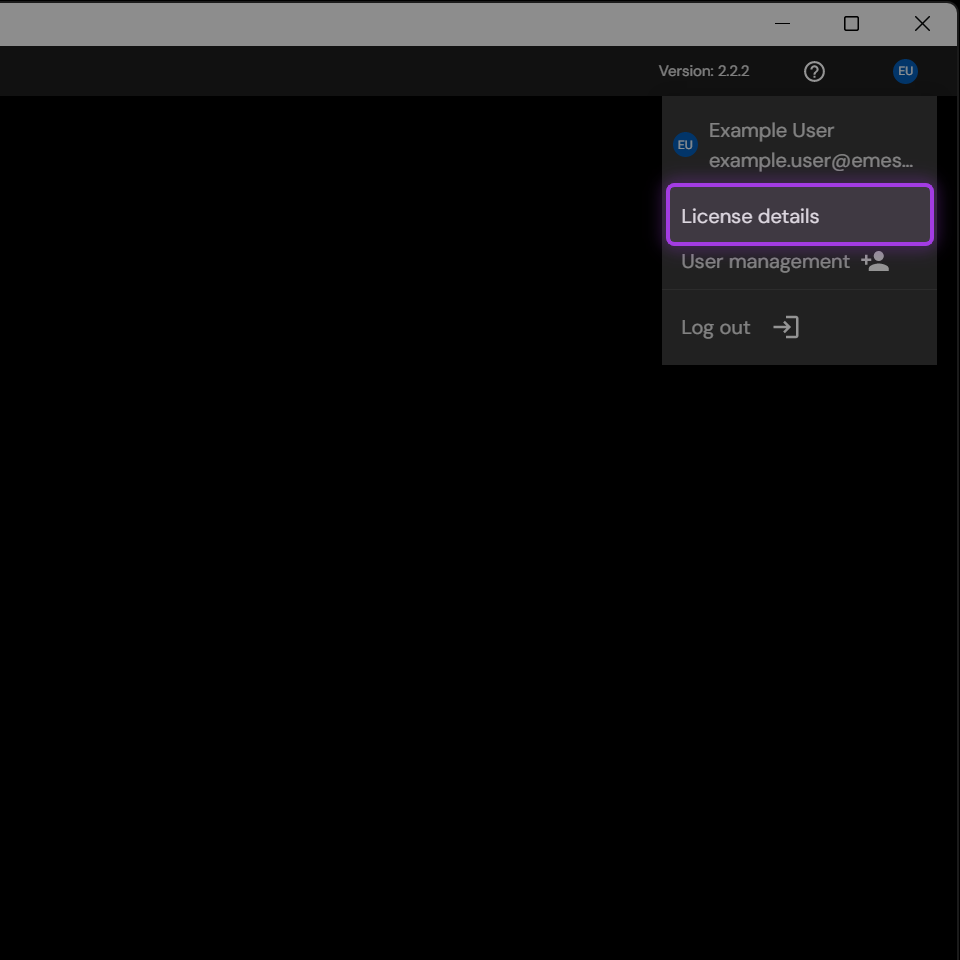
License details
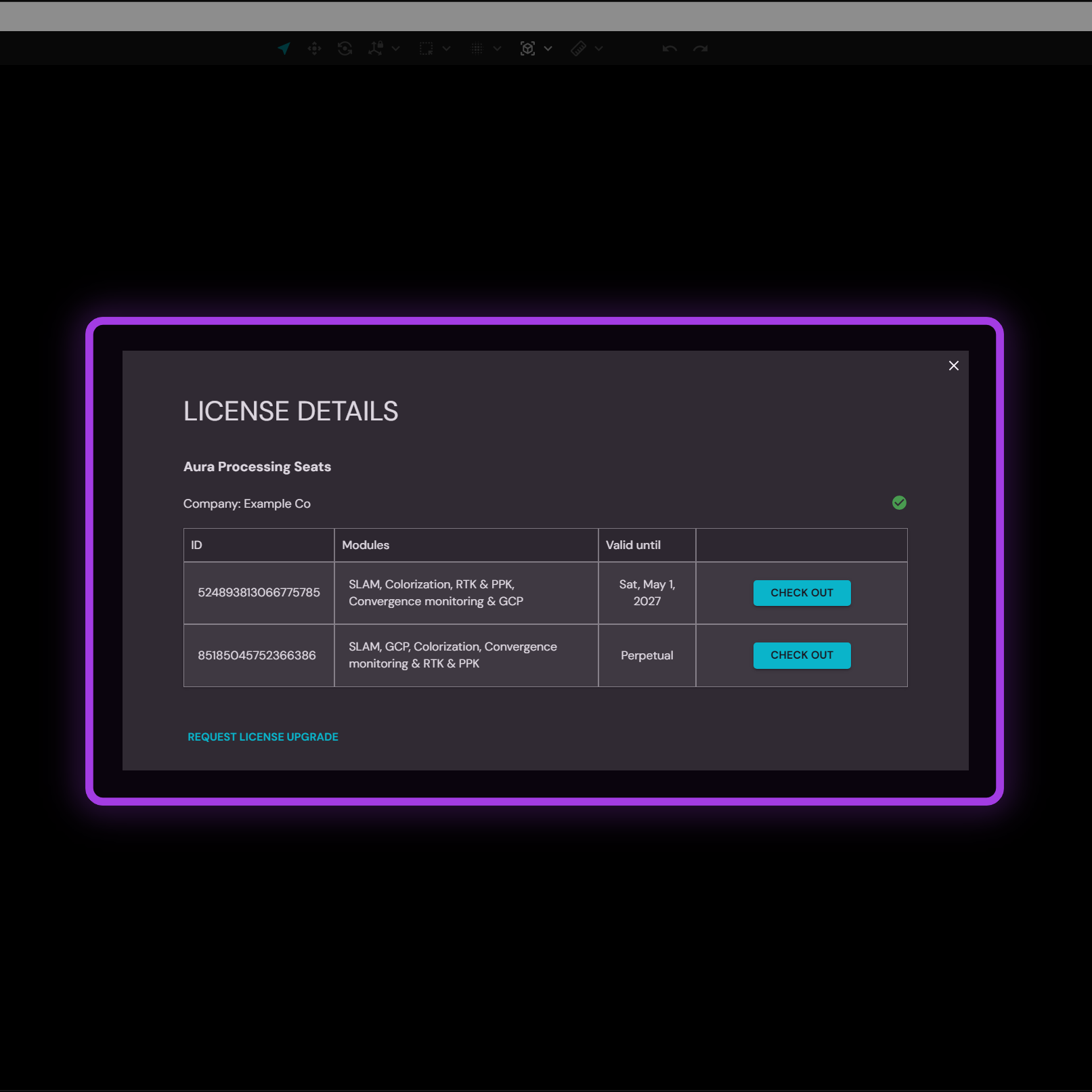
License details opens the License Details panel. The panel shows the license ID, the assigned modules, the expiry dates, and the current seat usage.
Licenses are also checked out and checked in from this panel. Refer to How to check license details.
Aura checks out a seat automatically when processing starts. Check out a license manually only for work without a network connection. A manual checkout lasts between 1 and 14 days. Refer to How to check out a license.
|
|
User management
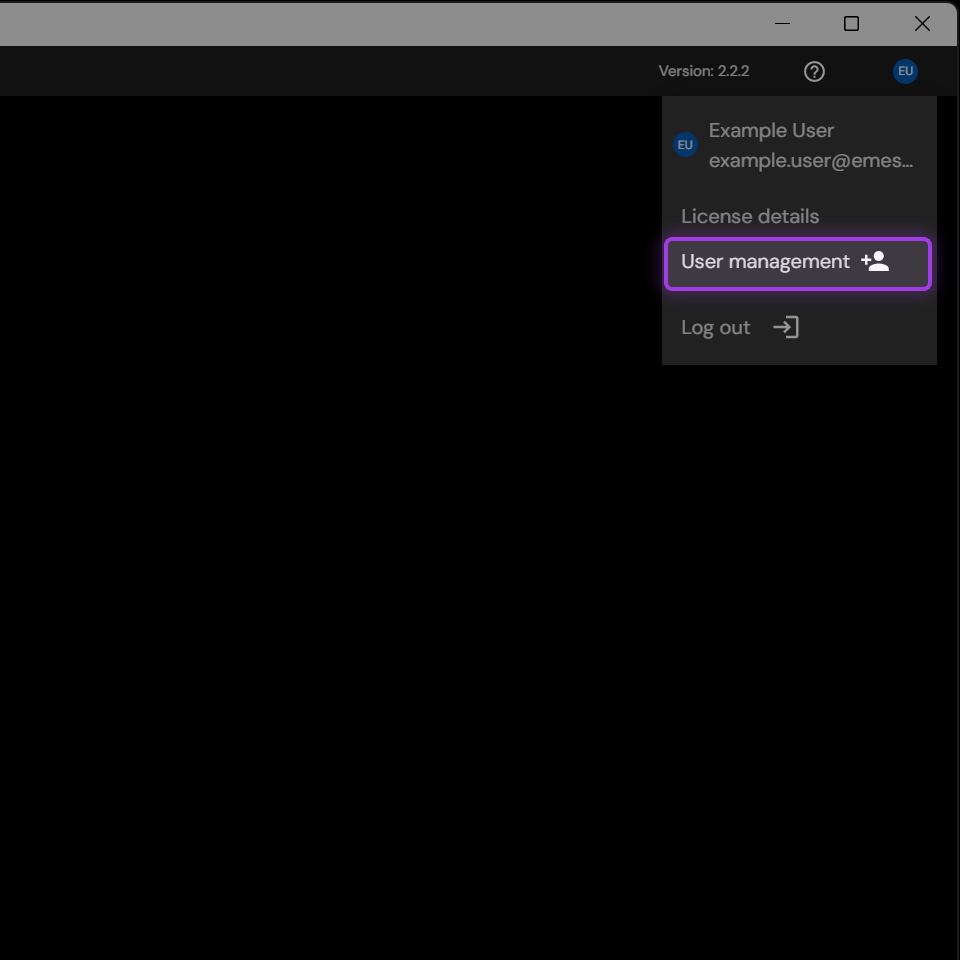
User management opens Emesent User Management in the default web browser. Administrator permissions are necessary for most user tasks.
Refer to How to access the Emesent User Management.
|
|
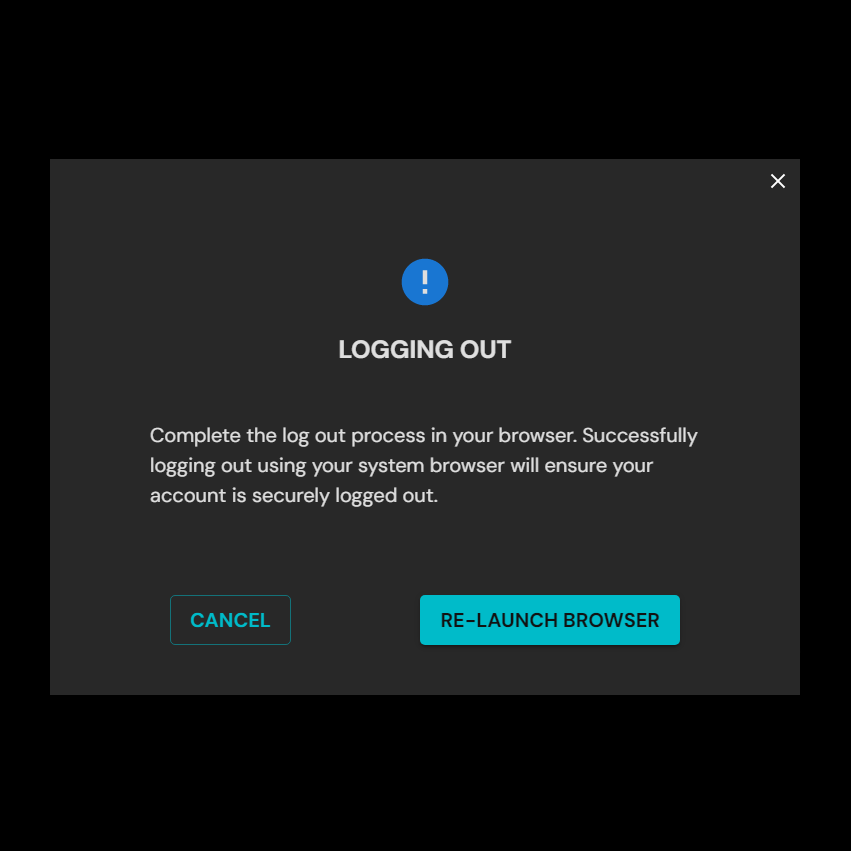
Log out
Log out ends the session and releases the active seat to the license pool of the organization.
A license that is checked out for offline use stays reserved after a logout. Refer to How to check in a license.
|
|