
The Process tab is used to start a scan processing job (workflow) or view the Processing Queue.
Refer to the Visualize Tab section for docking instructions or making the panel float on the screen.
.png)
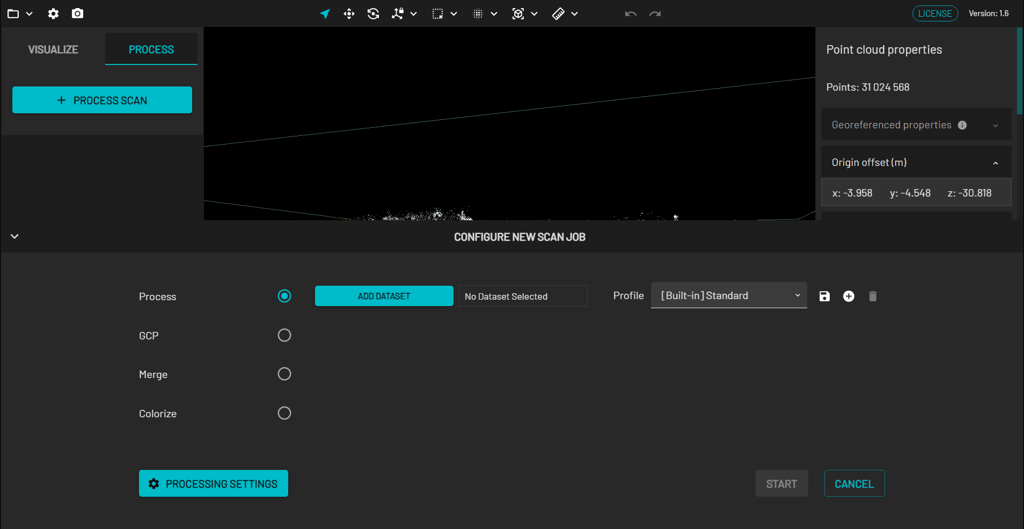
Configure New Scan Job Panel
Clicking on Process Scan displays the Configure New Scan Job panel, which allows you to process a point cloud or GCP data. Once processed, enhance your scans using the Merge or Colorize features. You can then load these processed scans for editing in the Visualize tab.
For instructions on how to process a scan, refer to the Working with point clouds section.
Processing Queue
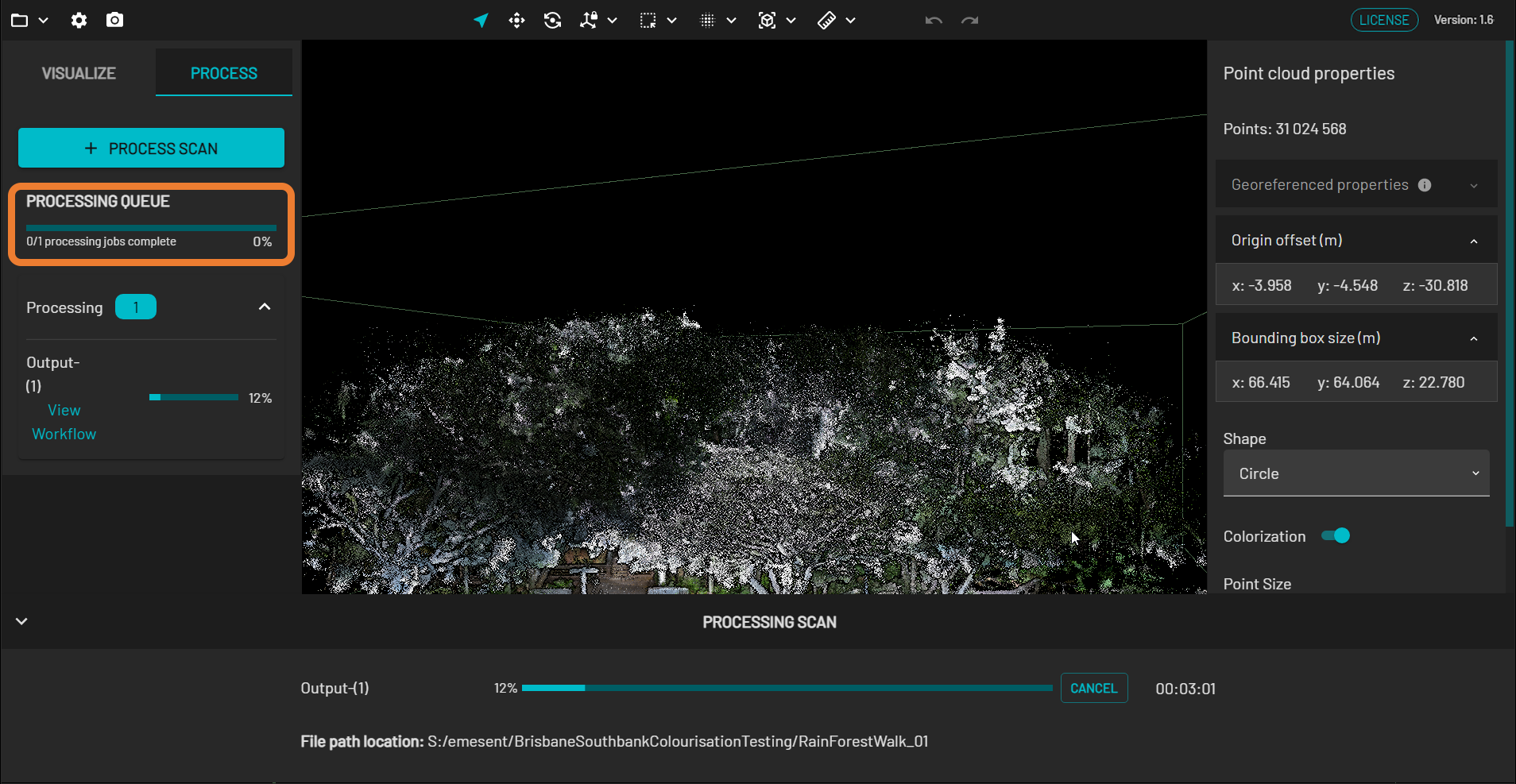
The Processing Queue lists all current, pending, failed, and completed workflows. The first section displays the overall percentage of completed workflows to those remaining in the queue.
Processing
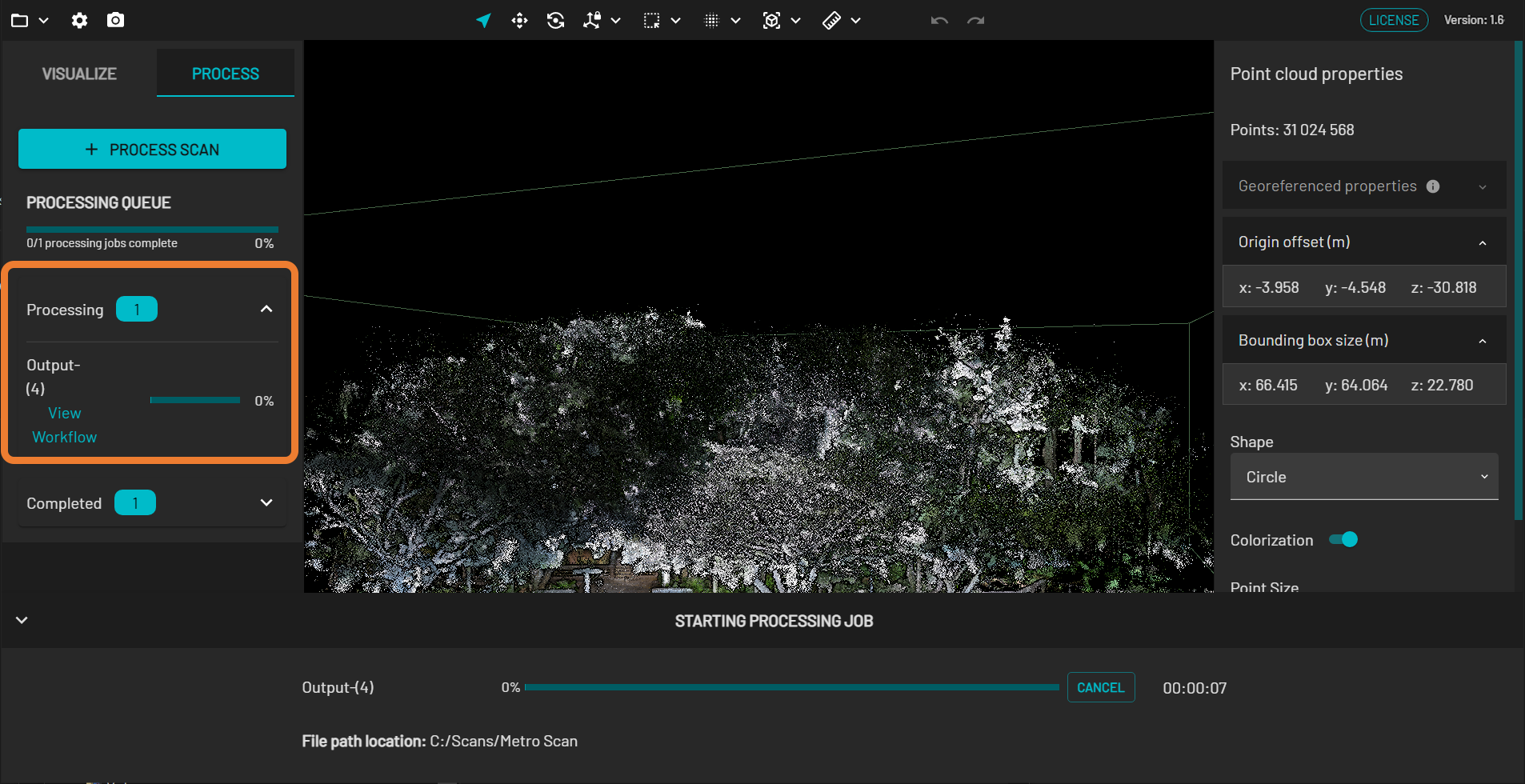
All current and pending workflows are shown in the Processing section. Each workflow shows the folder name where the output files are saved. Clicking on View Workflow displays the progress of that particular workflow at the bottom.
Completed
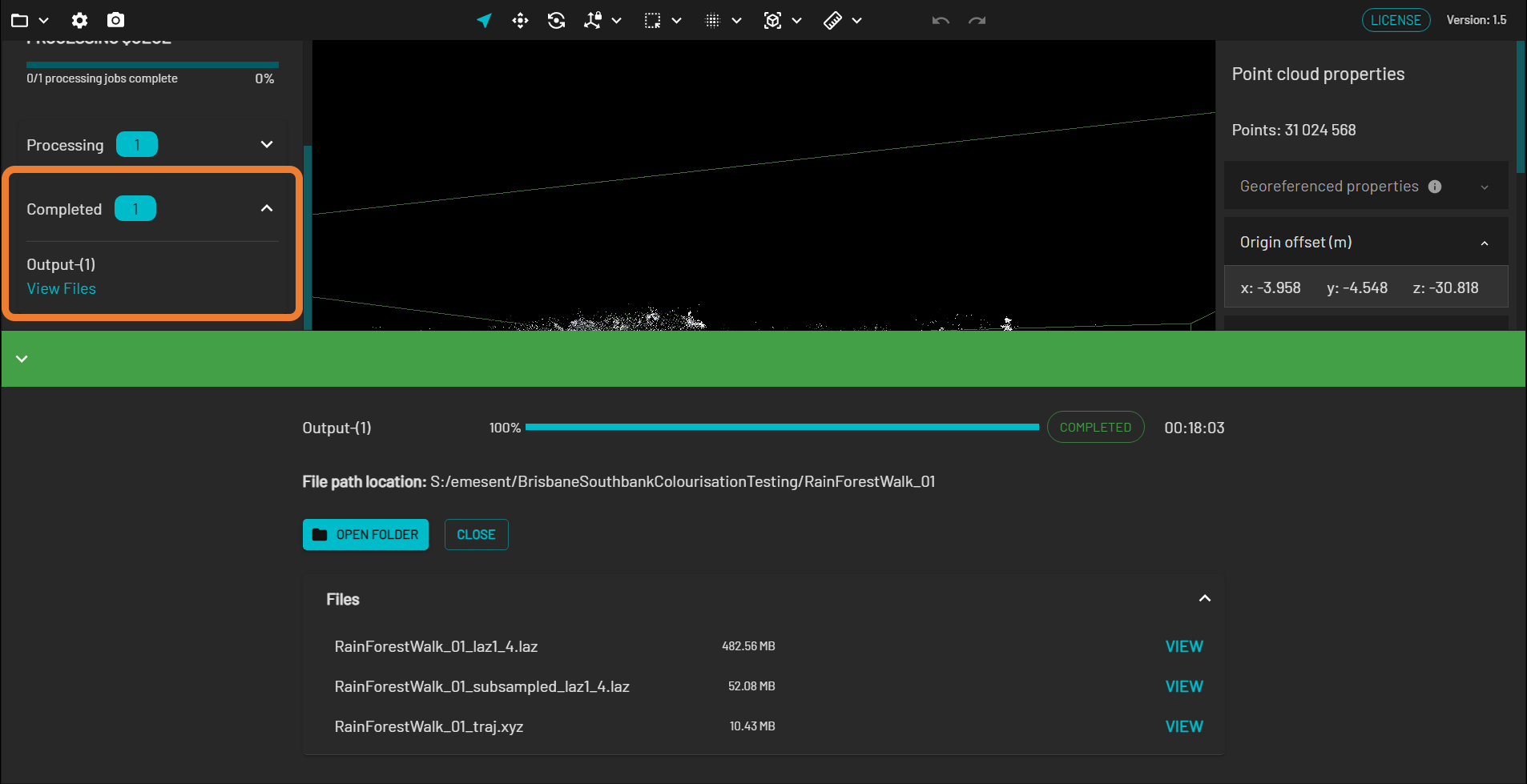
Once the processing is finished, the workflow is moved to the Completed section.
Click View Files to open a panel at the bottom, which lists the generated output files.
Click Open Folder to open the folder where the generated output files are saved.
Click View beside the output file to display it in the Viewport. Doing this also loads that particular output file in the Visualize tab so you can edit it further.
Click Close to exit from the panel.
Failed
Any workflow that is processed unsuccessfully is displayed in the Failed section. A general error description is also provided.
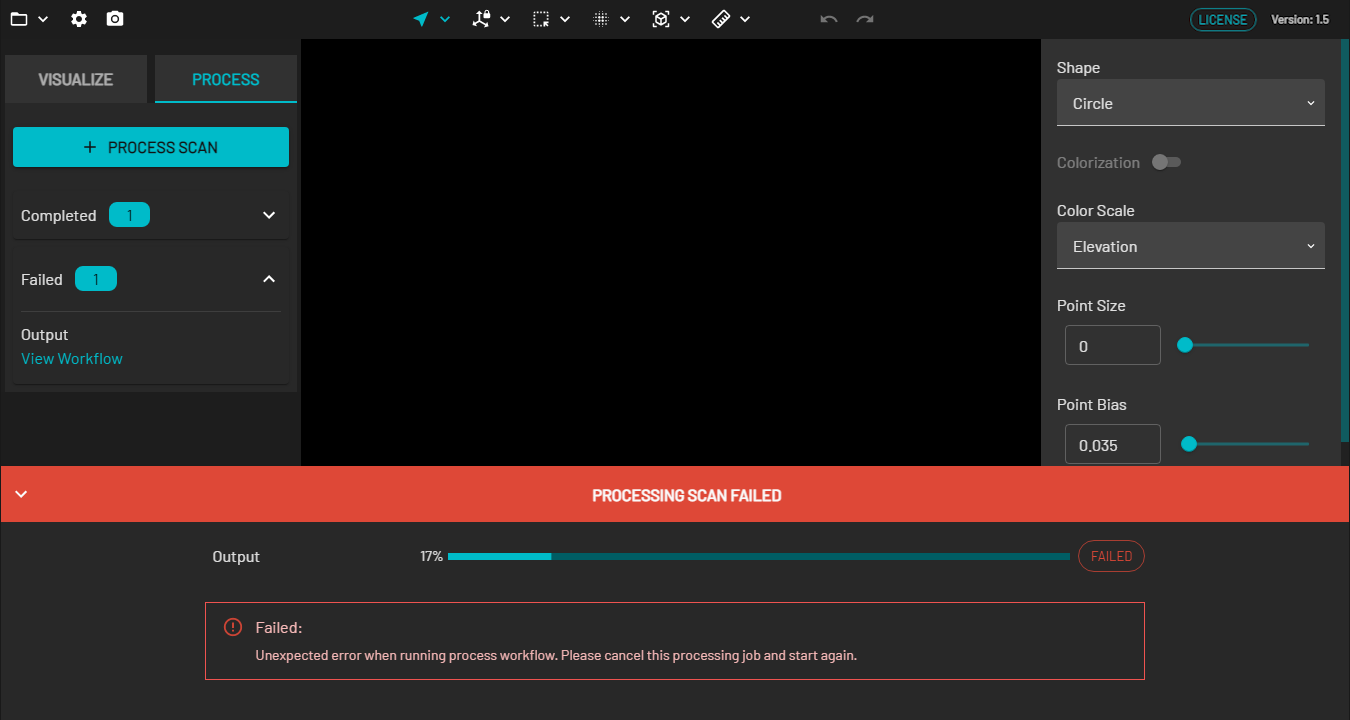
If the Aura application closes unexpectedly or the scan you are processing in Aura won't complete, it's important to Recover Aura log files, generate a DirectX Diagnostic file, and report the incident through the Client Support.