Select a workflow, then click Processing Settings to open the advanced customization settings. The General and Output tabs are always available. An additional tab for the selected workflow can also be available.
General
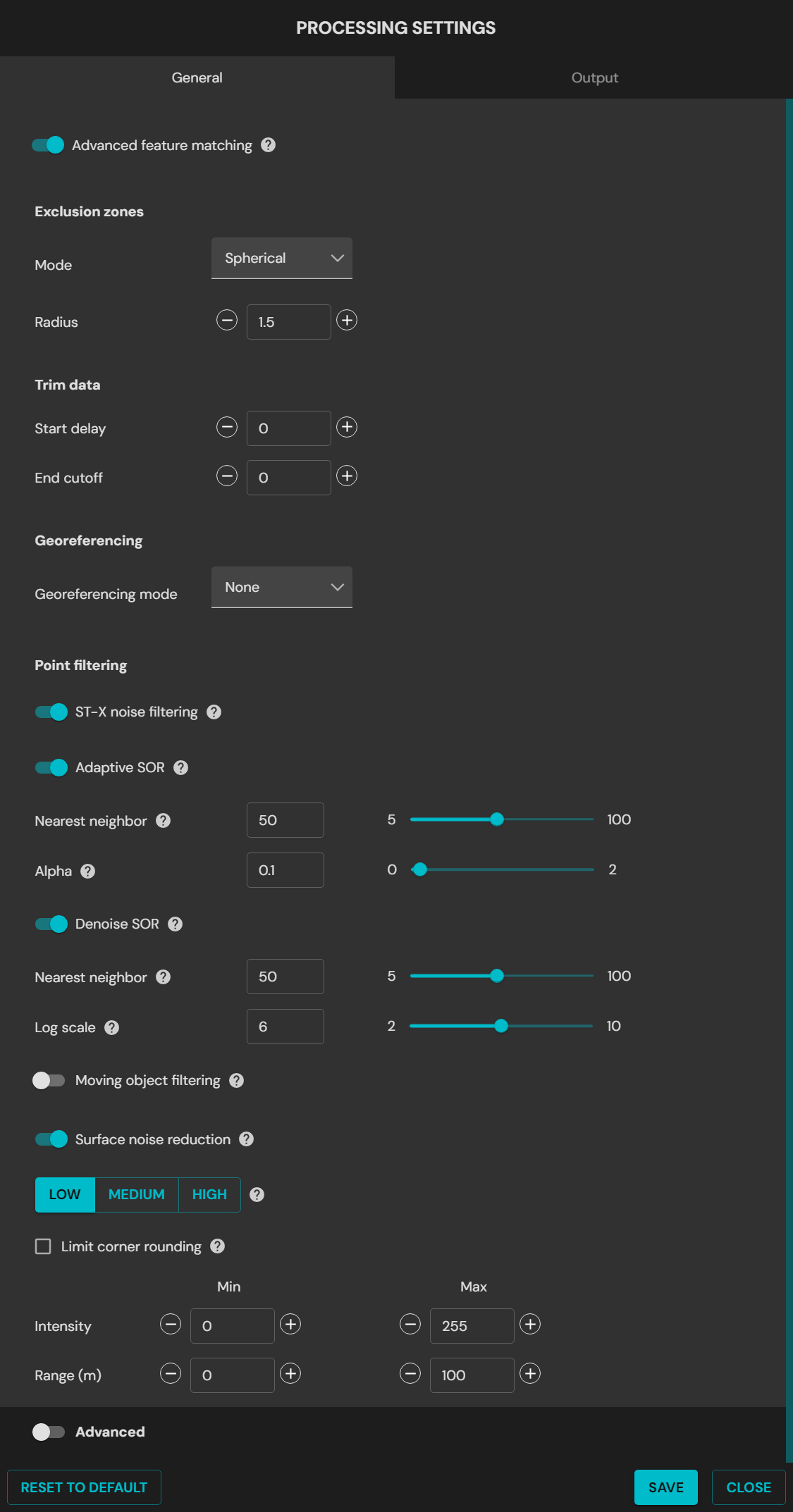
General tab in Processing Settings
General settings
Field
Data
Advanced feature matching
This stage of SLAM processing improves the results in most environments. In complex or repetitive environments, turn it off for better results.
Exclusion Zones
Excludes points near Hovermap that can interfere with the SLAM algorithm or add noise to the point cloud. These points come from Hovermap, a drone, a vehicle, or the operator. Use the default setting.
Mode:
Bounding Box: Sets the minimum and maximum distance on each axis.
X Min / Forward: Points inside this minimum distance in front of Hovermap are not processed. Default setting: 1.5 m
X Max / Backwards: Points inside this maximum distance behind Hovermap are not processed. Default setting: 1.5 m
Y Min / Left: Points inside this minimum distance to the left of Hovermap are not processed. Default setting: 1.5 m
Y Max / Right: Points inside this maximum distance to the right of Hovermap are not processed. Default setting: 1.5 m
Z Min / Down: Points inside this minimum distance below Hovermap are not processed. Default setting: 1.5 m
Z Max / Up: Points inside this maximum distance above Hovermap are not processed. Default setting: 1.5 m
Trim Data
Sets the time in seconds to ignore data at each end of the dataset. This is useful when the start of the scan is poor.
Start Delay: The number of seconds to ignore at the start of the scan.
End Cutoff: The number of seconds to ignore at the end of the scan, counted backward.
Georeferencing
Georeferencing Mode: Select the method used to get the location data. The location data references the point cloud in real-world coordinates.
Drone RTK / Vehicle RTK / Backpack RTK: Select the device used to capture the scan data.
GPS: Uses standard GPS data without real-time RTK correction. The accuracy is reasonable, but lower than RTK.
OGC WKT Standard: Select the Well-Known Text (WKT) format. WKT is a standard text format that describes coordinate reference systems and transformations.
WKT1: The original version of the WKT format. It is used widely in geospatial applications.
WKT2.2018: The 2018 update to the WKT standard. It adds improvements and more functions.
GNSS receiver type: The GNSS receiver used to capture the RTK data.
Make sure that Georeferencing Mode and GNSS receiver type agree with the hardware used to collect the data. The point cloud stays usable, but the accuracy can decrease.
Base coordinate reference system
Select the coordinate reference system (CRS) used to collect the data. This is necessary for accurate transformation and reprojection to the target CRS.
Reprojection
Turn on to reproject the point cloud.
Horizontal: Reprojects to a different map projection or coordinate system.
Vertical: Converts ellipsoidal height to orthometric height with a GEOID model.
Reset to Default
Resets all settings to the default.
Point filtering
Adds automatic filtering to the processing workflow. This can remove the need for a separate filter step after processing. The filters use the default settings only, and the filter parameters cannot be adjusted.
Filter
Data
STX Noise Filtering
Removes stray points. It examines the range, the intensity, and the number of LiDAR points returned. This filter applies only to data from a Hovermap ST-X.
Adaptive SOR
Removes points that are less sharp than nearby points, such as noise on walls and floors.
Nearest neighbor: The number of point neighbors used for the evaluation. A lower setting gives faster processing, but removes less sparse noise.
Alpha: The threshold for the noise filter. A lower setting gives more aggressive filtering.
Denoise SOR
Removes outlier points that are unlikely to be real, such as reflections.
Nearest neighbor: The number of point neighbors used for the evaluation. A lower setting gives faster processing, but removes less sparse noise.
Log scale: The threshold for the noise filter. A lower setting gives more aggressive filtering.
Moving object filtering
Removes points that move during 5 second intervals and keeps the fixed points in the environment.
Motion level: Detects movement during 5 second intervals. A higher value selects fewer moving points.
Distance: The maximum distance to recover fixed points. A higher value selects more points. Use 1 cm to 2 cm for most scans.
Surface Noise Reduction
Applies a smoothing filter to the point cloud. It decreases the noise and increases the precision of the point cloud. The processing time changes with the level selected.
Low: Best for dense scans, for example indoor scans. The processing is fast and the corner rounding is low.
Medium: Best for semi-dense scans. It can improve the results in areas of low point density.
High: Best for sparse scans, for example outdoor scans. The processing is slow and the corner rounding is high.
Limit Corner Rounding
Decreases the rounding of corners when surface noise reduction is applied. Corners can have more noise when this option is on.
Intensity
Set the minimum and maximum intensity values of the points written to the output point cloud.
Range
Set the minimum and maximum range values of the points written to the output point cloud.
Advanced settings
The advanced settings contain more processing parameters. These parameters can improve the output of the SLAM algorithm in some conditions.
Use the advanced settings only when the standard processing profiles do not give a quality output. Speak to Customer Support before changing these values.
Local mapping
Field
Data
Time Window
(Auto SLAM)
Time Window Sliding Size in Seconds: The length of the sliding window used in the optimization stage of the SLAM process. Increase the value to improve the output when the scan has few geometric features. A higher value increases the processing time. Default setting: 5 seconds
Time Window Sliding Shift in Seconds: The distance that the sliding window moves in each optimization loop. Decrease the value to improve the output when the scan has few geometric features. A lower value increases the processing time. Default setting: 1 second
Auto SLAM adjusts the Time Window parameters in real time in difficult environments, such as tunnels, culverts, or large open areas with few geometric features. The values set in the interface are the preferred limits. Auto SLAM goes above these limits only when it is necessary to keep the tracking performance. In most cases, this removes the need to change to the Low Feature profile or to adjust the time window settings.
Point Filtering
Intensity: Set the minimum and maximum intensity values of the points written to the output point cloud. The defaults exclude noise points caused by the sun. Use the default settings. Min default setting: 0. Max default setting: 255
Range: Set the minimum and maximum range values of the points written to the output point cloud. The default values include all points to the maximum range of the LiDAR. Min default setting: 0. Max default setting: 300
Iterations
Local Iterations: The maximum number of iterations of the main optimization loop during local mapping. Use this setting to decrease local slips. A higher value increases the processing time. Default setting: 5
Local Iterations Internal: The maximum number of iterations of the internal optimization loop during local mapping. Use this setting to decrease local slips. A higher value increases the processing time. Default setting: 5
Voxels
Voxels Size: The smallest size of voxel used to generate surfels in SLAM. Use this setting inside smooth tunnels and bores, where most of the information is in small variations in the surface direction. A higher value can increase the processing time significantly. Default setting: 0.4 m
Voxel Levels: The number of levels used to generate surfels in SLAM. Each level is twice the size of the previous level. Use this setting inside tunnels and bores, where most of the information is in small variations in the surface direction. Default setting: 5
Voxel Minimum Points: The minimum number of points in a voxel used for SLAM. Use this setting to decrease the effect of noisy data on SLAM. It also makes sure that features with few points are included in environments with few geometric features. Default setting: 8
Global registration
Field
Data
Point Filtering
Intensity: Set the minimum and maximum intensity values of the points written to the output point cloud. The defaults exclude noise points caused by the sun. To include all points, use the default settings. Min default setting: 0. Max default setting: 255
Range: Set the minimum and maximum range values of the points written to the output point cloud. The default values include all points to the maximum range of the LiDAR. Min default setting: 0. Max default setting: 300
Iterations
Global Iterations: The number of loops performed in the global registration process. Use this setting to decrease global slips. A higher value improves the chance of a quality output, but increases the processing time significantly. Default setting: 10
Global Iterations Internal: The minimum number of iterations necessary to complete SLAM.
Voxels
Voxel Size: The smallest size of voxel used to generate surfels in SLAM. Use this setting inside smooth tunnels and bores, where most of the information is in small variations in the surface direction. A higher value can increase the processing time significantly. Default setting: 0.4 m
Voxel Levels: The number of levels used to generate surfels in SLAM. Each level is twice the size of the previous level. Use this setting inside tunnels and bores, where most of the information is in small variations in the surface direction. Default setting: 5
Voxel Minimum Points: The minimum number of points in a voxel used for SLAM. Use this setting to decrease the effect of noisy data on SLAM. It also makes sure that features with few points are included in environments with few geometric features. Default setting: 100
Velocity
Local Linear Velocity Confidence: Sets how much confidence the global registration stage gives to the linear velocity results of the local mapping stage. The number is a standard deviation, so a higher number gives lower confidence. This is useful for long driving scans of more than 500 m, where the start and the end of the scan do not overlap cleanly. It is also useful where sharp changes in the trajectory do not agree with the actual scan. A much lower value can stop the trajectory from snapping to global slips. Default setting: 0.5
Local Angular Velocity Confidence: Sets how much confidence the global registration stage gives to the angular velocity results of the local mapping stage. The number is a standard deviation, so a higher number gives lower confidence. Default setting: 0.8
Matching
Number of Matches: The number of voxel matches that the SLAM algorithm searches for within the given limits. Increase the value to make the global registration search more aggressively for matching voxels. The algorithm then adjusts the trajectory to make similar areas overlap. This is useful for long driving scans, where more global iterations do not align the start and the end of the scan. When these values increase, usually decrease Local Linear Velocity Confidence and Local Angular Velocity Confidence. Default setting: 5
Max Distance: The maximum distance in voxel units that the SLAM algorithm searches for voxel matches. Increase the value to make the global registration search more aggressively for matching voxels. Default setting: 10
GCP
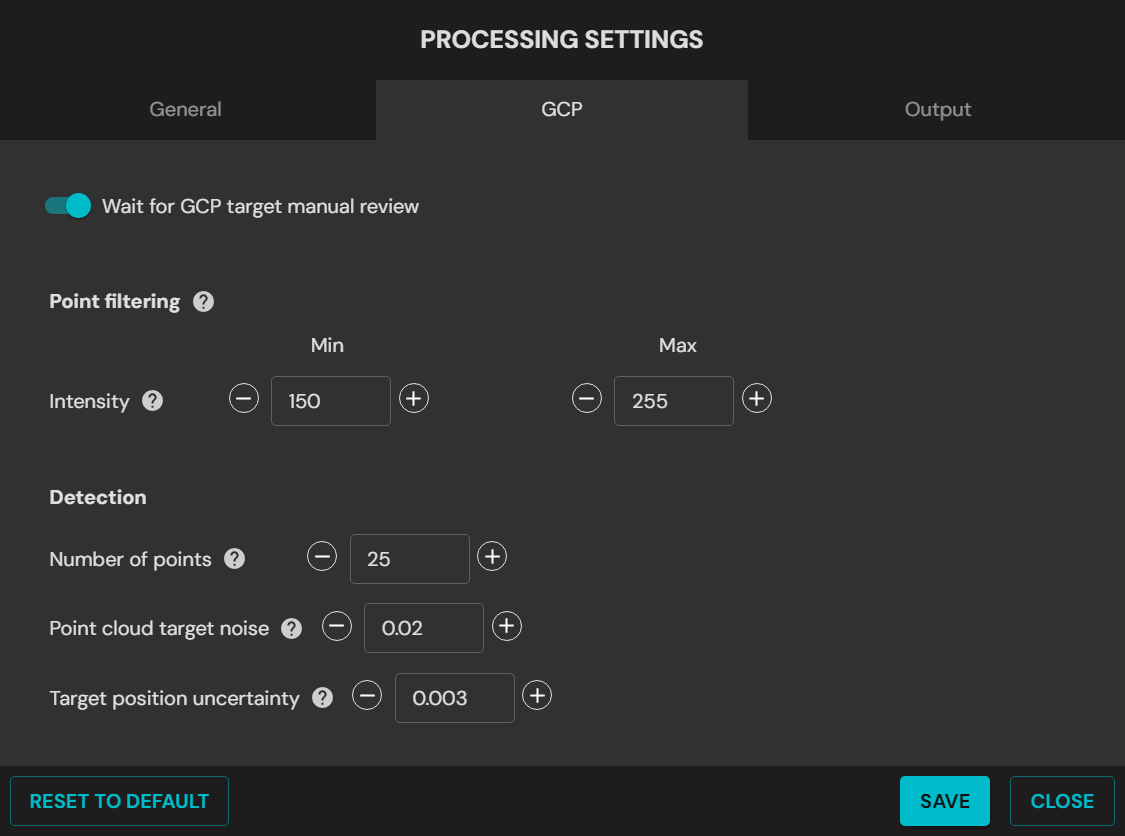
GCP tab in Processing Settings
GCP processing settings
Field
Data
Wait for GCP Target Manual Review
Select this checkbox to pause the software while the targets are confirmed.
If the checkbox is clear, Emesent Aura assumes that the constellation of detected targets matches the survey points supplied.
Point Filtering
Intensity: Set the filter intensity between 150 and 255 when the target material is unchanged.
Detection
These parameters help to identify a target.
Number of Points: The minimum number of points before a cluster becomes a target. This applies in the global stage and the local stage.
Target Thickness: The maximum thickness of the cluster of points that represents the target.
Target Standard Deviation: Specifies the target thickness. It helps to detect and identify targets more accurately. A higher number makes GCPs easier to detect. Default setting: 0.003 m (3 mm)
Reset to Default
Resets all settings to the default.
Merge
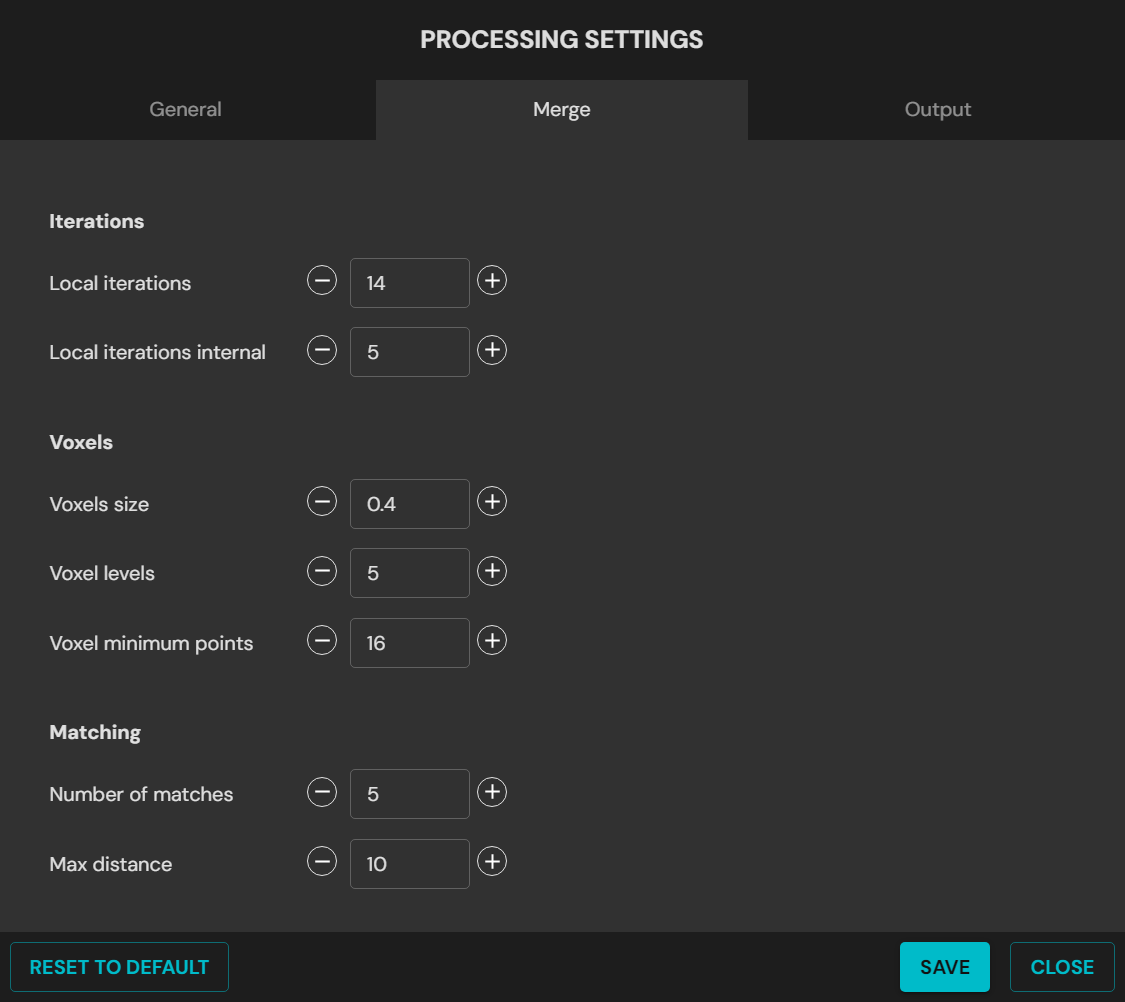
Merge tab in Processing Settings
Merge processing settings
Field
Data
Voxels
Voxels Size: The smallest size of voxel used to generate surfels in SLAM. Use this setting inside smooth tunnels and bores, where most of the information is in small variations in the surface direction. A higher value can increase the processing time significantly. Default setting: 0.4 m
Voxel Levels: The number of levels used to generate surfels in SLAM. Each level is twice the size of the previous level. Use this setting inside tunnels and bores, where most of the information is in small variations in the surface direction. Default setting: 5
Voxel Minimum Points: The minimum number of points in a voxel used for SLAM. Use this setting to decrease the effect of noisy data on SLAM. It also makes sure that features with few points are included in environments with few geometric features. Default setting: 8
Matching
Number of Matches: The number of surfels to search for matches during SLAM.
Max Distance: The maximum distance in voxels to search for surfel matches.
Georeferencing
Georeferencing Mode: Select the method used to get the location data. The location data references the point cloud in real-world coordinates.
Drone RTK / Vehicle RTK: RTK is a satellite navigation technique that improves the precision of GPS position data. It uses a fixed base station and a mobile receiver. The base station knows its exact position and sends correction signals to the mobile receiver. Select this mode to reference the point cloud with real-time corrected GPS signals.
GPS: GPS is a satellite navigation system that gives position and time data anywhere on Earth. Select this mode to use standard GPS data without real-time RTK correction. The accuracy is reasonable, but lower than RTK.
OGC WKT Standard: Select the Well-Known Text (WKT) format. WKT is a standard text format that describes coordinate reference systems and transformations. WKT1 gives the best compatibility.
WKT1: The original version of the WKT format. It is used widely in geospatial applications.
WKT2.2018: The 2018 update to the WKT standard. It adds improvements and more functions.
For PLY and trajectory files in UTM or WGS84 coordinates, Aura writes an additional PRJ file. The PRJ file holds the projection information in OGC WKT format. LAS files hold the projection information in the file header.
If Hovermap did not record GPS data in the dataset, the output is in local coordinates only. The origin is at the start of the scan.
Reset to Default
Resets all settings to the default.
Colorize
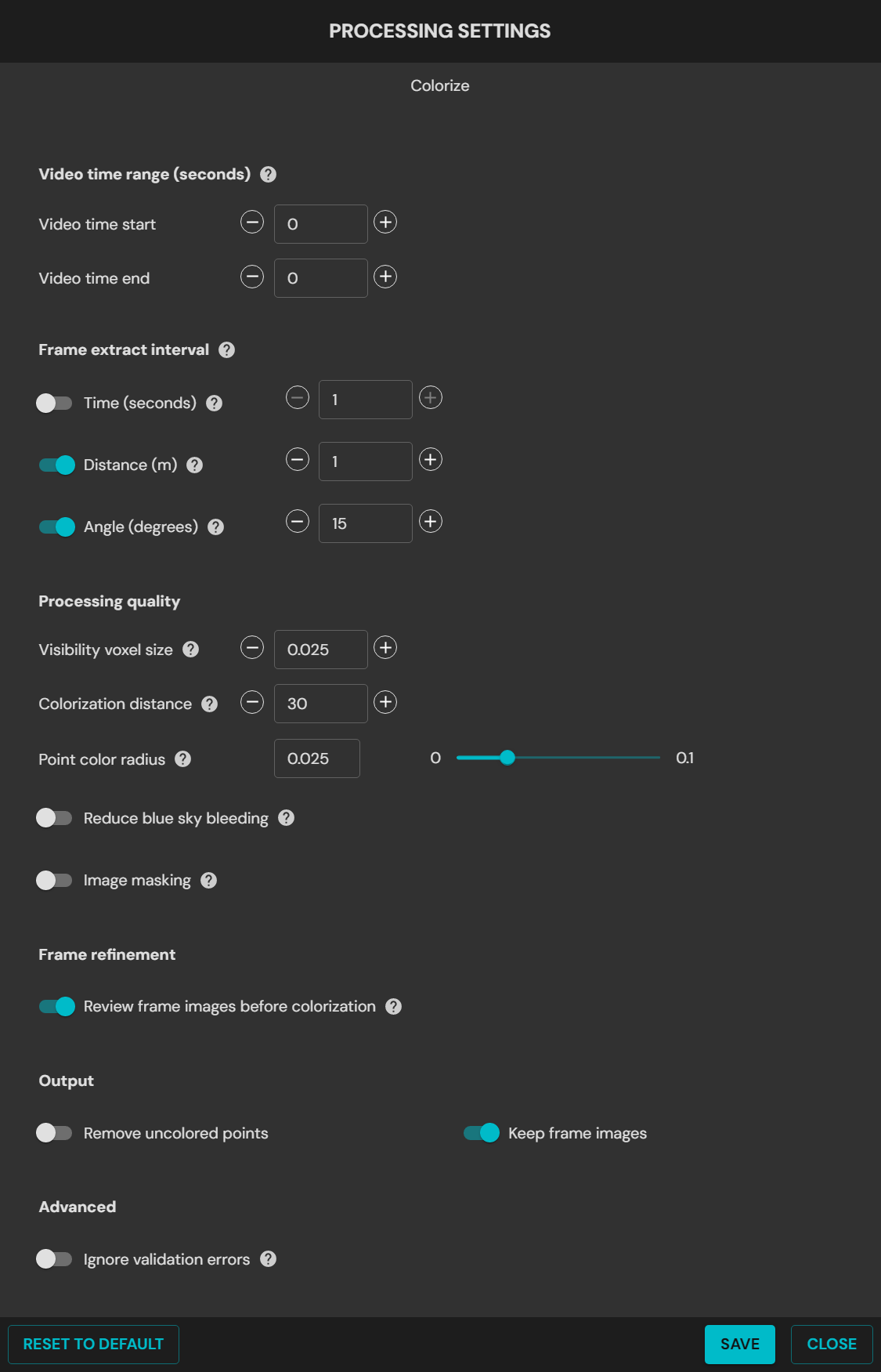
Colorize tab in Processing Settings
Frame extraction
Field
Data
Video Time Range
Sets the start time and the end time for frame extraction from the video.
The time is the elapsed video time. It is not the number of seconds to trim from the end of the video. Set Video end time to 0 to include all video after the start time.
Frame extract interval
Uses the maximum time, distance, and angle to set the number of video frames to skip between image extractions. Only the necessary images are kept.
Time: Turn this setting off to prevent repeated extractions when the camera does not move. The recommended range is 1 to 20.
Distance: Extracts images by the distance that the camera moves. This prevents repeated images when the camera does not move. Use 1 to 2 for small, confined spaces, and 5 to 10 for moving capture in open spaces.
Angle: Extracts images by changes in the camera angle. Use 10 to 15 degrees for a perspective camera, and 45 to 90 degrees for a 360 camera.
Image Masking
Hides unwanted features in all extracted frames. Select a mask template for the accessory or the platform in use. To make a custom mask, refer to Creating a custom mask.
Colorization quality
Field
Data
Processing Quality
Point Color Radius: Adjusts the occlusion size of the points for colorization. A smaller value can make the color of foreground objects bleed onto background points. A larger value can leave background points near foreground points uncolored. The recommended range is 0.01 to 0.03.
Visibility Voxel Size: Sets the resolution of the 3D pixels in meters. A lower setting gives finer colorization quality and a longer processing time. The recommended range is 0.01 to 0.1.
Colorization Distance: Sets the maximum distance from the GoPro camera for points to be colorized. A higher setting colorizes more points and increases the processing time. The recommended range is 10 to 300.
Reduce blue sky bleeding
Decreases and masks the color bleed of blue or gray sky onto buildings and other objects.
Strength: Adjusts the strength of the filter that masks the blue or gray sky. Use Low for clear blue skies. Use Medium to High for gray overcast conditions, or for complex scenes with trees, mixed colors, or cloud patterns. A higher strength can also mask light-colored buildings.
Alternatively, turn on Advanced and set the following:
RGB blue: Sets the minimum value of the blue channel used to detect blue sky. Use 200 for most sky types, 120 for blue skies with light-colored buildings, and 150 for low light such as dawn and dusk.
Gray intensity: Sets the value used to detect gray sky. Use 0 for blue skies, 20 for overcast gray skies, and 50 for darker gray clouds. Higher values can mask gray or light-colored buildings.
Color detection: Identifies and masks colors with the specified RGB values. Use 25 for gray skies, 35 for blue or light blue skies, 50 for blue skies with trees, and 75 for gray clouds with trees. Higher values can mask gray or light-colored buildings.
Examine the frames between extraction and colorization. The sky must be masked in most frames. Small patches of visible sky, or masked parts of a building, are acceptable when they occur only occasionally. If a problem occurs, increase the filter strength. Remaining sky is more visible in the final point cloud than a few masked building parts.
Colorize output settings
Field
Data
Output
Remove Uncolored Points: Includes or excludes points from the original scan that could not be colorized. Default setting: Unselected
Keep Frame Images: Keeps or removes the GoPro image frames in the colorization output folder. Select this option to use the image frames and the pose data in third-party software. Clear this option to save disk space. Default setting: Selected
Advanced
Ignore Validation Errors: Ignores errors found during the validation of the input data. Use this option only when the inputs are known to be correct, because the results can fail or become unusable.
Reset to Default
Resets all settings to the default.
Extract 360 images
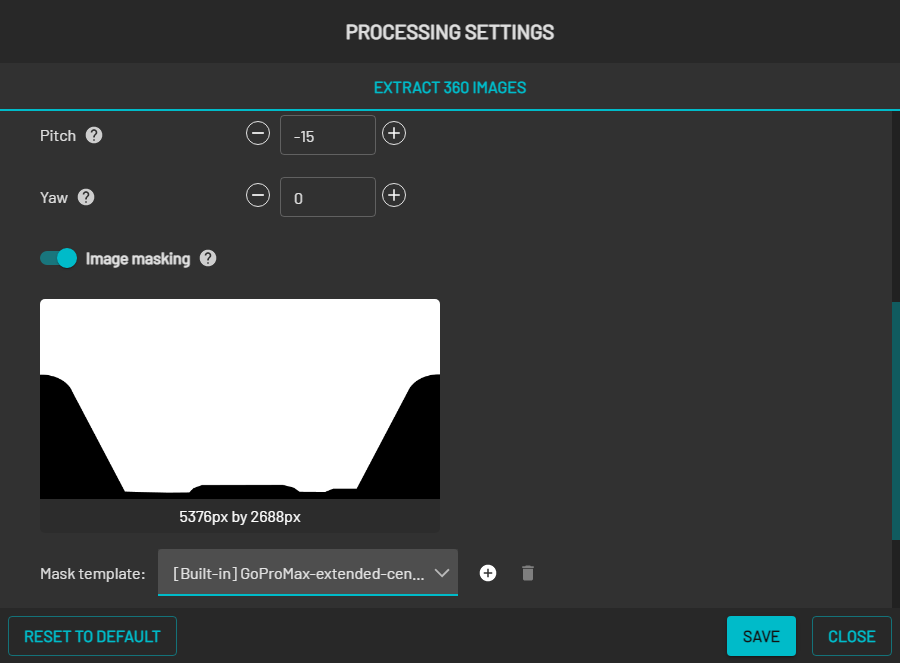
Extract 360 Images tab in Processing Settings
Extract 360 images processing settings
Field
Data
Video Time Range
Sets the start time and the end time for frame extraction from the video.
The time is the elapsed video time. It is not the number of seconds to trim from the end of the video. Set Video end time to 0 to include all video after the start time.
Frame extract interval
Uses the maximum time, distance, and angle to set the number of video frames to skip between image extractions. Only the necessary images are kept.
Time: Turn this setting off to prevent repeated extractions when the camera does not move. The recommended range is 1 to 20.
Distance: Extracts images by the distance that the camera moves. This prevents repeated images when the camera does not move. Use 1 to 2 for small, confined spaces, and 5 to 10 for moving capture in open spaces.
Angle: Extracts images by changes in the camera angle. Use 10 to 15 degrees for a perspective camera, and 45 to 90 degrees for a 360 camera.
Camera orientation override
Sets the orientation of the camera manually.
Roll: Sets the rotation around the front-to-back axis.
Pitch: Sets the rotation around the side-to-side axis.
Yaw: Sets the rotation around the vertical axis.
Image Masking
Hides unwanted features in all extracted frames. Select a mask template for the accessory or the platform in use. To make a custom mask, refer to Creating a custom mask.
Output
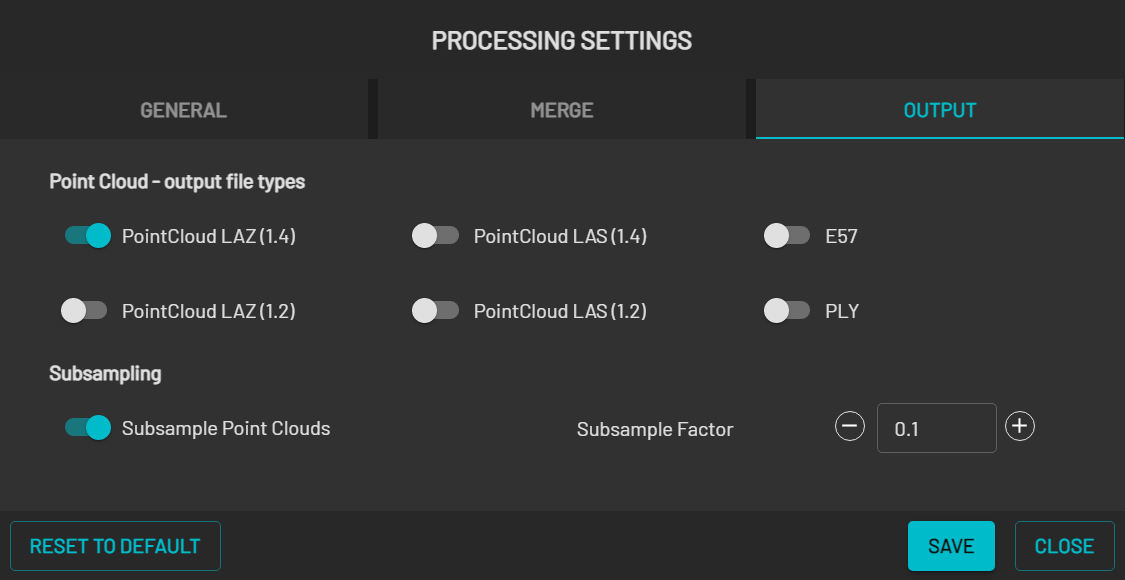
Output tab in Processing Settings
Point cloud file types
File type
Data
PointCloud LAZ (1.4)
Outputs a point cloud in compressed LAS 1.4 format. Default: On
PointCloud LAS (1.4)
Outputs a point cloud in uncompressed LAS 1.4 format. Default: Off
E57
Outputs a point cloud in E57 format. Default: Off
PointCloud LAZ (1.2)
Outputs a point cloud in compressed LAS 1.2 format. Default: Off
PointCloud LAS (1.2)
Outputs a point cloud in uncompressed LAS 1.2 format. Default: Off
PLY
Outputs a point cloud in PLY format.
More than one file type can be selected.
Subsampling
Field
Data
Subsample Point Clouds
Generates a subsampled point cloud for each of the file types selected above. Default: On
Subsample Factor
The fraction of the points in the point cloud to sample. For example, 0.10 outputs 10% of the points. Default: 0.10