
This article explains how to reset the GX1 to its factory settings. A factory reset returns the GX1 to its as-delivered state and clears all user data.
A factory reset is permanent and cannot be undone. It deletes all user data on the GX1, including:
Scan data on the payload.
NTRIP profiles and settings.
The Wi-Fi password.
Logs.
Saved device authorizations.
Back up any scan data you need before continuing. See Offload GX1 scan data.
When to use a factory reset
A factory reset permanently deletes all user data and is not part of routine operation. If unsure whether a factory reset is the right step, contact Emesent Client Support first. Use a factory reset to:
Clear a lost or compromised Wi-Fi password when no other recovery option is available. A new password is set on reconnection.
Clear all user data before returning a GX1 to Emesent.
Recover from a persistent fault that other troubleshooting steps have not resolved.
What you will need
A GX1 with a charged battery installed.
For the reset button method: a paperclip or SIM removal tool.
Reset using Commander
Connect Commander to the GX1 before you begin. See Connect GX1 to Commander.
Open the options menu.
Select Scanner settings.
Select Factory Reset Scanner.
Select Reset Scanner to confirm. The GX1 performs the reset and reboots.
|
|
.png)
.png)
Reset using the reset button
Step 1: Locate the reset button
Pinch and remove the Battery Bay Door. See Install and remove GX1 batteries.
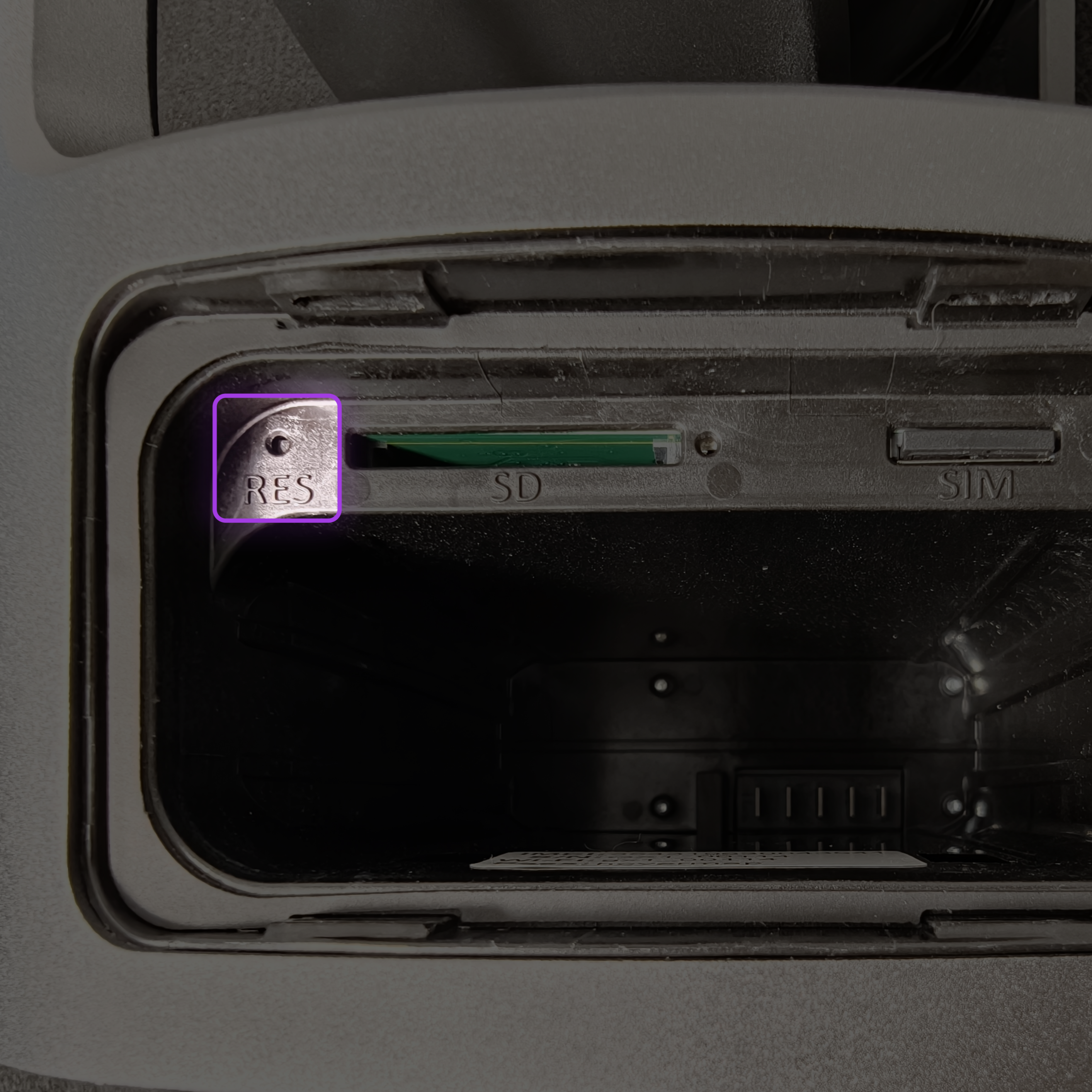
Locate the reset button in the top-left corner of the battery bay. The button sits inside a small hole.
Step 2: Perform the reset
Insert a paperclip or SIM removal tool into the hole.
Press and hold the Factory Reset Button for at least 10 seconds, until the LEDs flash red.
Release the button. The GX1 performs the reset and reboots.
Reconnect after a reset
Wait for the GX1 to finish rebooting.
Connect to the GX1 using the default Wi-Fi password,
hovermap.When prompted, set a new password. The GX1 cannot be used until a new password is set.
Outcome
The GX1 is reset to its factory settings and returned to its as-delivered state, with all user data cleared.