
This article explains how to configure and connect an Emlid RS2+, RS2, or RS3 GNSS receiver for use with Hovermap. Use this procedure to set up the RTK base station, configure the receiver settings in Emlid Flow, and connect the receiver to your Vehicle RTK or Backpack RTK mount.
What you will need
Hovermap unit with Vehicle RTK or Backpack RTK mount
A supported Emlid GNSS receiver configured as per Emlid Hardware Setup.
Emlid Flow installed on your device
RTK base station (Optional)
Process
Step 1: Setup the RTK Base Station
To setup the base station for Emlid GNSS receiver, please refer to the article Setup Emlid RS2, RS2+ and RS3 with the RTK base station or Emlid's official documentation for the Emlid RS2+.
Step 2: Configure the Emlid Receiver
Hovermap cannot detect an incorrectly set antenna height so ensure it is properly configured.
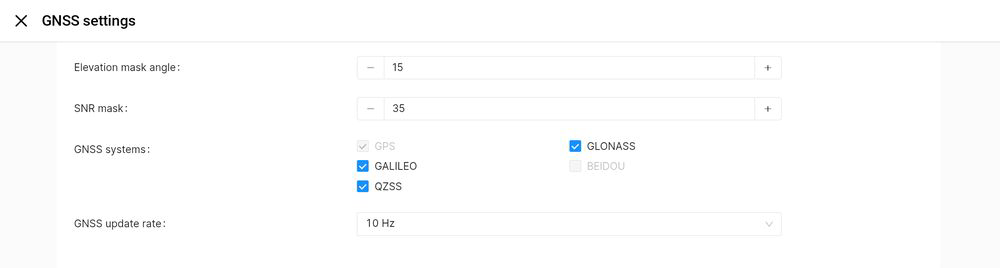
Use the following configuration settings in Emlid Flow, while connected to your receiver, to ensure RTK data is correctly processed.
Navigate to Settings → GNSS settings. Configure the following:
Setting | Value |
|---|---|
Elevation mask angle | 15 |
SNR mask | 35 |
GNSS systems | GPS, GLONASS, GALILEO, QZSS |
GNSS update rate | 10 Hz |
Step 3: Configure Position Streaming
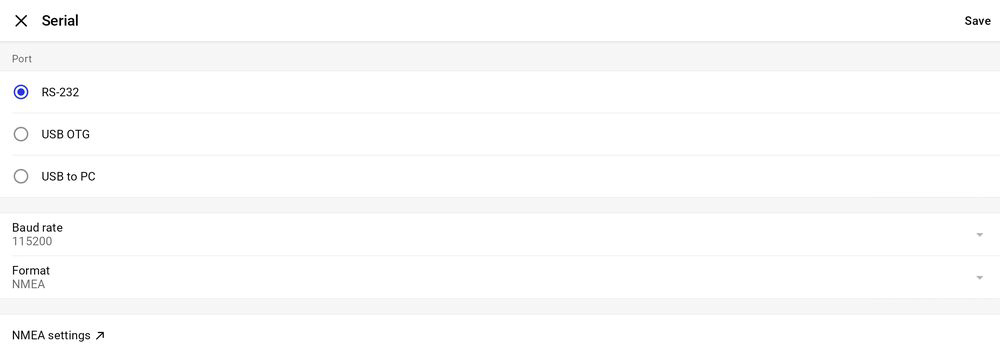
Navigate to Settings → Position Streaming 1 → Edit Serial and configure the following:
Setting | Value |
|---|---|
Port | RS-232 |
Baud rate | 115200 |
Format | NMEA |
Step 4: Configure NMEA settings
Navigate to NMEA Settings and configure the following:
Setting | Value |
|---|---|
Tilt compensation for NMEA | Do not compensate receiver position |
Talker ID | GN |
Under Message type, enable and configure the following:
Message | Rate |
|---|---|
GGA | 10 Hz |
GSA | 10 Hz |
GST | 10 Hz |
GSV | 1 Hz |
RMC | 1 Hz |
VTG | 1 Hz |
ZDA | 10 Hz |
EBP | 1 Hz |
ETC | 10 Hz |
Step 5: Disable IMU tilt sensor (Emlid RS3 only)
Navigate to Settings → IMU.
Confirm the IMU Tilt sensor is disabled. This applies to both Backpack and Vehicle RTK configurations.
Outcome
The Emlid receiver is now configured for use with Hovermap and ready to capture RTK scan data.