
Scan a stope with Hovermap in Autonomous mode
Flying in a stope is the perfect scenario for using Hovermap in Autonomous mode. A stope is inaccessible and often has an unknown shape, and usually has plenty of distinct geometric features, which is ideal for Hovermap.
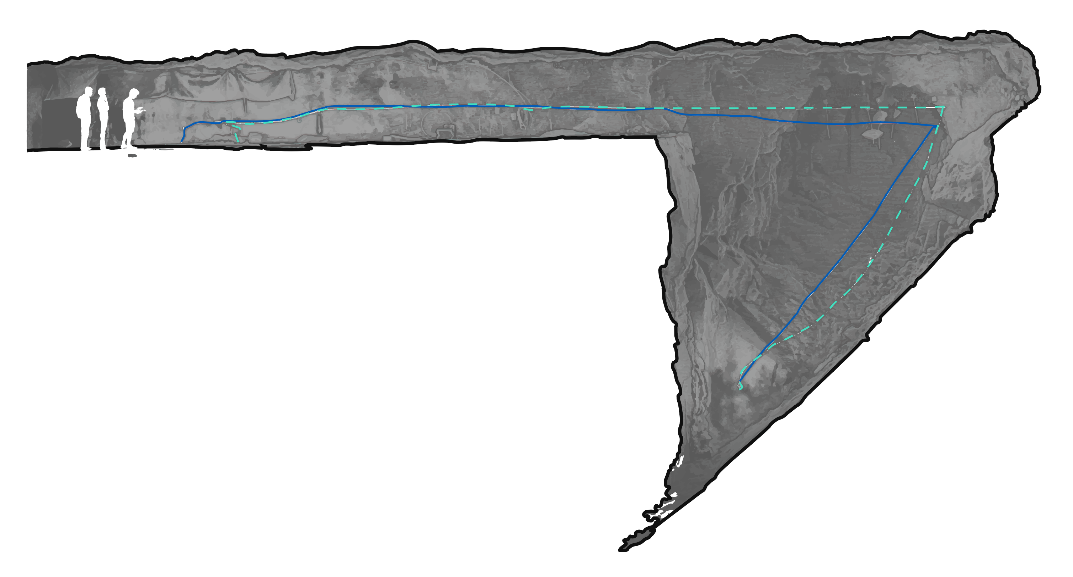
The recommended process is as follows.
Do not fly into a stope within 24 hours of blasting. Certain gases can absorb the LiDAR light, leaving Hovermap with no return points and unable to build a map of its surroundings.
What you will need
A drone with Hovermap mounted (see the relevant drone setup guide for the airframe in use).
Emesent Commander installed on the tablet, with a working connection to Hovermap.
A stope environment that has not been blasted within the last 24 hours.
Familiarity with Pilot Assist and Autonomous flight modes.
Procedure
Step 1: Complete pre-mission checks
Complete the required pre-mission checks. For more information, see How to perform a mission (Mapping & Autonomy).
For background on how Hovermap automatically determines the most suitable navigation method based on the environment.
Step 2: Perform the mission
Take off in Pilot Assist mode. The minimum Shield settings are smaller in this mode than in Autonomous mode, which allows the drone to fly through small gaps to enter the stope.
Enable Shield, then test it by trying to land the drone. Shield prevents the drone from landing.
Fly the drone within line of sight to the centre of the stope.
Change to Autonomous mode and set a rally point. The rally point is essential because the drone treats it as a temporary return-to-home point, which allows communications to be re-established if they are lost during the mission.
Wait for the LiDAR points to be streamed to the tablet. Once streaming begins, plan the mission. When planning, keep in mind that the LiDAR has a range of up to 100 m and easily captures sufficient data at a range of 20 m to 30 m, so the drone does not need to be closer than that to obstacles.
While scanning, check the live point cloud in Emesent Commander to ensure data is being collected correctly.
When the mission is complete and the drone has returned to its rally point, switch back to Pilot Assist mode to fly back out of the stope.
Fly the drone back out of the stope and land safely.
Outcome
The stope has been scanned and the drone has returned safely. The captured scan data is ready for processing in Aura.
Related documentation and support
For assistance, contact the regional Emesent partner or the Emesent Client Support team.