
This section covers the Leica GNSS receivers supported by Emesent Backpack RTK and Vehicle RTK, and how to set them up for a georeferenced Hovermap scan.
The following video covers the full workflow described in the articles in this section, from receiver setup through to processing the scan in Emesent Aura.
What are Leica receivers?
A Leica receiver supplies RTK position data to a Hovermap on a Backpack RTK or Vehicle RTK mount. Backpack RTK and Vehicle RTK automate high-accuracy georeferencing and drift correction, which gives rapid and precise scans without the need for ground control points.
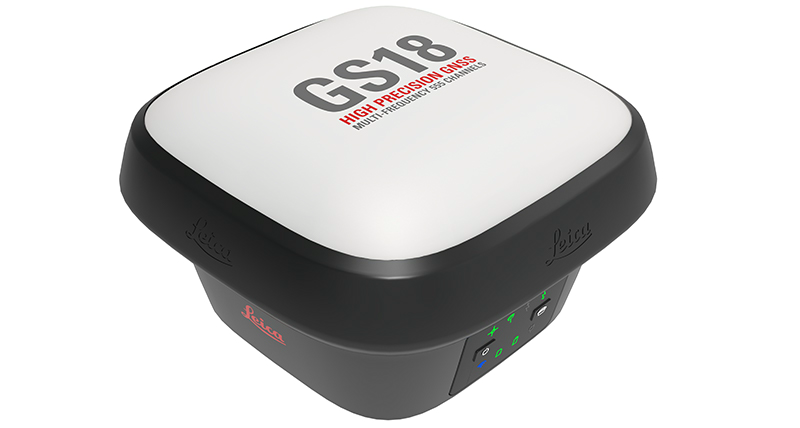
The term "Leica receiver" in this section refers to the supported Leica devices: the GS18, GS18T, and GS18I.
The Leica RTK workflow
Setting up a Leica receiver has three stages, in this order.
First, mount the receiver and connect it to the Hovermap. Second, configure the receiver settings so that it communicates with the Hovermap. Do this once, unless the firmware is upgraded or the settings are changed for another use case. Third, start an RTK session. The receiver must connect to an RTK corrections service, for example a CORS (Continuously Operating Reference Stations) network, and must have a GPS lock before the Hovermap starts. Repeat this third stage for every scan.
After the scan, process the RTK data in Emesent Aura. Refer to Processing with RTK data in Aura.
Get started
Complete the initial setup of the Leica device according to the Leica documentation before the procedures in this section are followed. This section does not cover the initial setup of a Leica GS18.
How to use the Leica GS18 T GNSS RTK rover: initial setup of the receiver, on the Leica YouTube channel.
Leica GS18 T GNSS RTK Rover: product documentation on the Leica website.
Drive safely when a vehicle is in operation. Do not change settings on the phone or tablet while driving. Check the GPS status only when it is safe to do so.
In this section
Topic | Description |
|---|---|
Mount the Leica receiver and connect it to the Hovermap. | |
Set the NMEA, tilt, and antenna settings on the receiver. | |
Start the corrections stream, start the Hovermap in the correct order, and check the RTK status. |
Reference
Need help?
Contact Client Support for assistance.