The Data Transfer panel provides controls for managing scan data stored on the payload. It enables the operator to download captured scans, move scans between tabs, delete unwanted files, and re-transfer previously moved data.
Current tab
The Current tab lists all scans that have not yet been transferred from the payload. Each scan entry is displayed as a row containing the scan name, size, and timestamp, with action buttons aligned to the right. From this tab, the operator can download scans to a connected device, move scans to the Transferred tab, or permanently delete them.
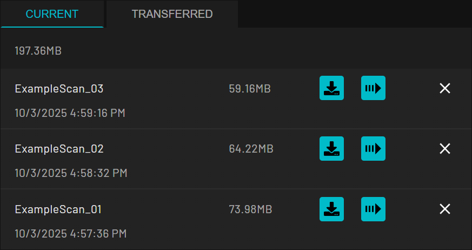
Icon | Button | Location | Description |
|---|---|---|---|
| Download | To the right of the scan name | Packages the selected scan and transfers it to the connected device over Wi-Fi or Ethernet. The operator must remain on the page until the transfer is complete. |
| Move to Transferred | To the right of the Download button | Moves the scan entry from the Current tab to the Transferred tab without deleting the data from internal storage. |
| Delete | To the right of the Move to Transferred button | Permanently removes the scan from Hovermap. A confirmation dialog is displayed before deletion. |


The total storage space for the Current tab is reported in the top left of the tab.
Transferred tab
The Transferred tab lists all scans that have already been downloaded or moved from the Current tab. Each scan entry is displayed as a row containing the scan name with action buttons aligned to the right. From this tab, the operator can return scans to the Current tab for re-transfer, permanently delete them, or clear all transferred data and logs.
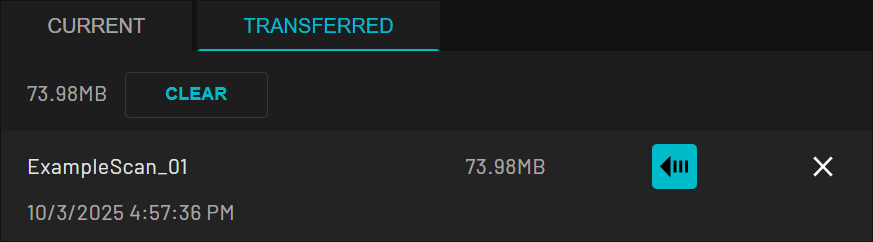
Icon | Button | Location | Description |
|---|---|---|---|
| Move to Current | To the right of the scan name | Returns the scan entry to the Current tab, allowing the scan to be downloaded again. |
| Delete | To the right of the Move to Current button | Permanently removes the scan from Hovermap. |
| Clear all data | Top right of the Transferred tab | Deletes all transferred scans and system logs. This option is disabled during an active scan. |
.png)
.png)
.png)
Deleting scans is permanent and cannot be undone. Ensure all required data has been successfully downloaded and backed up before removal.
The total storage space for the Transferred tab is reported in the top left of the tab.
Transfer log
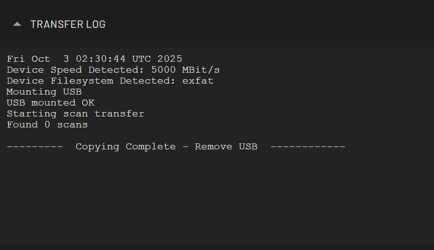
The Transfer log panel populates automatically when a USB device is connected. It provides a real-time display of scan packaging, transfer progress, and log output as data is written to external storage. The panel is scrollable when multiple transfer activities have been performed. Transfer logs can also assist in troubleshooting data offload issues and may be provided to Emesent Support for investigation.