
Refer to these instructions for cleaning the noise from your Vehicle RTK point clouds using Emesent Aura.
Overview
If traffic is unavoidable during your scan, you may see noise in the point cloud from moving vehicles. You can clean this noise using Emesent Aura.
It is not recommended to use Moving Object Filtering when conducting a vehicle scan as the drone itself will be filtered. Use the manual cleaning workflow described in this article instead.
Remove vehicle noise from a point cloud
Open Emesent Aura and load your point cloud.
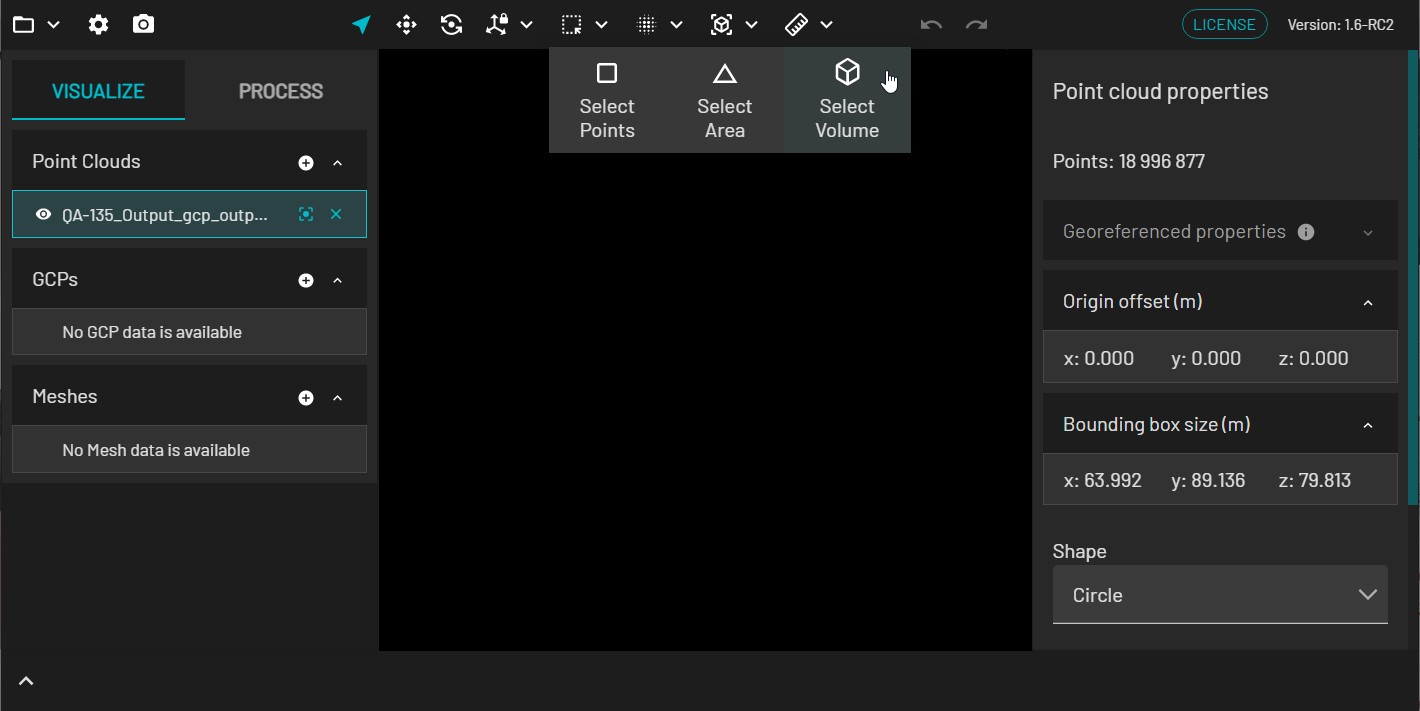
In the Main Toolbar, choose Select Volume under Selection Tools.
Using the colored handles, adjust the bounding box to cover the area where the vehicles were.
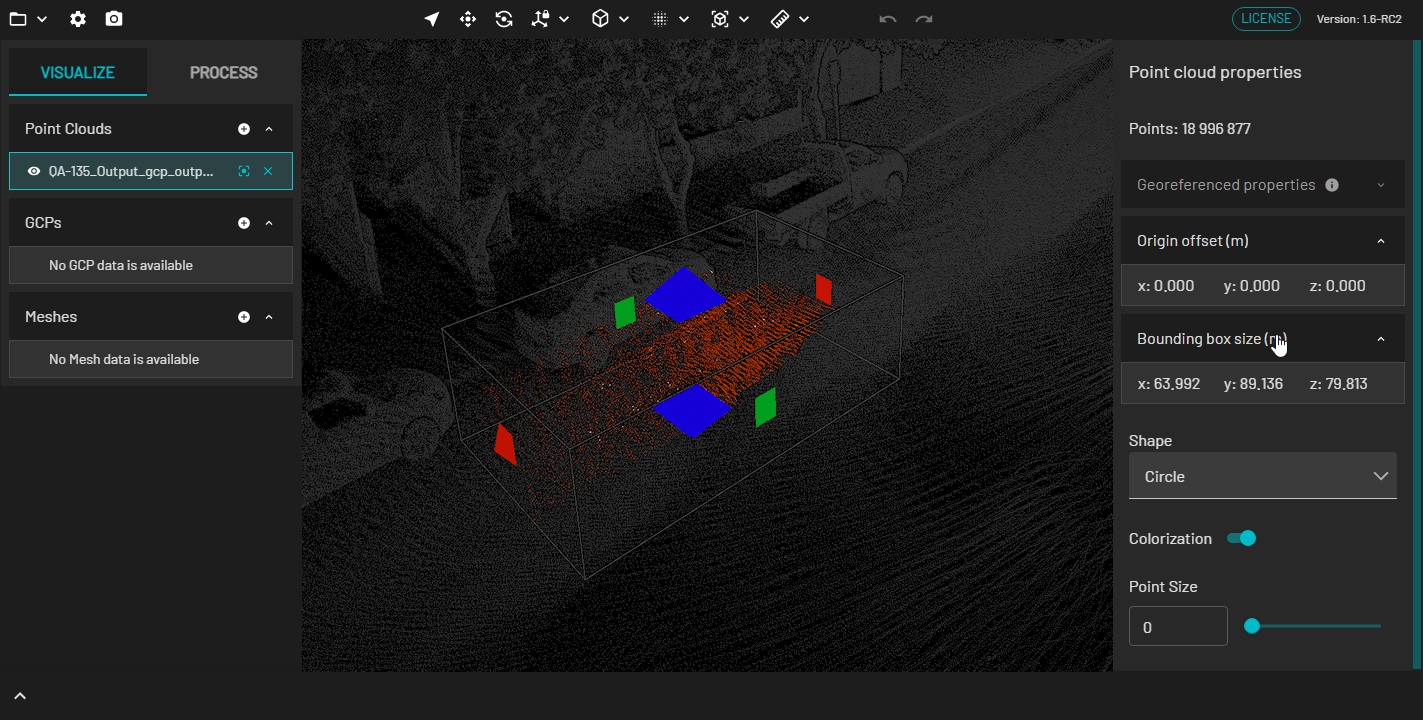
You can use the Rotate tool to align the road with the bounding box if needed.
Press Enter to apply the selection. To deselect, press Esc.
Deletion cannot be undone. Ensure you assess the selected points from multiple perspectives before deleting.
Press Delete to delete the selected points.