
This article describes how to process a scan onboard the Hovermap unit in Commander, review the processed mission, and transfer the processed files to the device running Commander.
From Commander 2.1 and Cortex 4.0, processed .laz files can be saved directly to the tablet. This allows network transfer of processed data, which removes the need for USB extraction from the Hovermap. Network transfer is useful on worksites with USB restrictions and improves integration with third-party software.
What you will need
Software: Commander 2.1 or later and Cortex 4.0 or later.
Hardware: A Hovermap unit with a completed mission ready to process.
Procedure
Step 1: Complete the mission
When the scan stops, wait for the Mission Complete pop-up to appear.
Select Review Mission to open the mission review screen.
(Optional) Enter a note for the mission report.
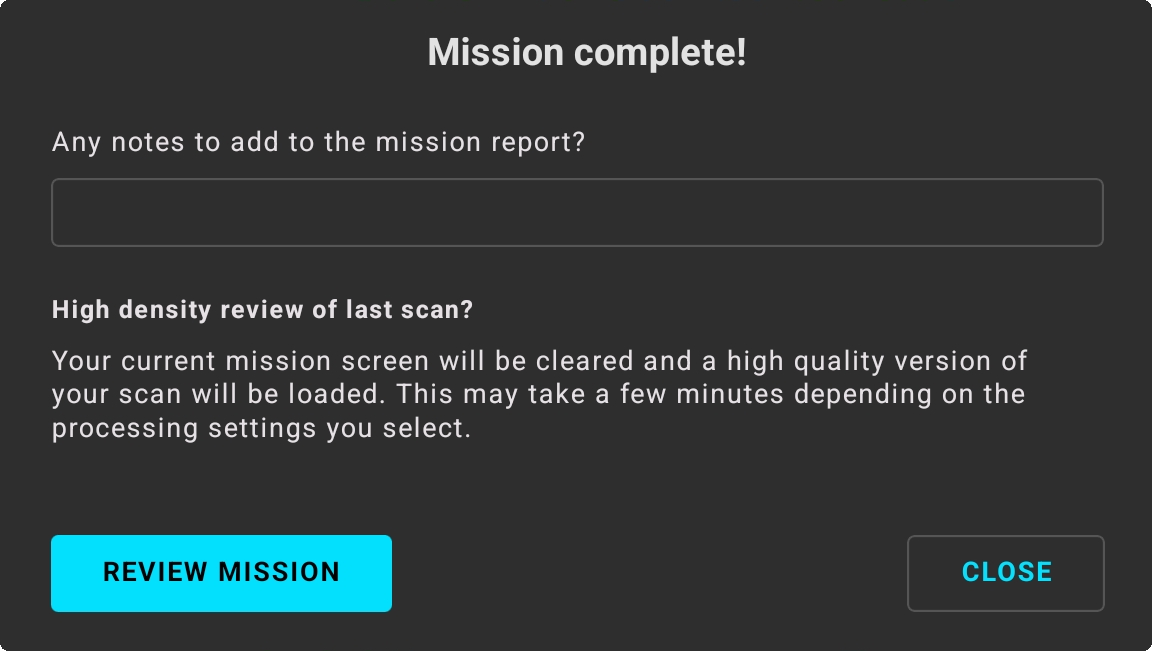
Figure 1. Mission Complete pop-up in Commander.
For more information on the Commander interface, see Commander user interface.
Step 2: Select a scan
Select the scan to process.
Tick the checkbox on the left side of the mission name to select it.
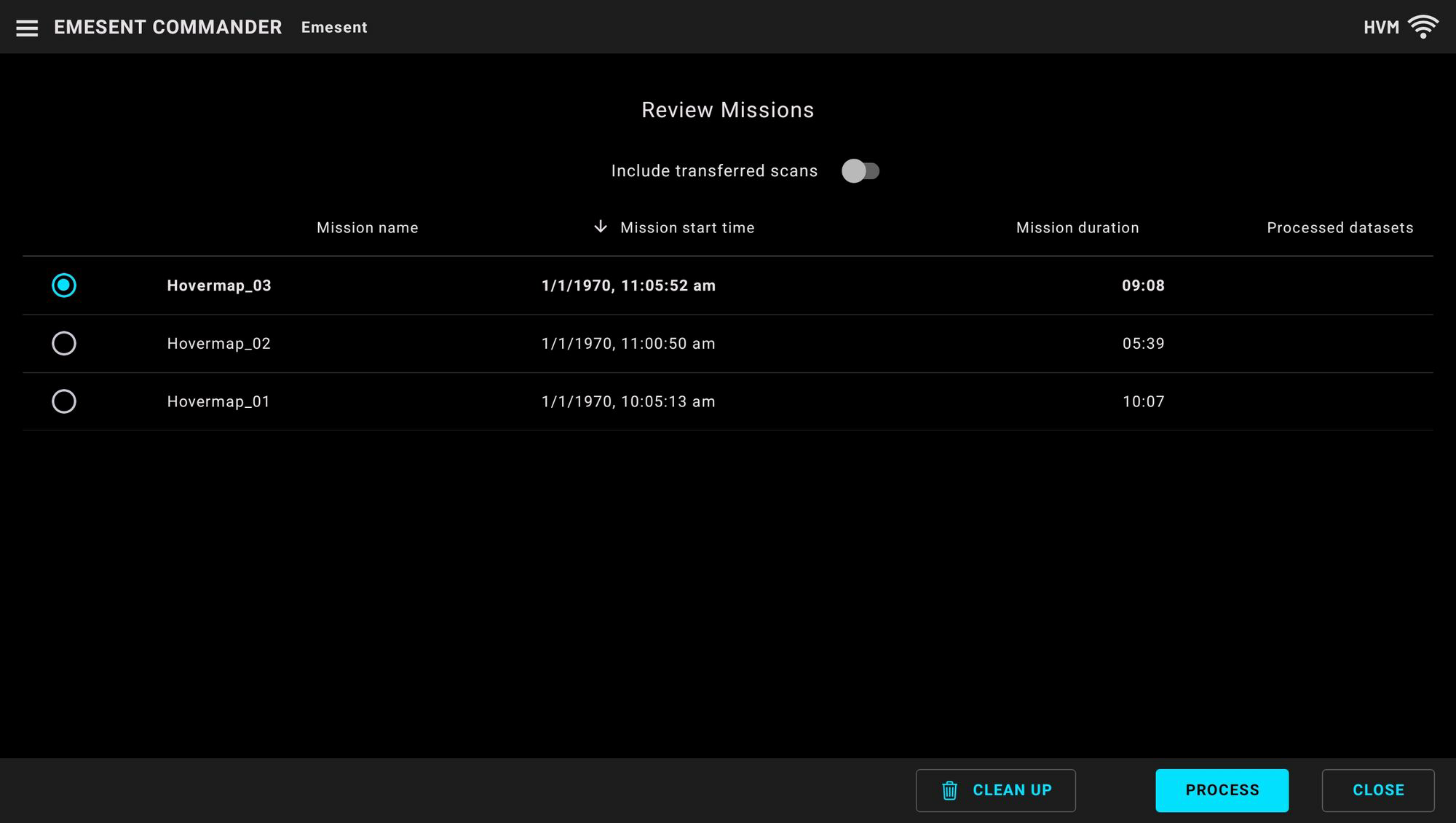
Figure 2. Selecting a scan in the mission list.
Step 3: Start processing
Select Process at the bottom right of the screen.
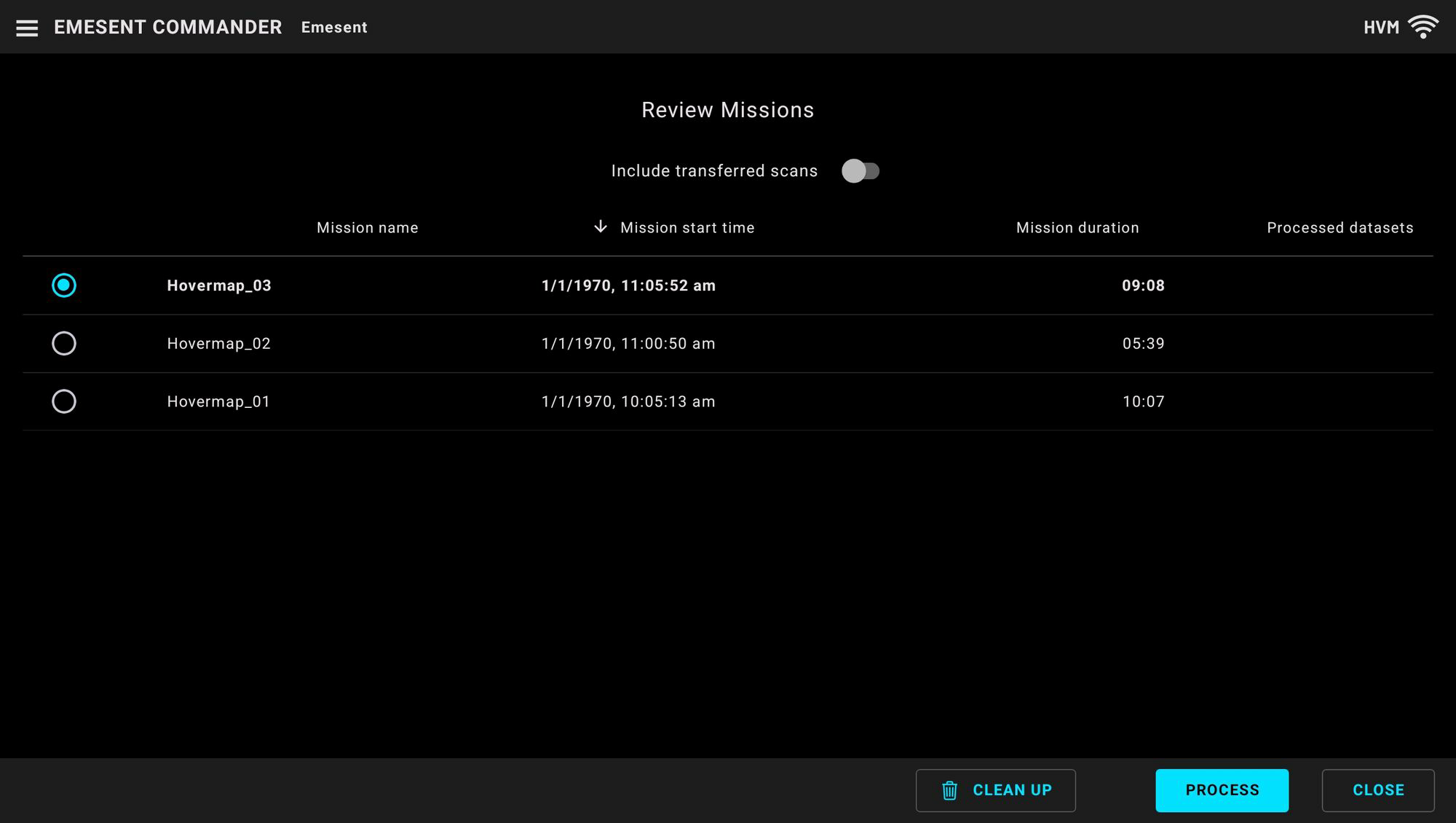
Figure 3. Process button in the mission review screen.
Step 4: Configure onboard processing
Select a Level of Detail. Available levels are Rough, Low, Medium, High, and Very High.
(Optional) Configure additional parameters:
Enable processing for scans containing reflective targets.
Enable the removal of long-range noise.
Step 5: Start processing
Select Start Processing. The scan begins processing. This may take several minutes, depending on the scan duration.
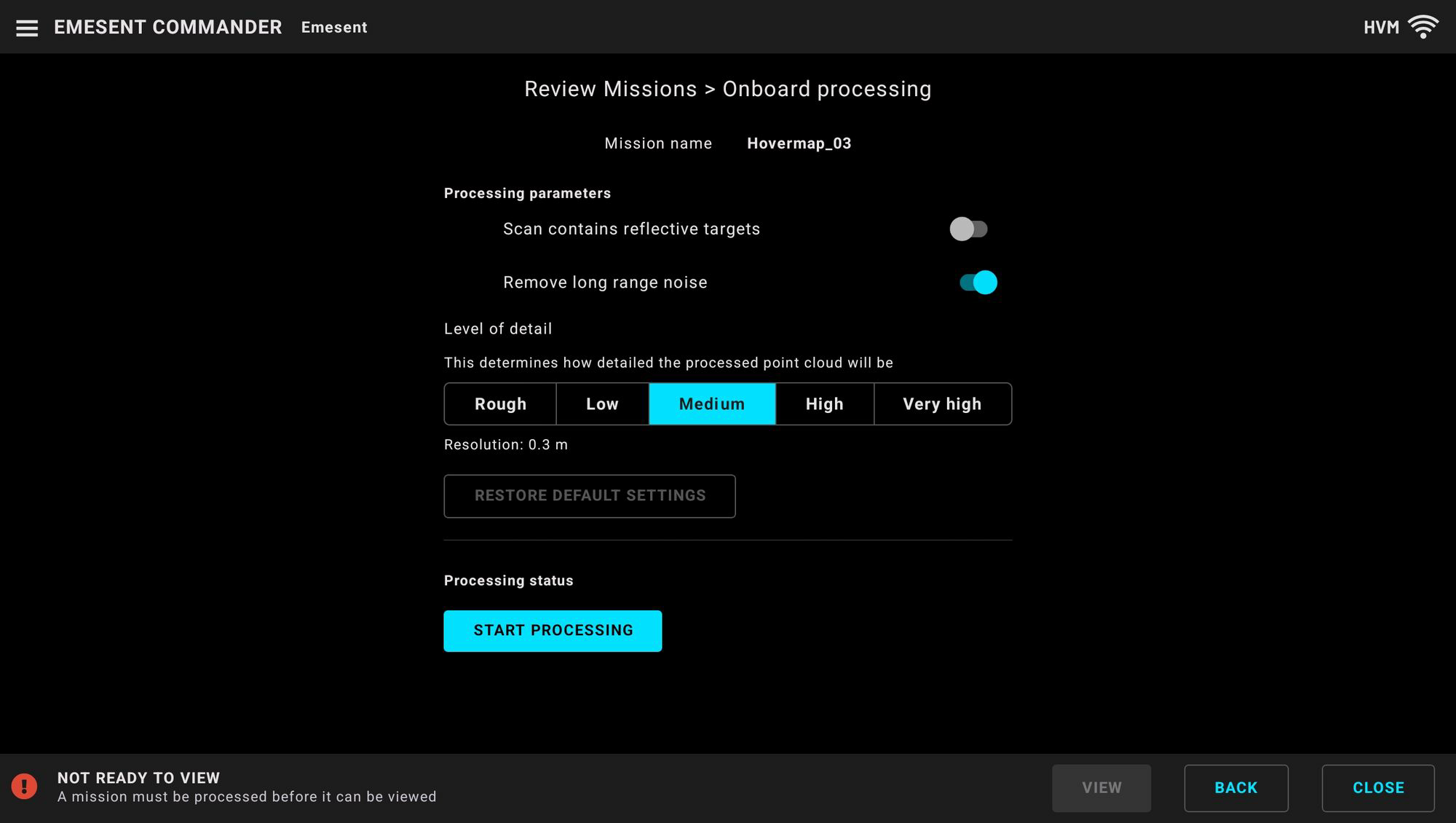
Figure 4. Start Processing button in Commander.
Step 6: View the processed mission
Wait for the status indicator to show Ready to View in green.
Select View at the bottom right to open the processed mission.
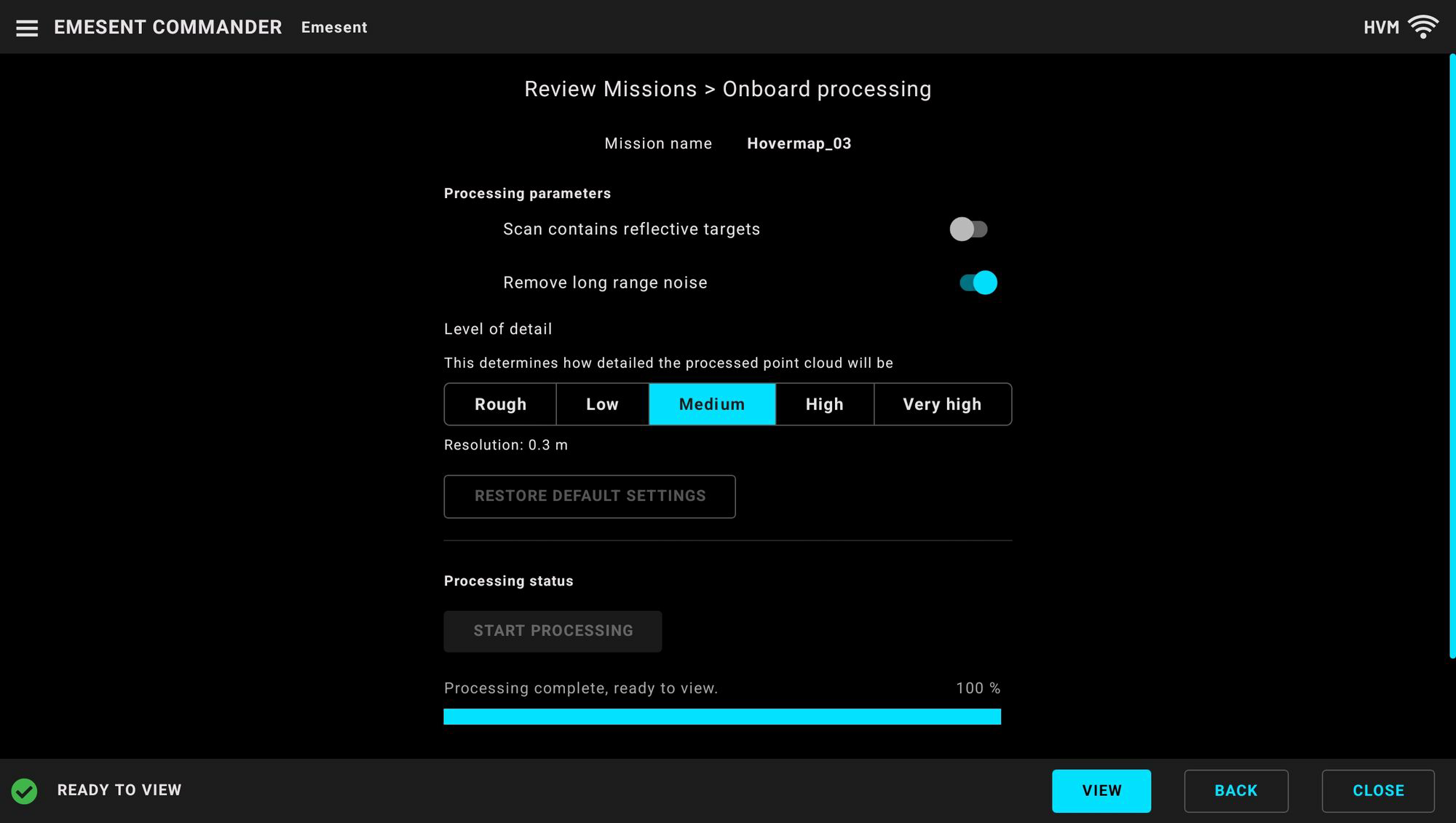
Figure 5. Ready to View status in Commander.
Step 7: Interact with the scan
Use the following gestures to interact with the scan and move the camera:
Pinch with two fingers to zoom.
Drag with two fingers to pan.
Drag with one finger to rotate (in perspective camera view).
Double-tap to teleport to a new view location.
To change how the point cloud is displayed, open Display Settings using the icon to the right of the camera tools. Display Settings is used to enable and configure clipping planes and other settings that provide greater control over scan visualisation and review.
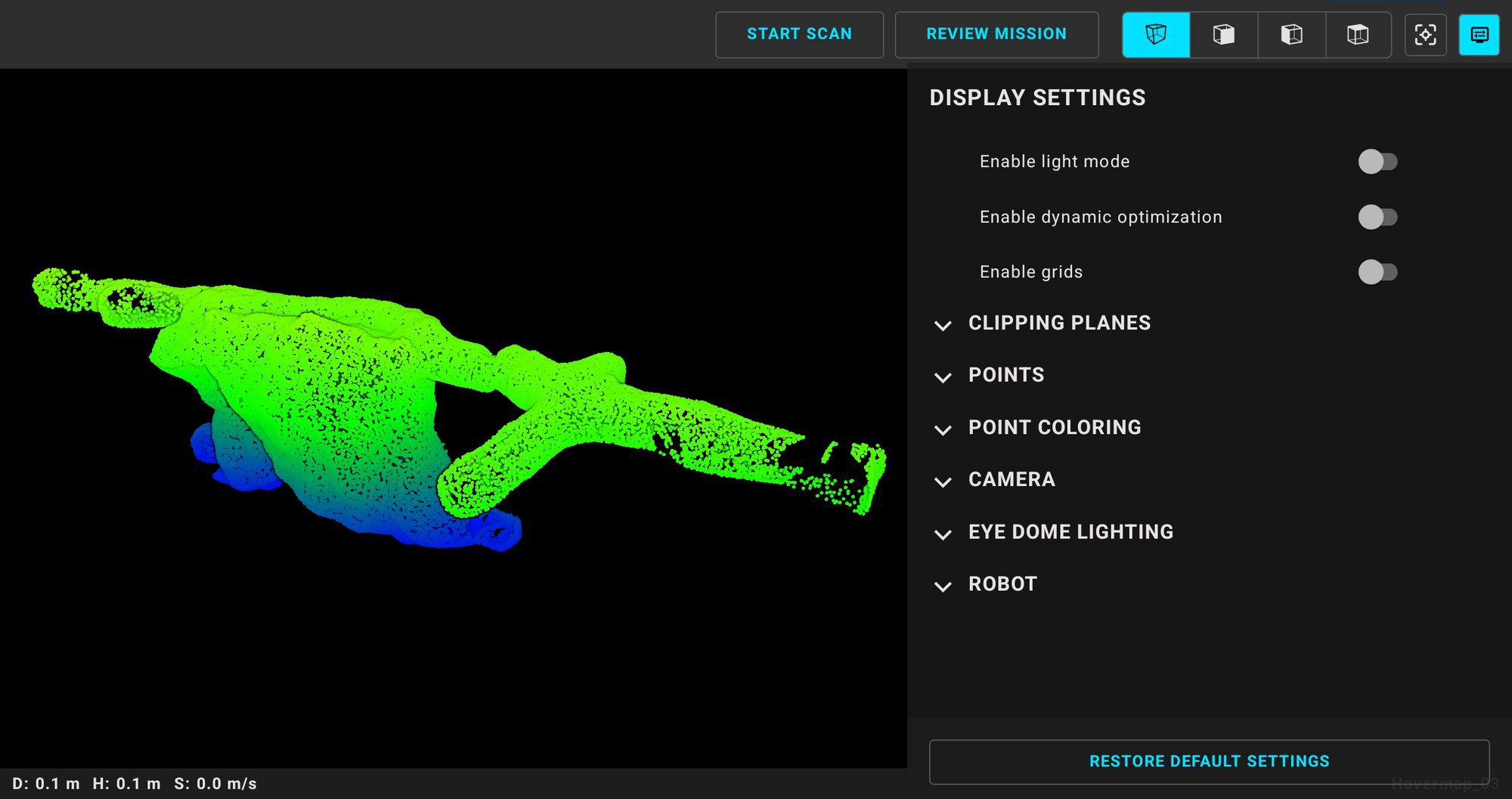
Figure 6. Display Settings in Commander.
Step 8: Review processed missions
Once processing is complete, expand each mission to show the details of individual scans.
Select the dropdown arrow on the right side of the mission entry to expand the mission.
Use the expanded view to:
View each processed scan.
Review the processing settings used.
View the file location if the scan has been transferred to the device running Commander.
Reprocess the scan with different settings.
Delete scans that are no longer needed.
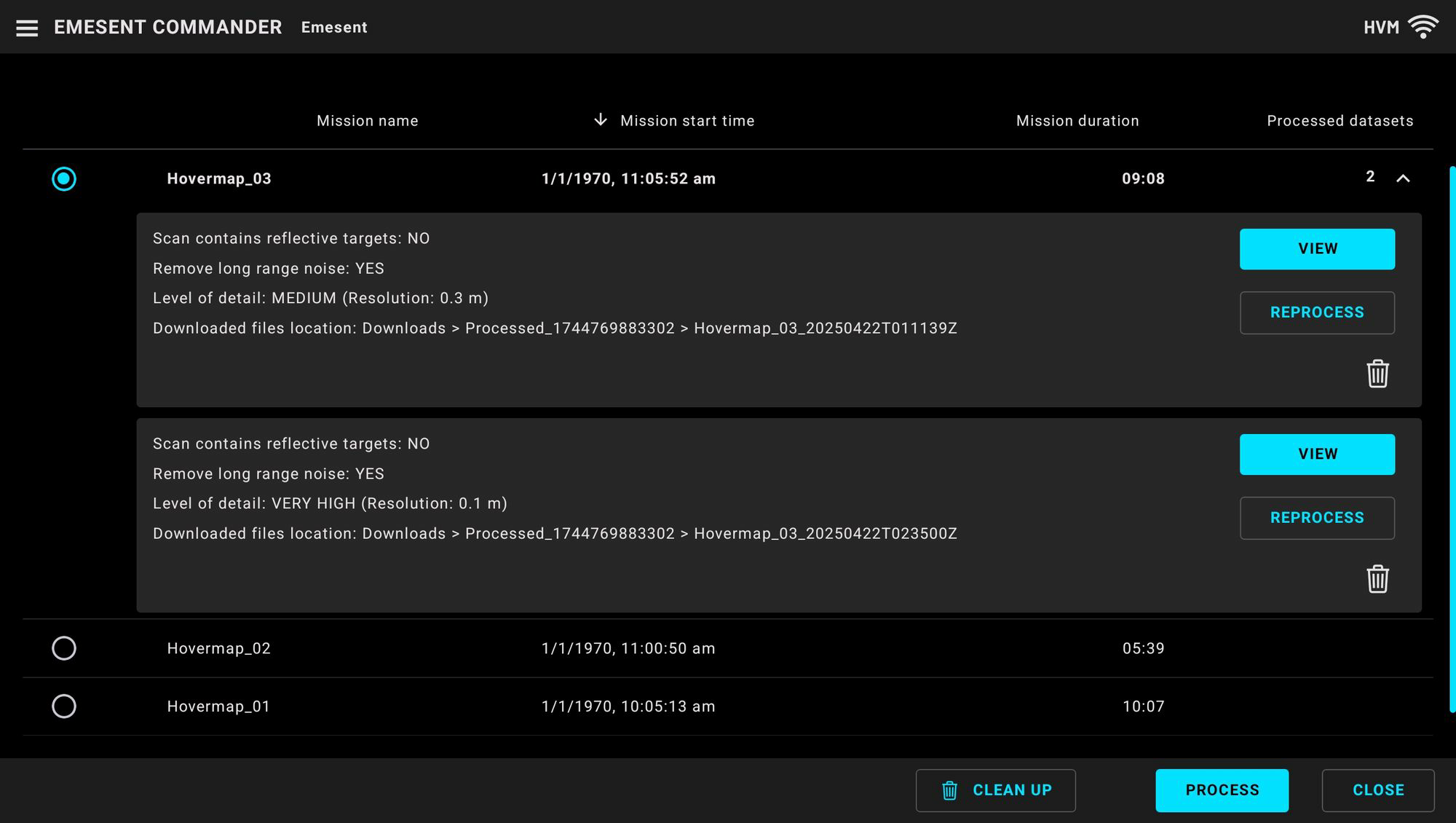
Figure 7. Expanded mission entry in Commander.
Step 9: Transfer onboard-processed files
Scans processed in Commander are processed on the connected Hovermap unit. They are not automatically transferred to the device running Commander.
To transfer a processed scan to the local device:
View the scan in Commander. This action starts the file transfer from the Hovermap to the local device.
Once transferred, locate the scan files on the Hovermap at the following path: Downloads/Processed_<ID>/<scan name>
Export scan data from this location as required.
To locate the exact download path, go to Review Missions and expand the dropdown arrow beside the relevant mission.
Outcome
The scan is processed onboard the Hovermap and the processed .laz files are transferred to the device running Commander, ready for export to third-party software.