
Starting a scan with LHD
Step 1: Connect Commander to Hovermap via Wi-Fi
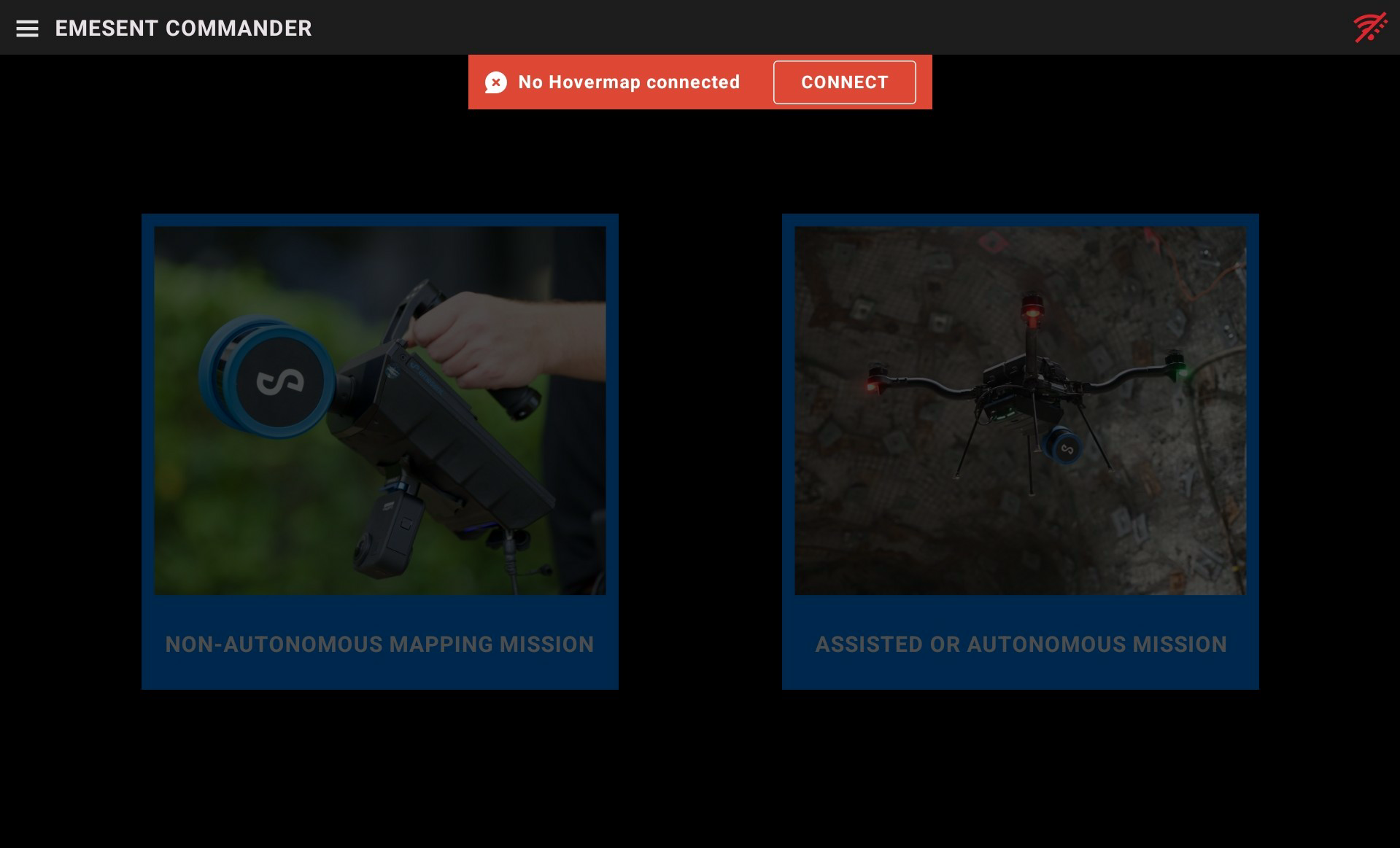
Launch Emesent Commander then tap Connect to display the Network Settings page.
Use the Android Wi-Fi Manager to ensure Wi-Fi is turned on.
Login to the Wi-Fi network where the Hovermap payloads are connected, then return to Commander.
In Commander, tap the red Connect button.
Alternatively, tap the Hamburger button on the top left then select Network Settings from the menu.
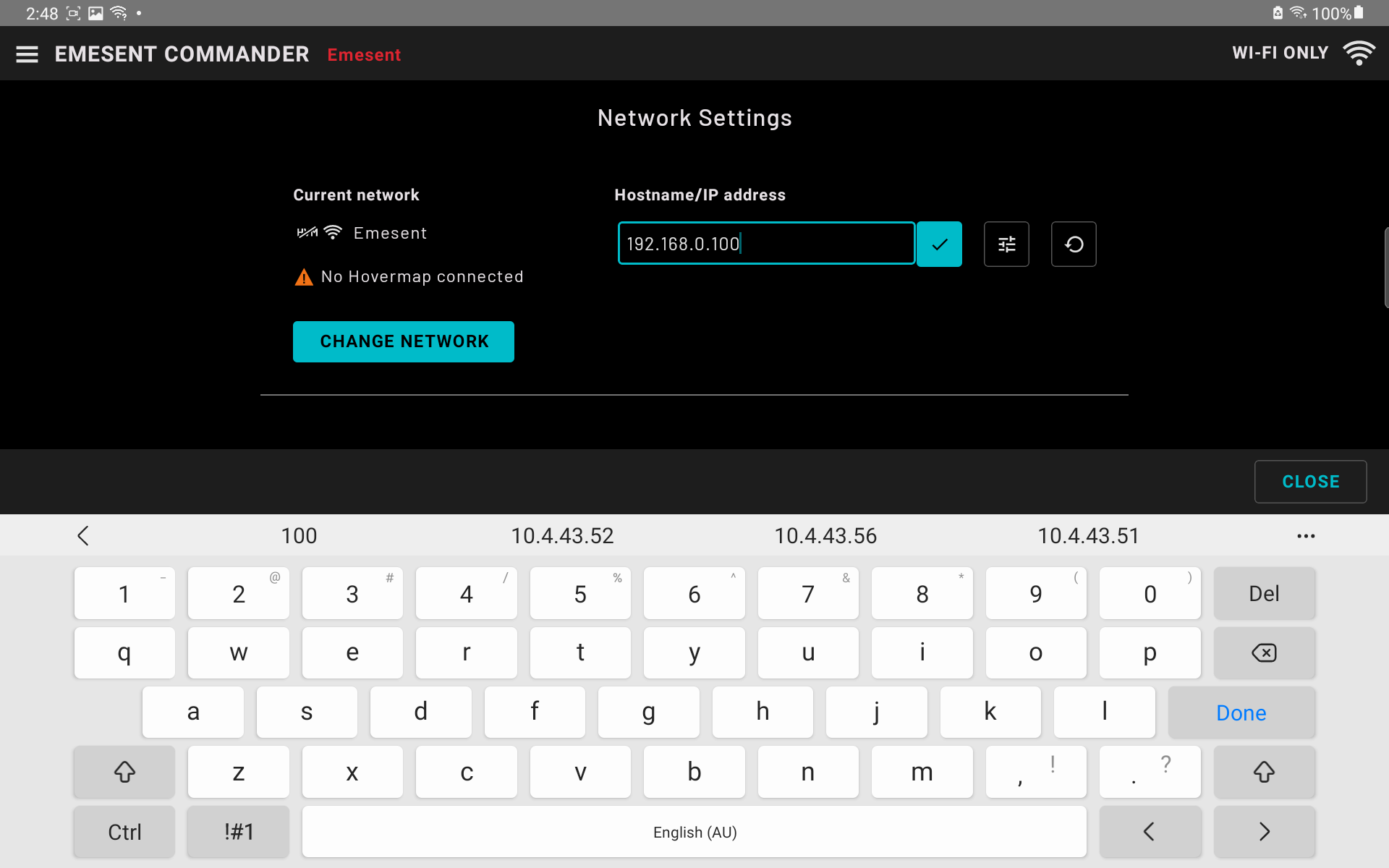
Enter the Hostname or IP address corresponding to the Hovermap payload hosted on the network, then tap the blue tick button beside the field or tap Done on the keyboard.
Once Commander detects the Hovermap and establishes a connection:
The “No Hovermap connected” message is replaced with “Connected” on the Network Settings page.
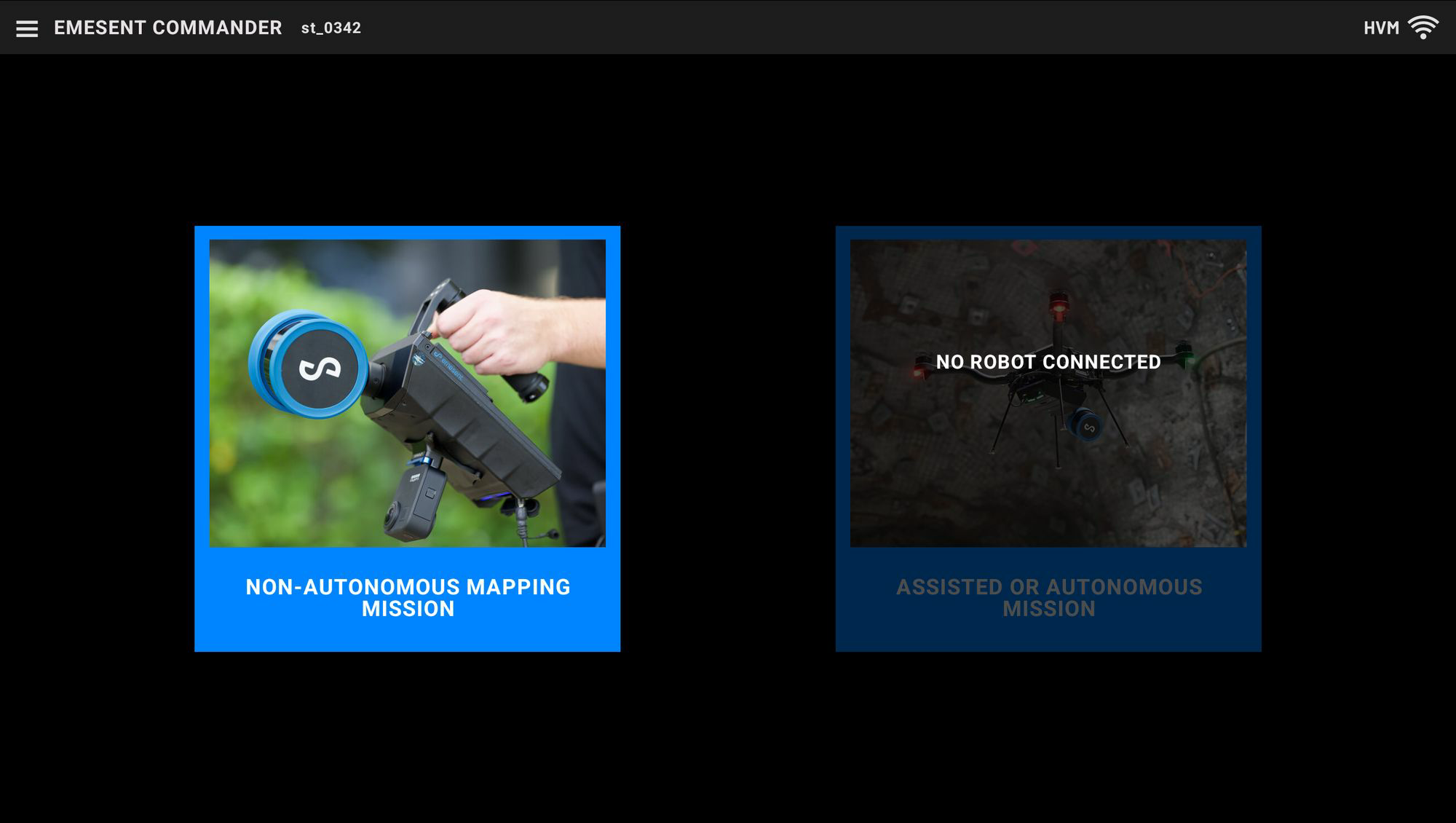
The red banner is removed from the landing page and the Non-Autonomous Mapping Mission tile becomes enabled.
Tap the Back button on the tablet to return to the Commander main landing page.
Step 2: Starting a Scan
On the Commander main landing page, tap the Non-Autonomous Mapping Mission tile.
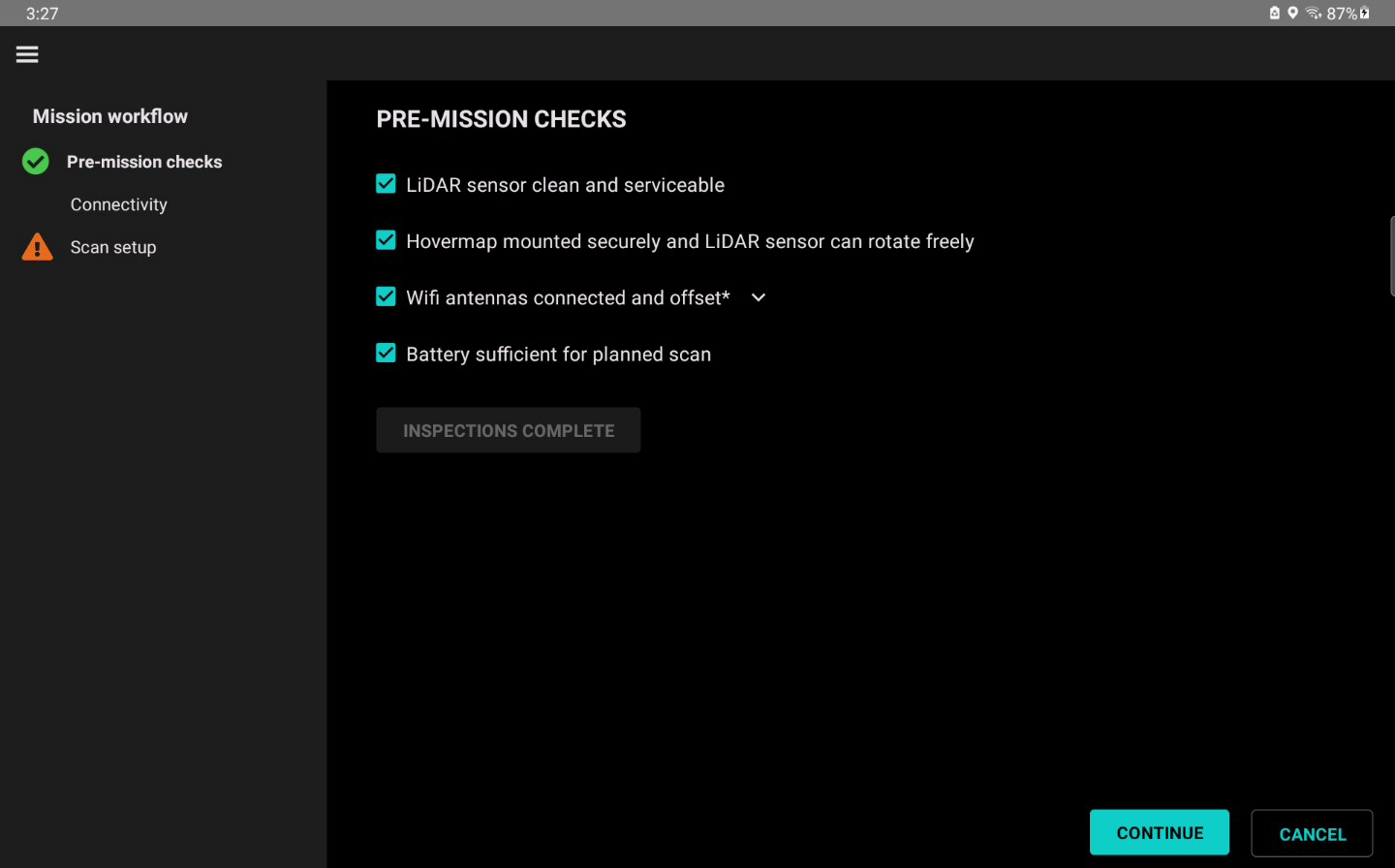
Complete the Pre-Mission checks, then press Continue.
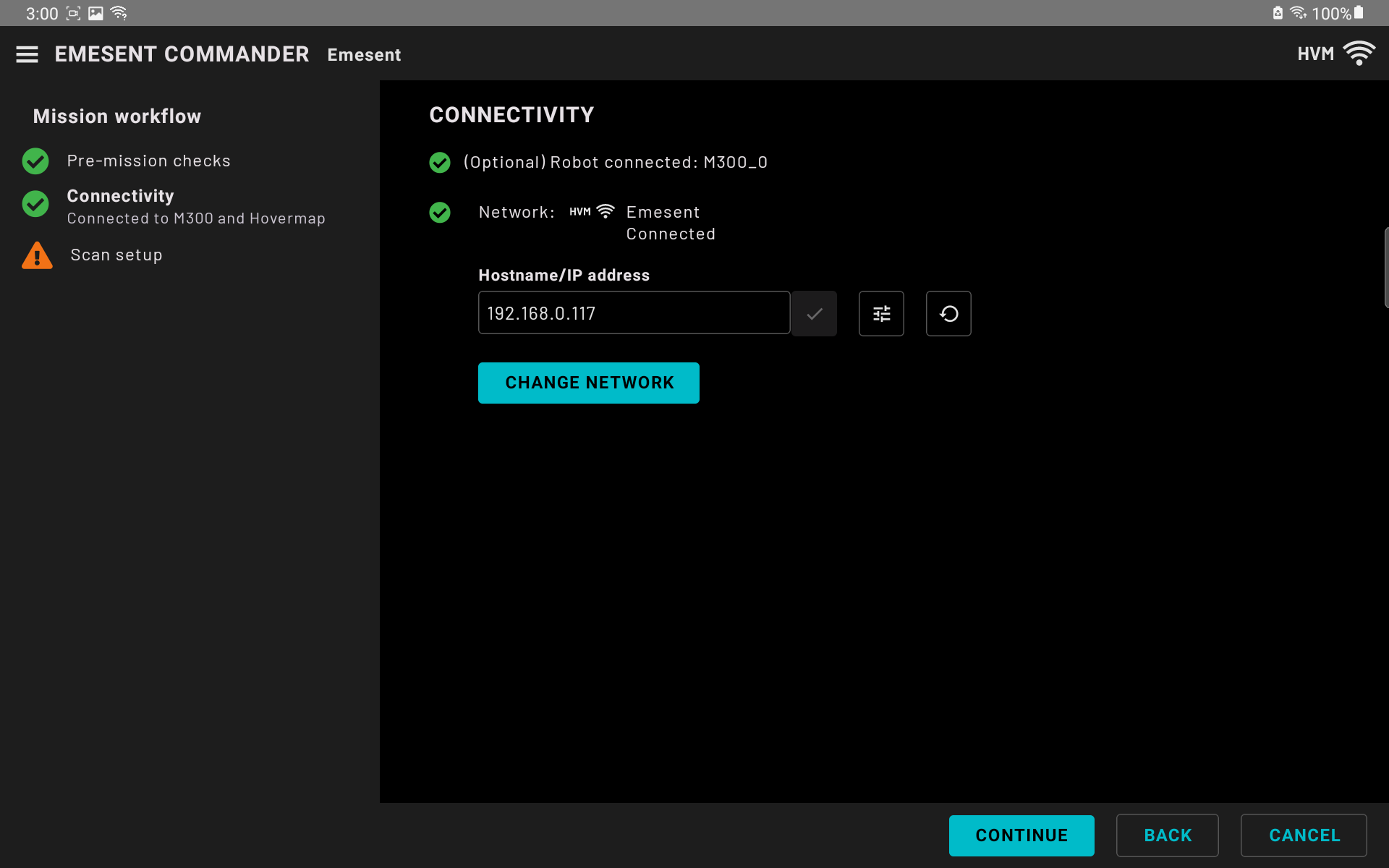
On the Connectivity page, observe that there is a green tick and the word “Connected” displayed beside the Network option, then press Continue.
On the Scan Setup page, enter the name of the scan then tap the tick button beside the field. All scan logs will be created with this name.
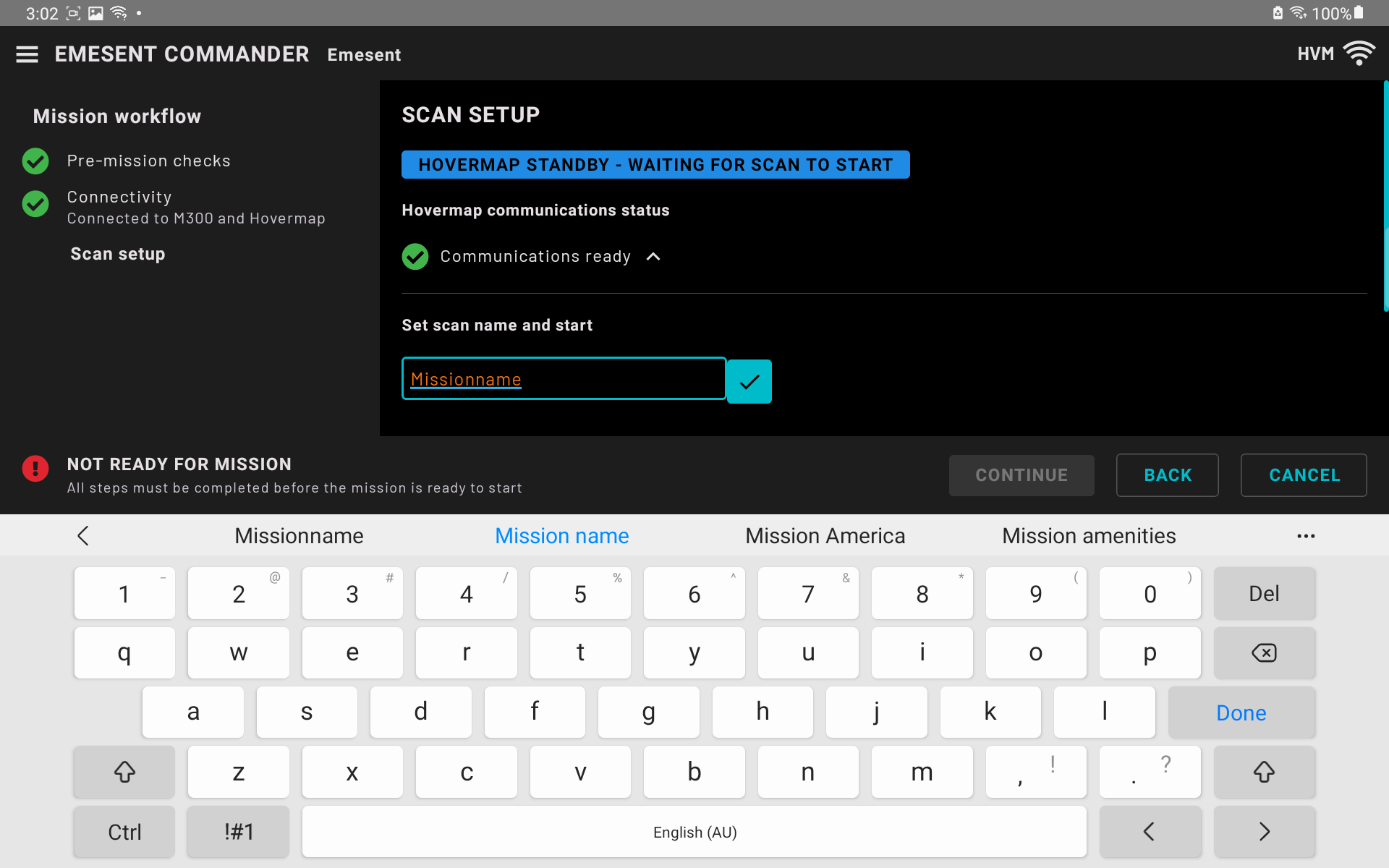
Tap the Start Scan button to begin the scan.
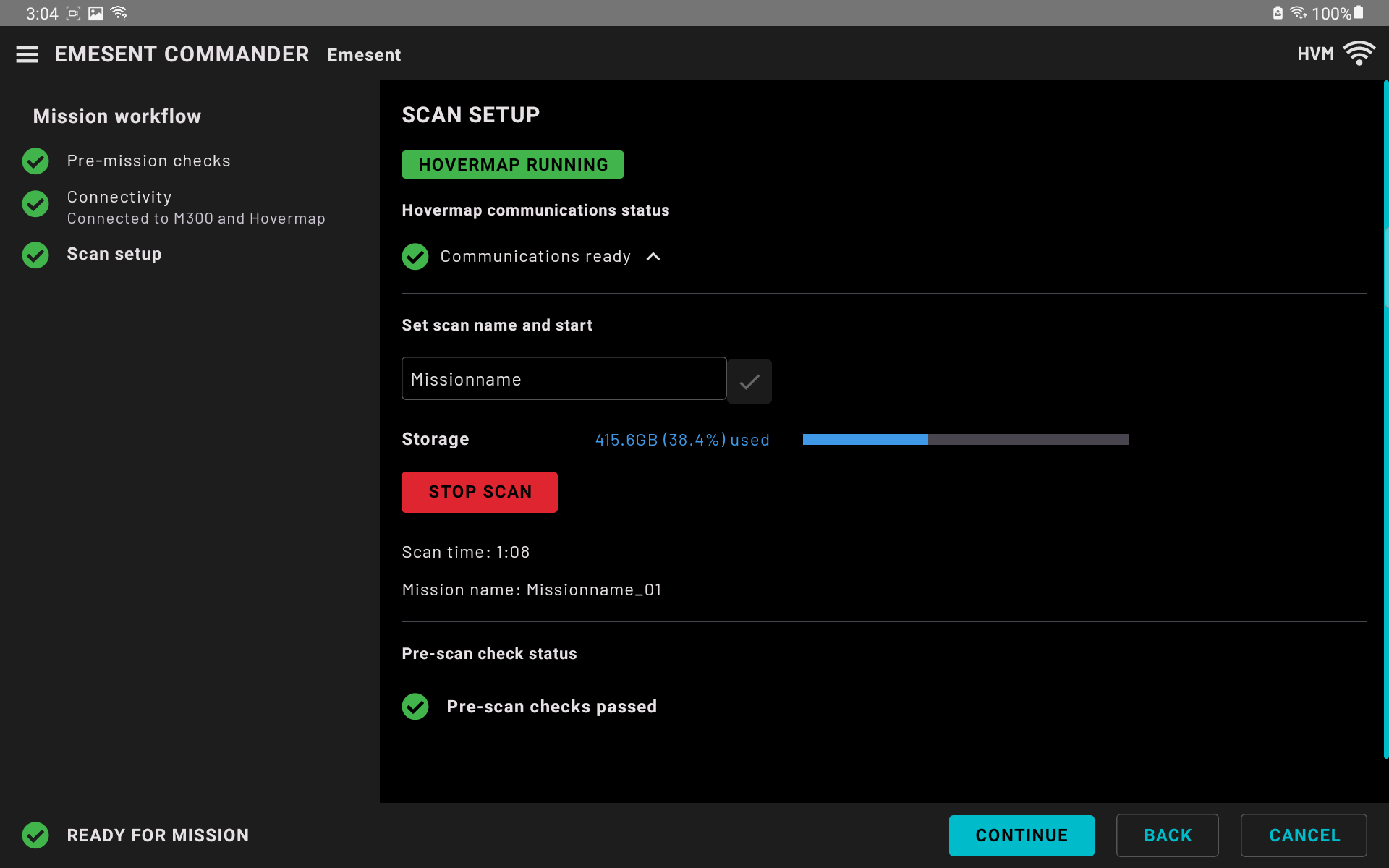
After the scan has completed pre-scan checks and started, tap the Continue button to navigate to the Main View.
The scan start-up process varies but may take up to 2 minutes to complete. Once the scan has successfully started a green tick and “Ready for Mission” message will be displayed at the bottom of the page.
In the Main View, the low-definition point cloud will be displayed.
Once the scan has been completed, tap Stop Scan at the top of the main view.
For best results with the high-density previews of a scan, limit the scan time to short durations (e.g. 1-3 minutes).