
This article explains how to capture a complete, high-quality Hovermap dataset with colorization. The result is a set of Hovermap scan files and GoPro video file(s) ready to be processed in Aura to produce a colorized point cloud.
This guidance is supplementary to the general Hovermap scanning instructions. For broader information on planning and conducting scans, refer to the Mission Planning and Scan Techniques articles.
What you will need
Hovermap fitted with a Colorization Mount, calibrated to the GoPro.
A GoPro calibrated with the Hovermap and Colorization Mount.
The colorization kit, including the GoPro mount, is installed and calibrated with Hovermap and a GoPro by Emesent or an authorized Emesent Partner prior to delivery. If this has not been completed, contact the local Emesent Partner or the Emesent Client Support team for assistance.
Procedure
Step 1: Prepare the GoPro
Incorrect setup or GoPro settings will result in unprocessable data. If this occurs, the scan must be recaptured.
Ensure the first-time setup guide has been followed for the GoPro.
Ensure GoPro settings are correct as per the Initial Setup Guide for Colorization.
Step 2: Mount the GoPro to Hovermap
Each Hovermap is calibrated with its designated GoPro as a matched pair. Always use the paired camera with the same Hovermap to ensure accurate colorization.
Place Hovermap on a flat surface, ensuring the colorization mounting bracket is facing upward.
Open the blue retention latch on the mounting bracket.
Insert the GoPro into the bracket. It will only seat correctly in the proper orientation.
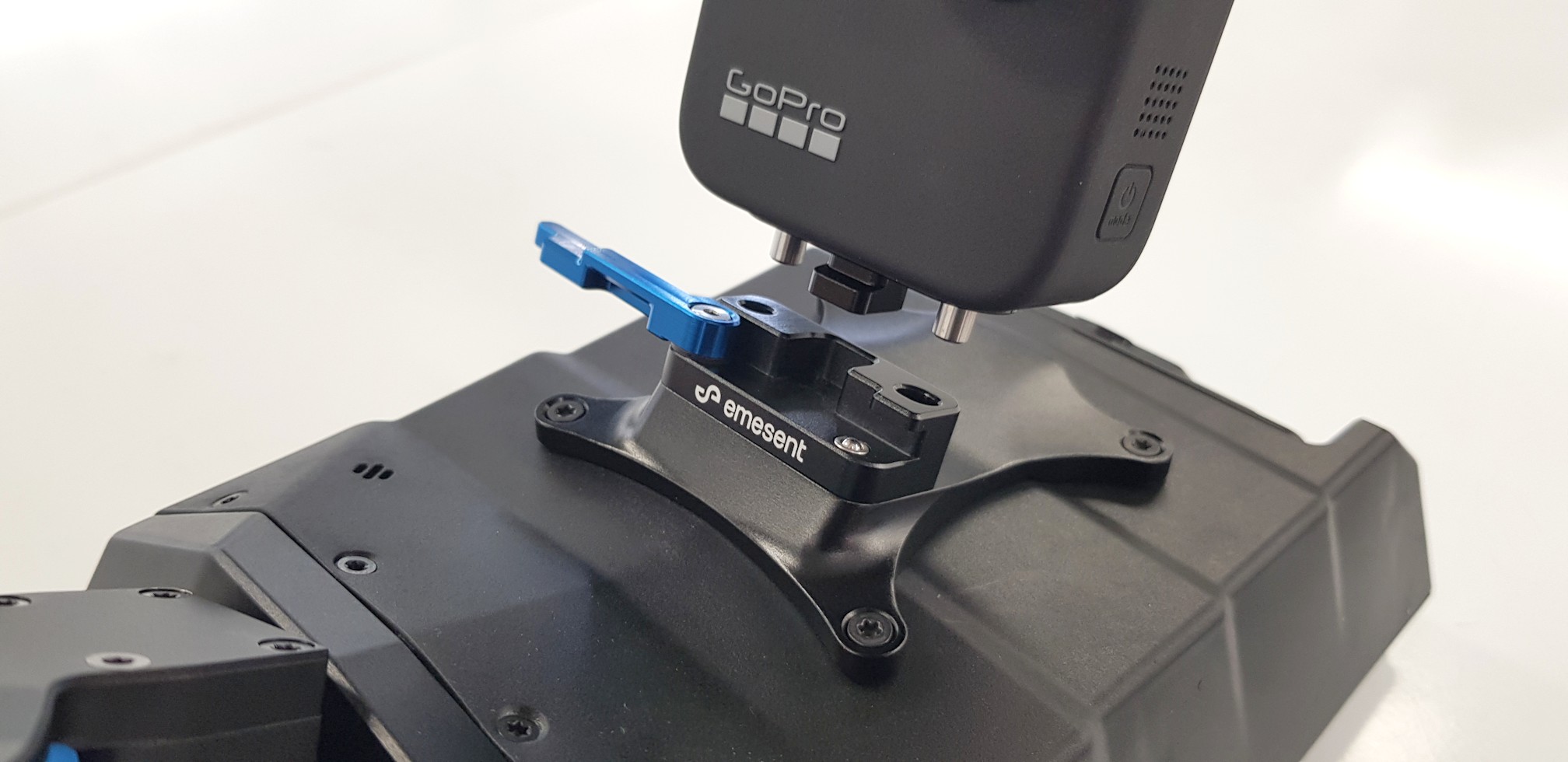
Close the retention latch securely to lock the GoPro in place. Gently wiggle the GoPro to confirm it is secure; it should not move when properly locked.
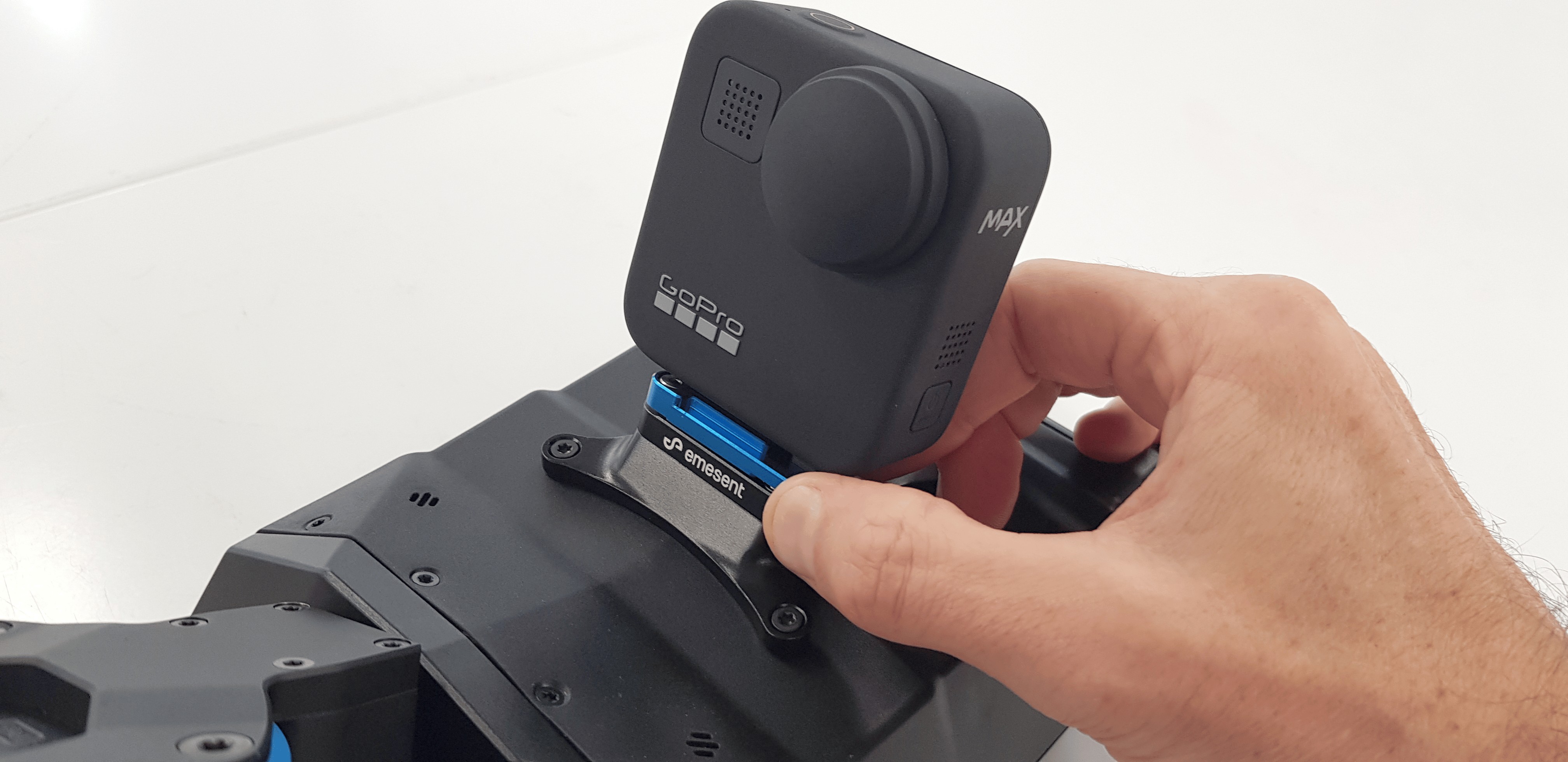
Remove the GoPro lens caps and verify the lens is clean and free of dust or debris before operation.
If the GoPro does not remain secure in the mount, or if a replacement GoPro is being used that has not been calibrated with the Hovermap, contact the local Emesent Partner or the Emesent Client Support team for assistance.
Step 3: Start the scan and video recording
Before starting, ensure Hovermap and the GoPro are powered on and configured for the intended setup (e.g. handheld, backpack, or vehicle mount).
For colorization, the Hovermap scan and the GoPro recording must be started at approximately the same time. This ensures Aura can align the datasets accurately, reduces errors that may prevent processing, and improves the quality of the colorized output.
Start the scan and video using one of two methods.
Option 1: Manual start
Quick-press the Start Scan button on the rear panel of Hovermap.
At the same time, quick-press the physical Record button on the GoPro.
Option 2: Remote start (optional)
This method is useful when Hovermap is not handheld (e.g. mounted on a backpack or vehicle).
Open the Emesent Commander App, connect to Hovermap, complete the mission workflow, then press Start Scan.
Open the GoPro Quik App, connect to the GoPro, then press the circle button to record.

Instructions for connecting the GoPro to the Quik App are available in the Colorization Quick Start Guide.
Step 4: Initialize Hovermap colorization
Start the scan and keep Hovermap stationary until it completes its pre-checks. This is indicated by Commander displaying Ready or the rear status LED slow-pulsing green.
Perform the initial motion depending on the setup:
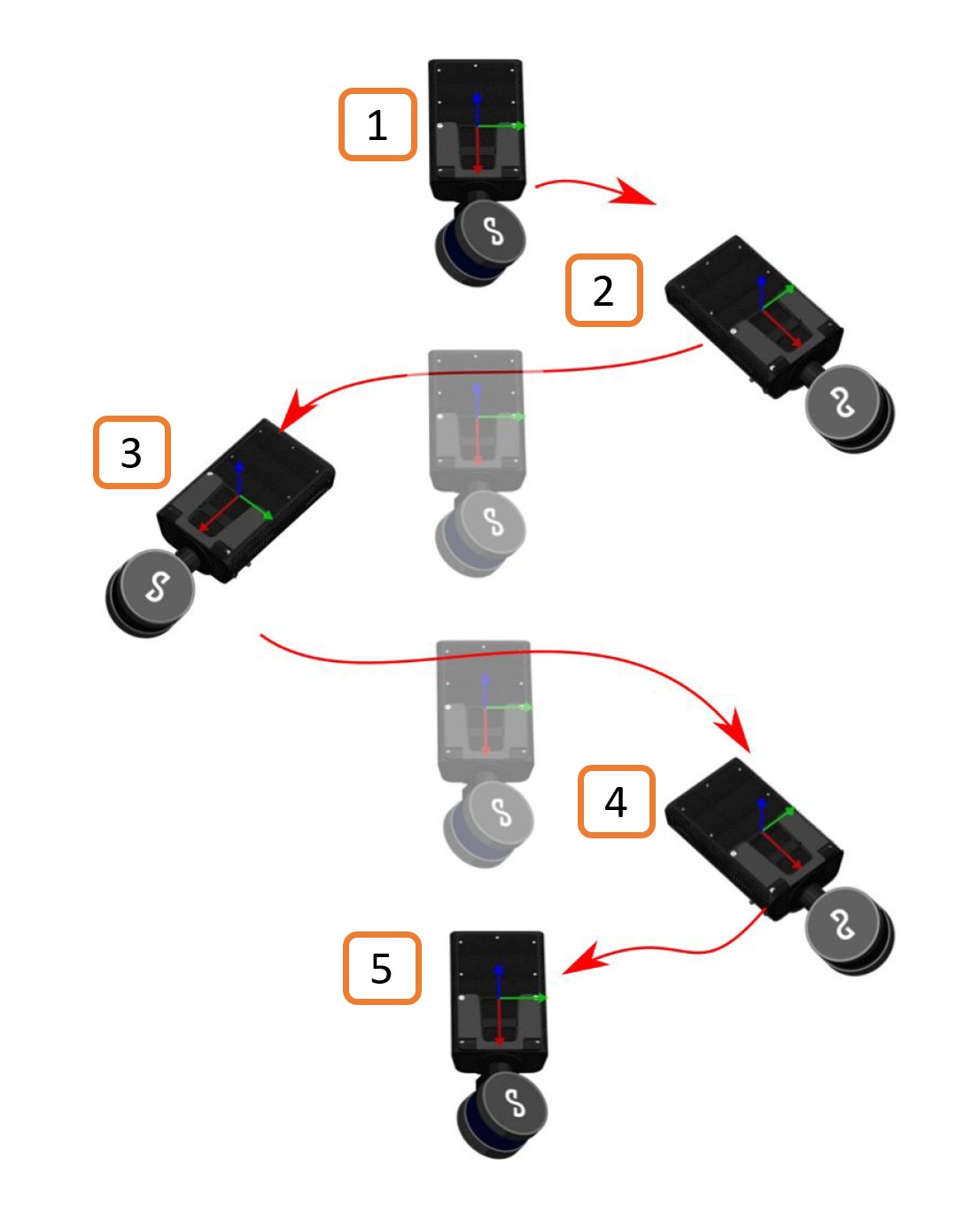
Handheld: Perform at least three strong side-to-side rotations (~60° each way) around Hovermap's vertical axis. Rotate quickly enough to generate clear angular motion, but avoid slow or hesitant movements.
Backpack: Sway side-to-side on the spot to provide sufficient angular motion for initialization.
Drone or vehicle: The initial movement of the platform is typically sufficient to generate the required motion data.
These rotations provide Aura with clear motion data to align the start of the scan with the video, ensuring accuracy, reducing errors, and enabling higher-quality colorization.
Step 5: Capture the scan
Move through the scan area, following the best practices listed under Capture best practices in the Additional information section.
Step 6: Complete the scan
Once the capture is complete, stop the Hovermap scan and stop the recording on the GoPro. Both files are required to generate a colorized point cloud in Aura. The scan and recording can be stopped manually or remotely.
Option 1: Manual stop
Quick-press the Stop Scan button on the rear panel of Hovermap.
Quick-press the physical Stop/Record button on the GoPro.
Option 2: Remote stop (optional)
In the Emesent Commander App, press Stop Scan to stop the scan.
In the GoPro Quik App, press the Stop Record button to stop recording.

Step 7: Retrieve the data
To process a colorization scan, both the Hovermap scan data and the GoPro video file(s) are required.
For Hovermap scan data, follow the offloading instructions in the Hovermap Operation Workflow.
For GoPro video files:
Connect the supplied USB-C to USB data cable between the GoPro and the computer.
Navigate to the GoPro storage. Video files are located in: GoProMTP Client Disk Volume\DCIM\100GOPRO.
Copy the video file(s) corresponding to the scan (e.g. GS010007.360, GS020007.360) into the same scan folder as the .bag.zst, metadata.yaml, and related Hovermap files. Aura requires both datasets in the same directory to generate a colorized point cloud.
Files can alternatively be transferred by removing the microSD card from the GoPro and inserting it into a card reader connected to the computer.
For longer videos, the GoPro may split recordings into multiple files. Keep the original filename sequence intact; changing the order can break synchronization and cause colorization failure.
Outcome
The Hovermap scan files and corresponding GoPro video file(s) are now in the same scan folder, ready to be processed in Aura.
Additional information
Capture best practices
There is no single way to capture a colorization scan. Following these best practices helps achieve accurate, consistent, and high-quality results.
Category | Best practice | Benefit |
|---|---|---|
Field of view | Keep subjects within the GoPro's field of view. | Only points captured by the camera can be colorized; ensuring subjects remain in view produces an accurate final point cloud. |
Perspective | GoPro only: Use smooth painting motions when scanning. Not required for 360° cameras, which capture in all directions. | Provides broad, consistent coverage and reduces the chance of missed areas. |
Movement | Minimize vibration and avoid jerky movements. | Prevents blurred frames and synchronization errors, improving Aura's ability to align video and LiDAR data. |
Move steadily and smoothly, avoiding sharp turns. | Preserves frame clarity and alignment, supporting consistent, high-quality colorization throughout the scan. | |
Distance | Keep objects within 2-20 m of Hovermap. | The most accurate and consistent colorization is achieved in this range. Scanning outside it still produces results, but slight reductions in color fidelity may occur. |
Lighting | Operate in an adequately illuminated environment. | The GoPro requires sufficient light to capture usable frames; appropriate illumination results in higher-quality video and more accurate colorization. |
Coverage | Spend additional time scanning critical subjects. | Captures more data for key objects, enhancing detail and improving the quality of colorization. |
Capture each object from multiple angles. | Expands coverage, reduces blind spots, and ensures complex surfaces are fully colorized. | |
Moving objects | Minimize movement in the scene, including people or vehicles. | Prevents mismatches between frames and point cloud data, avoiding ghosting or distorted color artifacts. |
Related articles
Next: Colorizing Point Clouds covers processing the captured dataset in Aura to produce a colorized point cloud.
For mask creation, see Create Custom Masks in Aura.