Commander uses your Emesent account credentials (the same used for Aura) for login and authentication. For details on account behavior, session expiry, and other login options, see the Commander User Login FAQ.
Step 1: Prepare Your Device
Before logging in, ensure the following:
- You have installed Commander on a supported tablet.
- Ensure you're using a compatible device for best performance.
- Internet access is required for your initial login.
- Connect your tablet to the internet, not to your scanner's Wi-Fi.
Step 2: Open Commander
-
Launch the Commander application on your tablet.
-
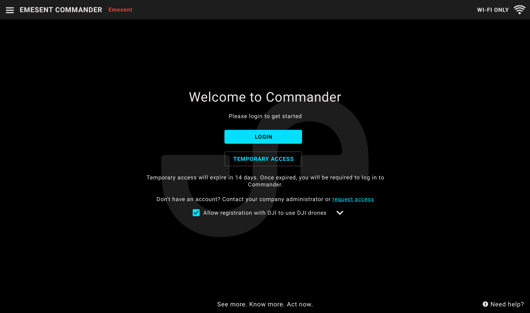
You'll see two options on the login screen: Login and Temporary Access.
-
If this is your first time opening Commander after an update, you may also see a "What's New" guide highlighting recent changes.
-
Step 3: Enter Credentials
-
Select Login on the login screen.
-
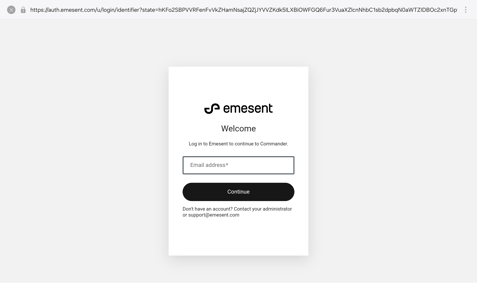
Commander will open the login form where you can enter your Emesent credentials.
-
Use the same credentials as your Aura account.
-
-
Press Continue to authenticate.
-
After a successful login, Commander returns to the Mission Select screen.
-
The use of password managers during login is not recommended. Password managers that navigate away from the Commander application may result in authentication failure.
If you're unable to log in, you can select Temporary Access. This allows you to operate without logging in for up to 14 days. Once that time expires, you'll need to connect to the internet and log in before you can continue using Commander.
Step 4: (Optional) Check Session Time Remaining
If you know you'll be without internet access for a while, you can check how much time remains before your login session expires.
-
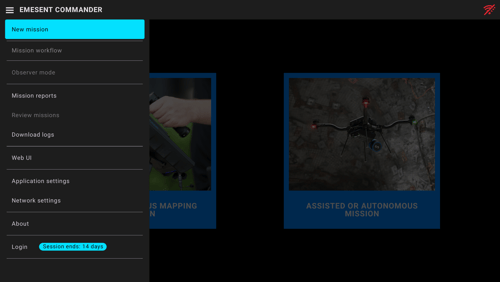
Open the options menu on the left side of the main toolbar.
-
Look at the bottom of the menu, next to the Logout button.
-
You'll see a countdown showing how many days are left in your session.
-