This guide walks you through the initial setup of Emesent Commander, including enabling location services, granting required permissions, accepting the End User License Agreement, and logging in for the first time.
The steps below may differ slightly depending on the Android version of your tablet. The general process remains the same across most Android devices.
Step 1: Activate Location Services
Follow these procedures to ensure your device's location services are enabled.
-
Open the Settings app on your tablet.
-
Select Location.
-
If the switch at the top is Off, turn it On.
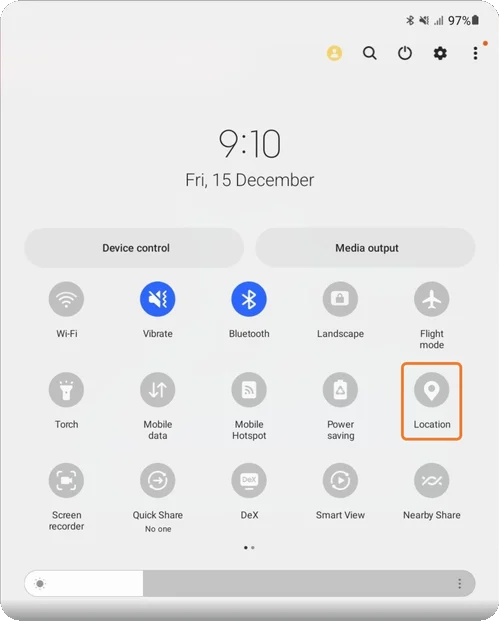
Alternatively, swipe down on the screen to open the Quick panel, then tap the Location icon to enable location services.
Step 2: Launch Commander and Enable Permissions
When running Emesent Commander for the first time, you'll be prompted to grant several permissions.
-
Launch the Commander application.
-
Allow the following permission requests when prompted:
|
Permission Dialog |
Required Setting |
Prompt |
|---|---|---|
|
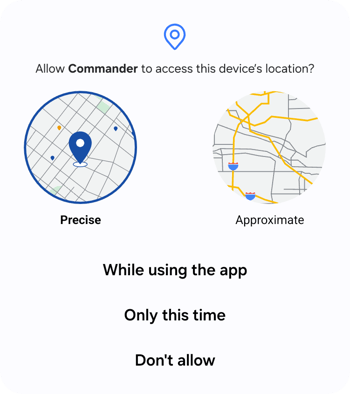
Allow Commander to access this device's location? |
While using the App |
 |
|
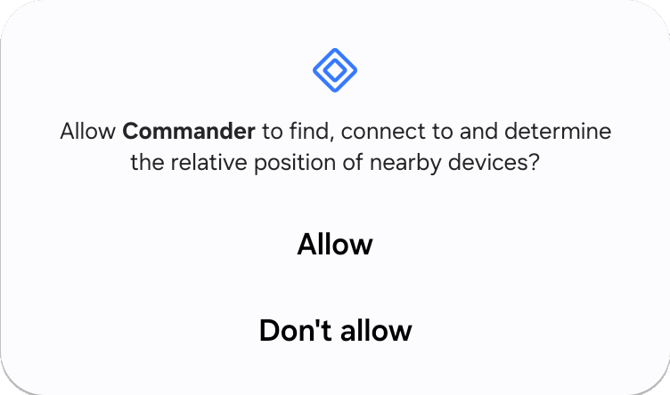
Allow Commander to find, connect to and determine the relative position of nearby devices? |
Allow |
 |
|
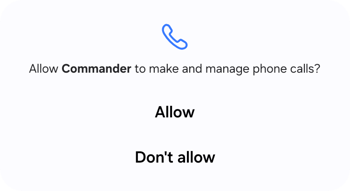
Allow Commander to make and manage phone calls? |
Allow |
 |
|
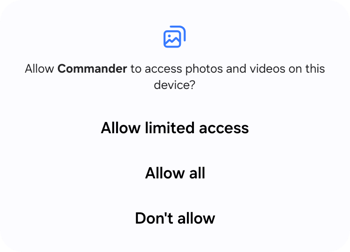
Allow Commander to access photos and videos on this device? |
Allow All |
 |
Step 3: Accept the End User License Agreement
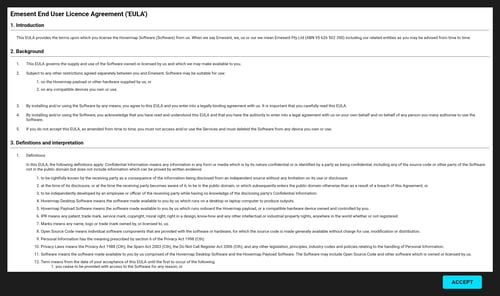
- Read the Emesent End User License Agreement (EULA).
- Tap Accept to agree to the terms and continue.
Step 4: Log into Commander
-
When prompted to log in, follow the steps in our How to Log into Commander guide.
-
After successful login, Commander will take you to the landing page, ready for connection to Hovermap.
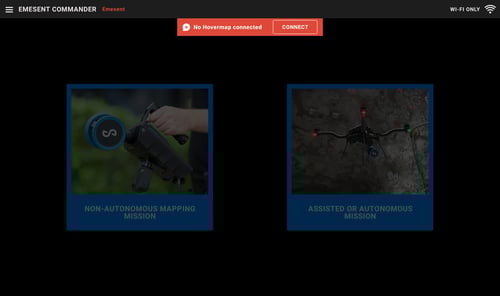
For more information on connecting to Hovermap and operating Commander, refer to the Emesent Commander App section of the Hovermap User Manual.
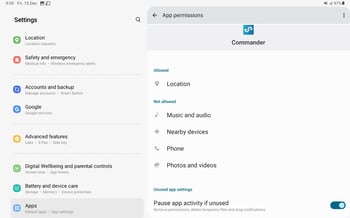
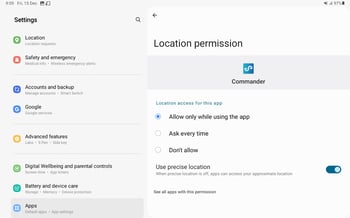
(Optional) Changing Permission Settings
If you need to change permission settings after initial setup:
-
Open the Settings app on your tablet.
-
Select Apps.
-
Tap the Commander app to see all allowed or denied permissions.
-
To change a permission setting, tap it, then choose the necessary permission option.
|
|
|