
Long, linear scans are the most difficult scenario for mobile-based LiDAR. These environments often have very limited features, which makes it harder for Hovermap to remove accumulated drift, and there is a risk of a SLAM slip if the scan is not planned carefully. The most common errors are a bend in the scan or a split on the way back.
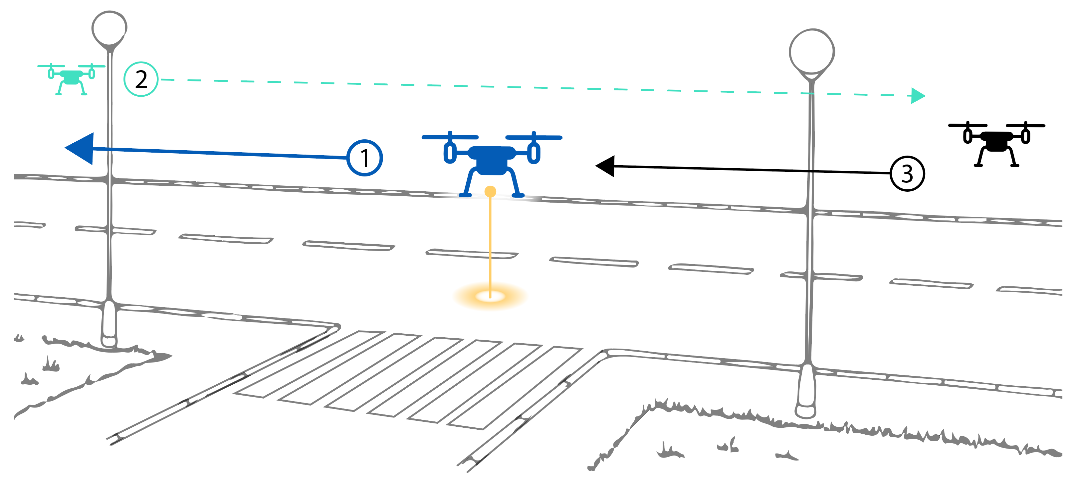
The recommended process is as follows.
What you will need
A Hovermap unit configured for the scan platform in use (handheld, vehicle, backpack, or drone).
Emesent Commander installed and connected to Hovermap for live monitoring.
Aura installed for processing the scan data after capture.
For outdoor scans: Ground Control Points (GCPs) placed along the area of interest for accurate georeferencing.
Procedure
Step 1: Complete pre-mission checks
Complete the required pre-mission checks.
Step 2: Prepare the environment
For outdoor scans, use Ground Control Points (GCPs) for more accurate results. Ideally, GCPs surround the area of interest and are placed along the entire length of the road or tunnel. For more information, see the Georeferencing section.
Step 3: Perform the mission
Start the scan halfway down the road or tunnel.
While scanning, check the live point cloud in Emesent Commander to ensure data is being collected correctly.
Move Hovermap as slowly and as close to the ground as possible.
Move Hovermap in a zig-zag pattern towards one end of the road or tunnel. The zig-zag pattern captures more of Hovermap's surroundings, allowing for a more accurate scan.
Turn around slowly, giving Hovermap time to see both new and old features while turning.
Move back towards the other end of the road or tunnel in a zig-zag pattern. Continue past the halfway starting point.
Once Hovermap reaches the other end of the road or tunnel, turn around slowly, again giving Hovermap time to see both new and old features while turning.
Move back towards the halfway starting point in a zig-zag pattern. Continue slightly past the halfway point to finish the scan.
Step 4: Process the scan data
Process the scan data in Aura. Select the Standard profile for the first job.
If the results are not as desired, change the processing parameters. For a linear scan such as a road or tunnel, the recommended changes to the Local Mapping parameters are:
Section | Parameter | Value |
|---|---|---|
Local Mapping | Sliding size in seconds | 15 |
Sliding shift in seconds | 0.6 |
These parameters work more often than not, but results still depend on the specific environment. If the result is not as expected, adjust the remaining settings. Be aware that tuning beyond the recommended parameters significantly increases processing times.
Outcome
The road or tunnel has been scanned and the scan data has been processed in Aura.
Related documentation and support
Scan a stope with Hovermap in Autonomous mode.
Scan a shaft, raisebore, or ore pass with Hovermap.
Scan a bridge with Hovermap.
How does Hovermap navigate?
Georeferencing.
For assistance, contact the regional Emesent partner or the Emesent Client Support team.