
The Long Radio Radio (LRR) is a Hovermap accessory designed to extend data connectivity beyond typical Wi-Fi ranges. Tailored for Pilot Assist or Autonomous mode missions, it ensures uninterrupted communication between the operator and the Hovermap over extended distances.
This capability is particularly beneficial for above-ground data capture applications such as aerial surveying and infrastructure inspection, where maintaining a reliable data link is crucial for mission success.
LRR can also be used in Mapping mode missions, provided the Hovermap is used on a drone.
Specifications
Dimensions and Weight | |
|---|---|
Air-Side |
|
Ground-Side |
|
Operating Frequency and Power (Long Range Link) | |
|---|---|
2.4GHz Model | EU/UK: 2447-2457MHz @ 20dBm EIRP |
915GHz Model | AU/NZ/US/CA: 916-926MHz @ 30dBm EIRP |
Operating Frequency and Power (Ground-side Wi-Fi Access Point) | |
All Models | 2437-2447MHz @ 20dBm EIRP |
Max Distance | |
2.4GHz Model | EU/UK: 200m |
915GHz Model | AU/NZ/US/CA: 1500m |
All specified ranges are subject to environment and product configuration
Throughput | |
|---|---|
All Models | up to 20Mbps |
Data Encryption | |
All Models | |
Power | |
|---|---|
Air-Side | 9-20V (15W) |
Ground-Side | 7.2V (14W) |
Operating Temperature | |
All Models | -10°C to 45°C (14°F to 113° F) |
Ingress Protection | |
All Models | Designed to IP65 |
Hovermap Compatibility | |
|---|---|
All Models | ST/STX |
Approved Regions | |
2.4GHz Model |
|
915GHz Model |
|
Radio Setup
Step 1: Air-Side Radio Setup
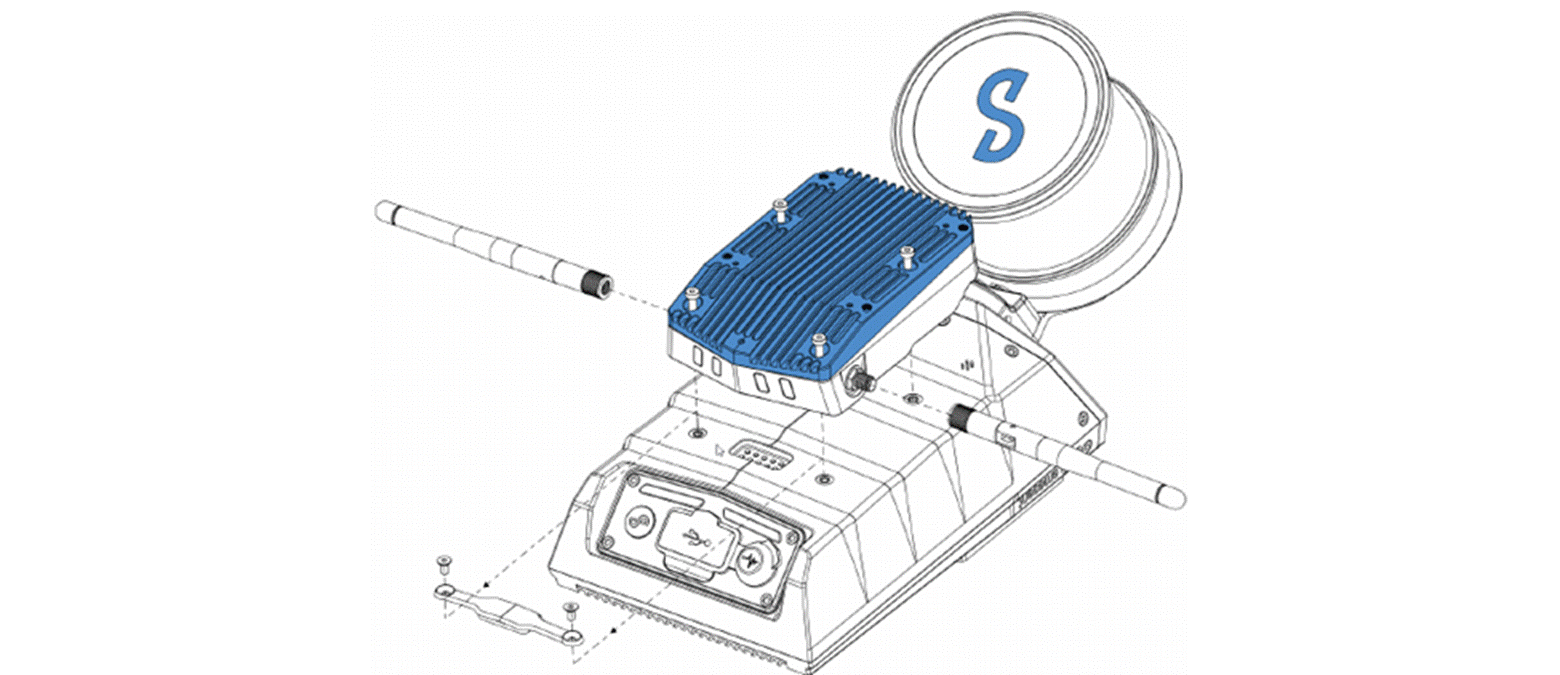
Step 1: While Hovermap is powered off and unplugged, clean the bottom shroud of the Hovermap with a water-damped cloth.
STEP 2: Unfasten the Smart Connector cover from Hovermap using the included 2mm hex key.
STEP 3: Apply a threadlocker (Loctite 222 or equivalent) to the exposed threads of the four air-side radio mounting screws.
STEP 4: Locate the air-side radio on the bottom of Hovermap as pictured.
STEP 5: Fasten each of the four screws on the air-side radio by a small amount at a time, until the radio is securely mounted to the Hovermap.
Do not exceed a torque of 1 Nm.
Step 2: Ground-Side Radio Setup
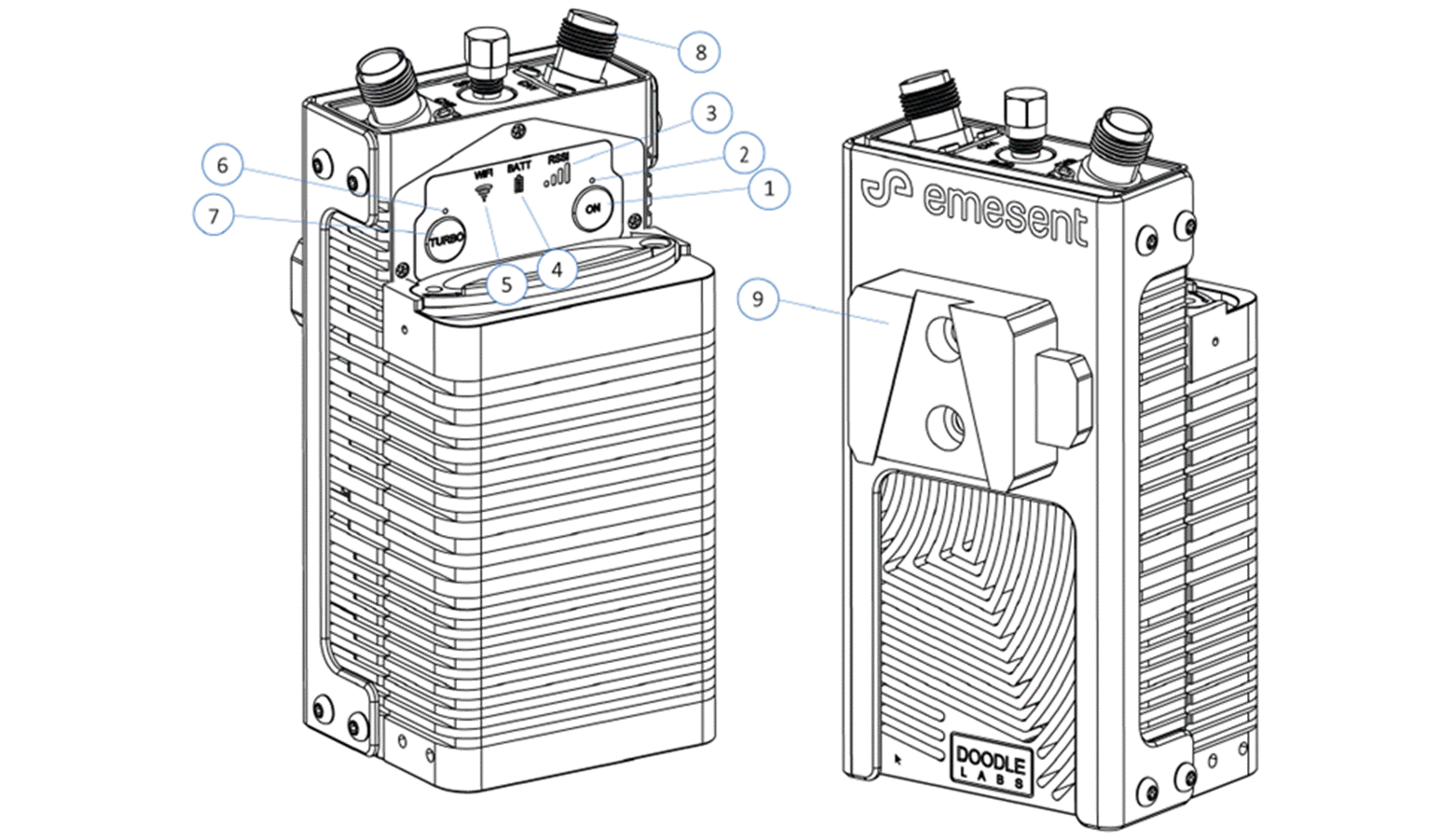
|
|
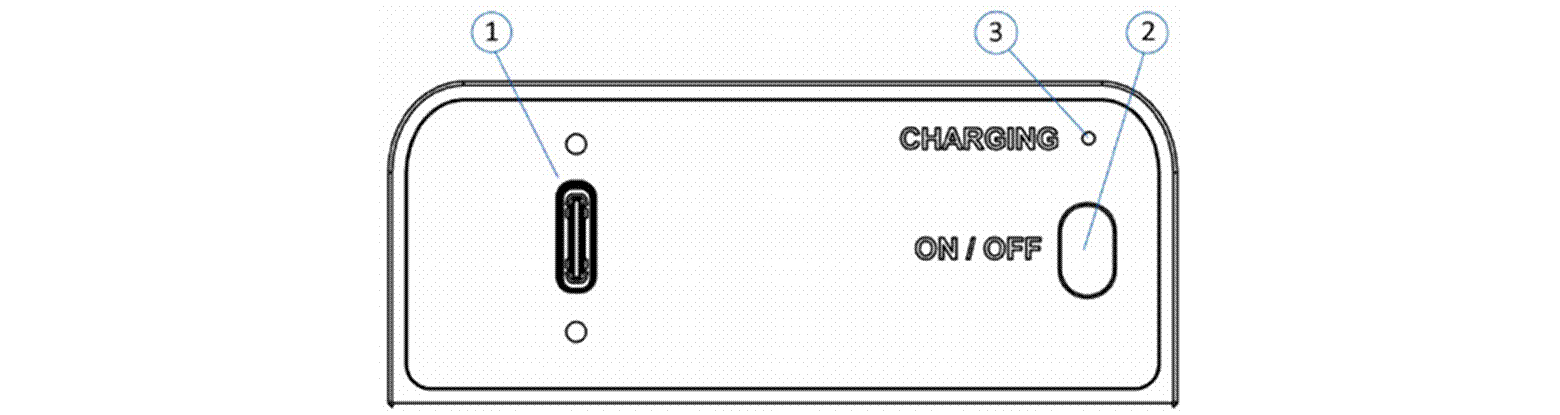
1 | USB-C charging port |
|---|---|
| |
2 | Battery Power button |
| |
3 | Battery charging indicator |
| |
Attaching the Battery
The battery is attached to the radio using a simple locking mechanism.
STEP1: Align the legs of the battery with the corresponding holes in the radio casing.
STEP 2: Slide the battery in place then rotate the locking mechanism. The following shows the disassembled battery and radio unit.
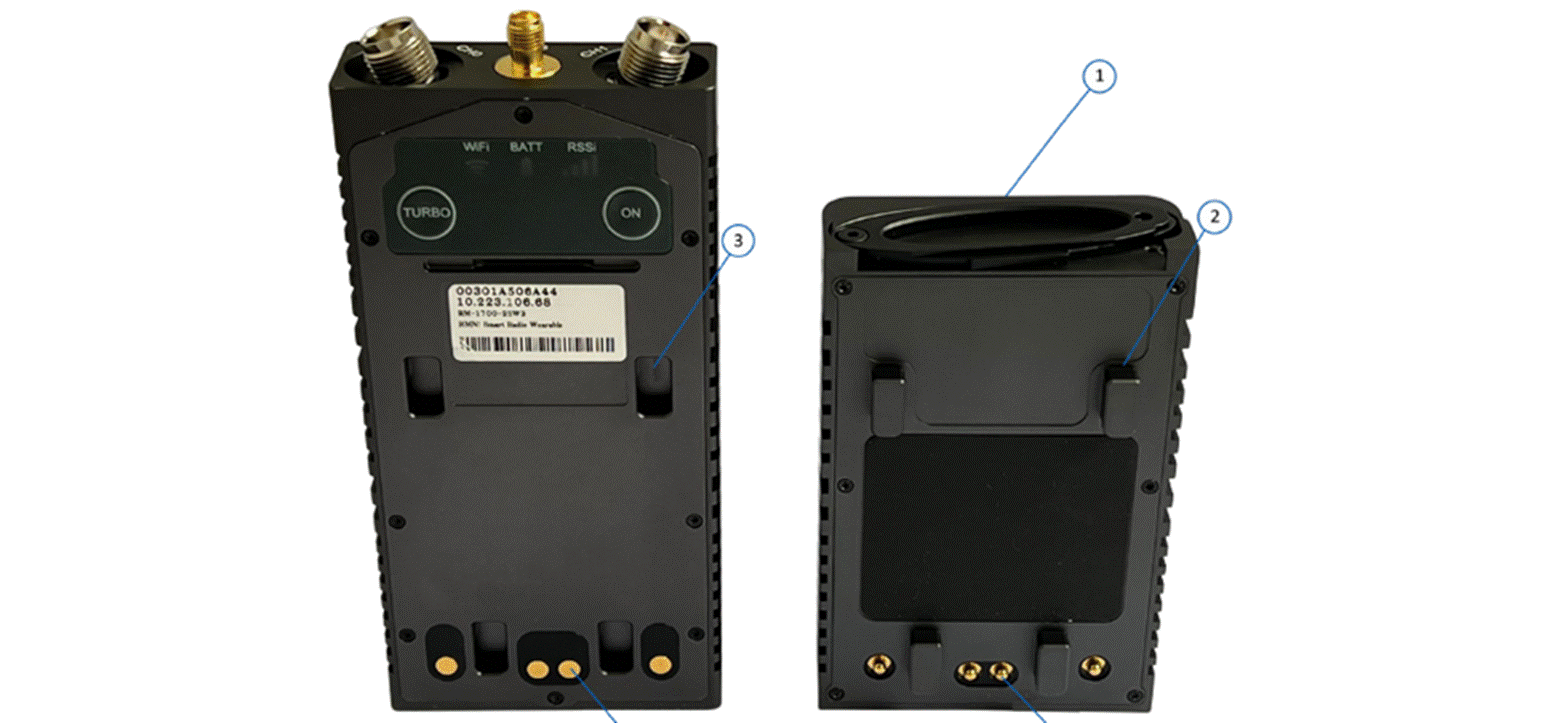
1 | Locking mechanism |
|---|---|
2 | Alignment leg |
3 | Alignment hole |
4 | Battery electrical contact |
5 | Radio power electrical contact |
Radio/Battery Buttons and Indicators
The following tables provide information on the buttons and indicators for the Ground-Side radio and the battery.
Button and Indicator Functions
Button/Indicator | Function |
|---|---|
Power button (ON) | Switch the radio between the different power states |
Turbo button | Manually toggle between 1x1 and 2x2 MIMO operation for power savings |
Power LED | Indicates the power mode |
Turbo LED | Indicates whether the radio is in 1x1 or 2x2 MIMO mode |
RSSi Indicator | Indicates the RSSI on the LRR interface |
Battery indicator | Indicates the battery status |
Wi-Fi indicator | Shows whether Wi-Fi is on or off; it does not display signal strength |
Battery Power Button | Press and hold for 5 seconds to switch the battery on/off |
Power States
Mode | Description | Power LED Status |
|---|---|---|
On | The radio fully on | On |
Off | The radio is in extremely low-power mode and only essential components remain on | Off |
Radio Power Button Usage
Power Button Action | Operation |
|---|---|
4-second press | On → Off Off → On |
LED Behavior for Different Operating States
Condition | Power LED | Wi-Fi Indicator | RSSi Indicator |
|---|---|---|---|
Radio booting up | Slow blinking (1200ms interval) | Slow blinking (1200ms interval) | Slow blinking (1200ms interval) |
ON | Steady | See RSSi and Wi-Fi Indicators | See RSSi and Wi-Fi Indicators |
RSSi and Wi-Fi Indicators
Status | RSSi Indicator | Wi-Fi Indicator |
|---|---|---|
Not associated | OFF | OFF |
Associated but the link was lost | Slow blink (1800ms interval) | Steady |
Connected | Steady; the number of bars illuminated is dependent on the RSSi | Steady |
Turbo Button and LED Behavior
Button action | Mode | LED Behavior |
|---|---|---|
2-second or longer press | 1x1 SISO -> 2x2 MIMO | Blinking (1200ms interval) until link is re-established -> Steady |
2-second or longer press | 2x2 MIMO -> 1x1 SISO | Blinking (1200ms interval) until link is re-established -> Off |
Battery Level Indicator
Battery Voltage | LED Indicator |
|---|---|
> 7.84 V | Steady, Green |
7.39 - 7.84 V | Steady, Yellow |
6.5 - 7.39 V | Steady, Red |
< 6.5 V | Blinking (1200ms interval), Red |
Step 3: Initial Setup
STEP 1: Attach the battery to the Ground-Side radio. See Attaching the Battery
STEP 2: Attach the antennas provided in your kit to the antenna connectors.
STEP 3: Hold down the battery’s ON / OFF power button for 10 seconds.
The Power LED will blink until the unit has fully booted, at which point it will be steady.
While booting up, both the Wi-Fi and RSSi indicators will blink. They will switch to a slow blink after boot-up while waiting for a connection. If you have turned on any other radio, the RSSi indicator will eventually hold steady once the radios are connected.
If you connect to the radio via Wi-Fi, then the Wi-Fi indicator will hold steady.
Step 4: Field Setup
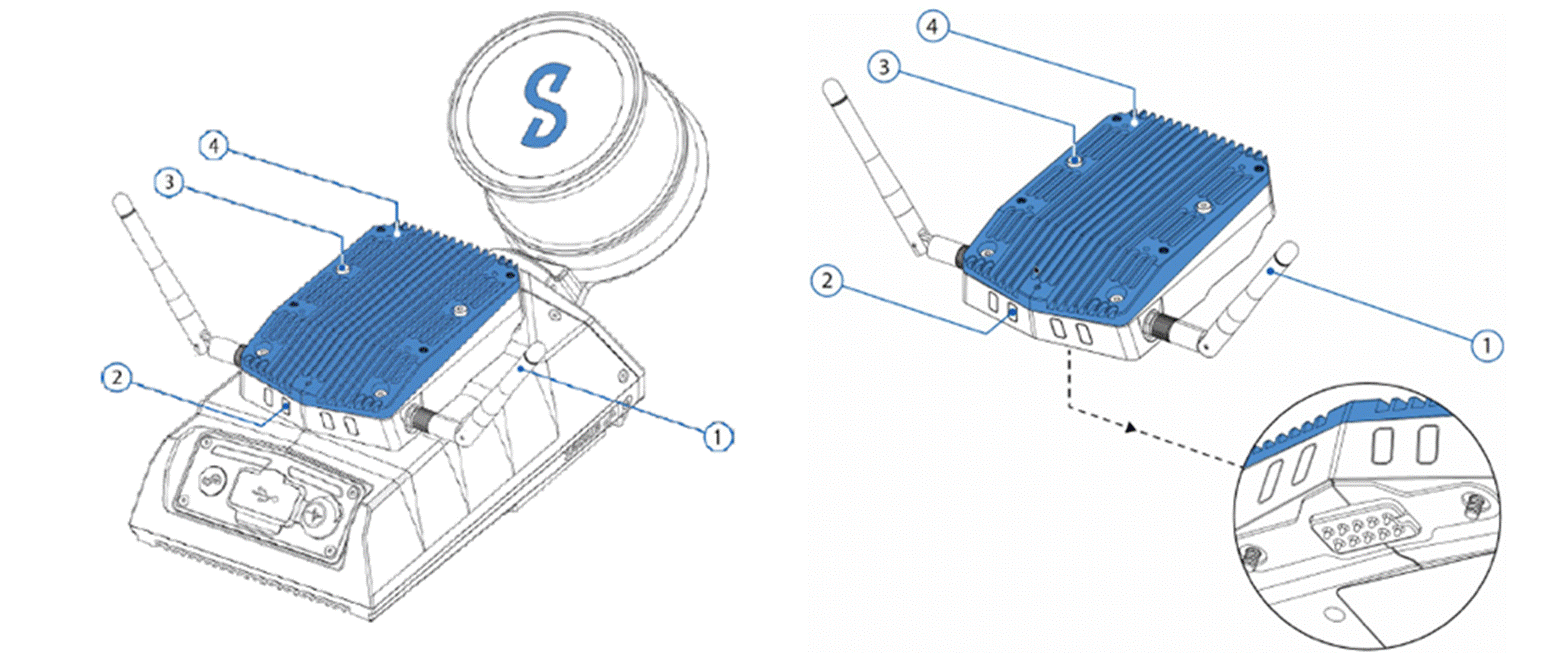
1 | Antennas |
2 | Status Indicator LEDs |
3 | Mounting Screws |
4 | Heatsink |
STEP 1: Mount the Hovermap as desired.
STEP 2: Fasten the antennas on the Air-Side and Ground-Side radios (finger tight).
STEP 3: Position the antennas as shown in the image above.
STEP 4: Power on Hovermap. This will power on the Air-Side radio after 10 seconds.
STEP 5: Separate and maintain a minimum of 5 m (above ground operations) or 10 m (underground operations - due to reflections) of clearance between the Air-Side and Ground-Side radios.
STEP 6: Attach the battery to the Ground-Side radio.
STEP 7: Long press the Ground-Side radio power button for 10 seconds.
STEP 8: Within one minute of powering both radios, the LEDs on the air-side radio and the RSSi LEDs on the Ground-Side radio will change from blinking to solid, indicating a stable connection between both radios.
STEP 9: Mount the Ground-Side radio to the desired operating platform (i.e. belt clip, tablet, or controller bracket).
STEP 10: Open the Wi-Fi settings on your tablet and connect to the Long Range Radio (LRR) Wi-Fi network. LRR creates a Wi-Fi network containing the serial number of the Hovermap. For example, the network name for ST0035 will be lrr_st_0035.
To enable or disable Turbo Mode, press and hold the TURBO button for 3 seconds. Activating Turbo Mode can improve radio performance in congested or obstructed environments, but it will slightly decrease the battery life.
Do not connect to the Hovermap network (st_xxxx). In Emesent Commander, a successful connection will show LRR next to the Wi-Fi signal strength indicator. The tablet will be unable to connect to the LRR Wi-Fi network until both radios have a stable connection.
Upon the first use of your LRR unit, it may take up to two minutes for the Wi-Fi network to display with the correct name.