
This article explains how to resolve synchronization errors that occur between the GoPro video and Hovermap scan data during colorization processing in Aura.
Error message
Processing failed: Synchronization error between video and Hovermap IMUs exceeds limit for acceptable colorization results.

Figure 1: Aura synchronization error message.
Why does this occur?
This error occurs when Aura detects a high synchronization error between Hovermap's IMU data and the camera's IMU.
Aura relies on time-aligned data from both the Hovermap IMU and the camera IMU to accurately project video frames onto the point cloud. If synchronisation is inaccurate, the resulting colorization may appear distorted or misaligned. Successful synchronisation depends on accurate timestamps and consistent sensor data throughout the scan.
Cause 1: Mismatched videos
The most common cause of poor synchronization is using video footage that does not correspond to the Hovermap scan.
Resolution: Identify and load the correct video
If the synchronization error is due to a mismatched video file, identify the correct video using the trajectory file or video metadata, then reprocess the scan using that video.
Two methods are available, depending on whether visual comparison or timestamp comparison is more reliable for the scan.
Option 1: Identify the correct video using trajectory context
The most effective method to identify the correct video is to visually compare the trajectory file against the video content inside Aura.
Open the trajectory file in Aura: open a processed scan that includes the trajectory data, then load the trajectory to view Hovermap's flight or movement path.
Use visual context to check the video:
Play the video alongside the scan in Aura.
Compare the start and end of the trajectory to what is shown in the video.
Pay attention to landmarks, movement direction, and duration.
Check whether the video footage aligns with the scan path, both in terms of start and end points and general positioning over time.
This method confirms whether the video matches the scan both spatially and temporally.
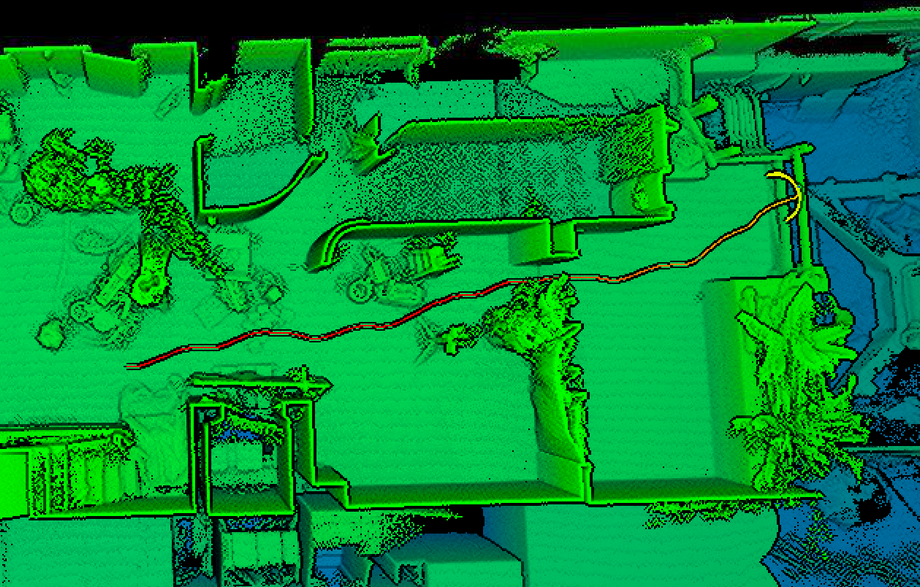
Figure 2: Trajectory view in Aura.
Option 2: Use timestamps to match the video
If the correct video cannot be confidently identified through visual comparison, use file timestamps to narrow down the match.
File creation dates can be misleading. For example, a video downloaded later may show the wrong date. Always cross-check timestamps with known scan dates.
Compare video file metadata:
Locate the videos captured during the scan session.
Right-click the file and select Properties, or open it in a tool such as VLC.
Note the creation time and duration of each video file.
Compare with Hovermap scan timing:
Open the scan folder and locate the
.bag.zstfiles. These contain UTC timestamps in their filenames.Compare the video creation time to the scan start and end times.
Assess the overlap:
If the video's time range does not overlap with the scan's timestamps, the video is likely the wrong file.
Continue testing other videos from the same session until a video with a matching timeframe is found.
Video file creation times are recorded in local time and depend on the camera's internal clock being set correctly. Watch for time zone offsets or incorrect camera time settings when comparing. Emesent recommends keeping the GoPro clock set to UTC.
Cause 2: High vibration
High vibration in the capture environment, such as drone flights using long range radio, can result in poor synchronization between Hovermap's sensors and the camera.
Resolution
There are currently no specific mitigation steps for high-vibration environments. However, the data may still be processable by following the workaround in Can I still process this data? below. Depending on the severity of the sync issue, the output may still be usable.
Cause 3: Insufficient IMU events
In some cases, the operating environment or the way the system is handled may result in too few IMU events being recorded. This can make it difficult for Aura to achieve good synchronization between the video and the scan data.
Resolution
To help ensure good synchronization between Hovermap and the camera data, follow the steps in the Working with Colorization guide when capturing new scans. These practices are designed to improve sync accuracy and reduce the likelihood of processing issues:
Keep Hovermap stationary for approximately 10 seconds after the LiDAR begins spinning.
Then perform at least three strong side-to-side rotations to generate clear IMU signals for alignment.
These actions allow Aura to better detect motion patterns and align the video with scan data more accurately.
If a scan was not captured using this method and a synchronization error occurs, refer to Can I still process this data? below for guidance on processing scans with reduced sync quality.
Can I still process this data?
In most cases, poor synchronization results in unusable colorization. However, if the synchronization error is only slightly above the recommended processing threshold, it may be acceptable to continue processing by adjusting the threshold.
To do this, manually modify the processing profile in Aura by increasing the errorThreshold parameter. This requires creating a custom colorization profile. This workaround is only recommended when the synchronization score is marginally below the minimum requirement and data re-capture is not feasible.
Increasing
errorThresholdbeyond recommended values may result in degraded colorization quality. This adjustment should only be used in specific cases where the trade-offs are understood.
Procedure
Step 1: Select and edit the colorization profile
Open Aura and select the colorization profile to use.
Open the processing settings and make any required changes.
Save the processing settings.
Save the profile.
Step 2: Manually update the profile
Navigate to:
Documents\Emesent\Aura\Profiles\colouriseOpen the relevant profile file in a text editor.
Search for the setting:
errorThreshold.Increase the value to between
0.02and0.03.Save the file.
Step 3: Reprocess with the updated profile
Restart Aura.
Select the modified profile and reprocess the scan.
Increasing
errorThresholdbeyond0.03may allow processing to succeed but will likely degrade colorization quality. If poor sync scores persist, refer to the Scanning Tips and Techniques in Working with Colorization, or raise a support ticket for further investigation.
Related documentation and support
For assistance, contact the regional Emesent partner or the Emesent Client Support team.