
The GX1 Control Panel is the cluster of buttons, indicator lights, and the USB-C interface on the GX1. It provides the Power Button and on-device status. The primary operator interface is Commander, and the LED Bar is the primary on-device status display.
What is it?
The GX1 Control Panel sits on the lower part of the GX1 body, on the side opposite the Battery Bay Door, below the Struts. It contains the Power Button (with its Power Button Light), the Status Indicator Lights (RGB LEDs arranged as a four-LED battery bar and three icons), and the USB-C Port (protected by the USB-C Boot when not in use).
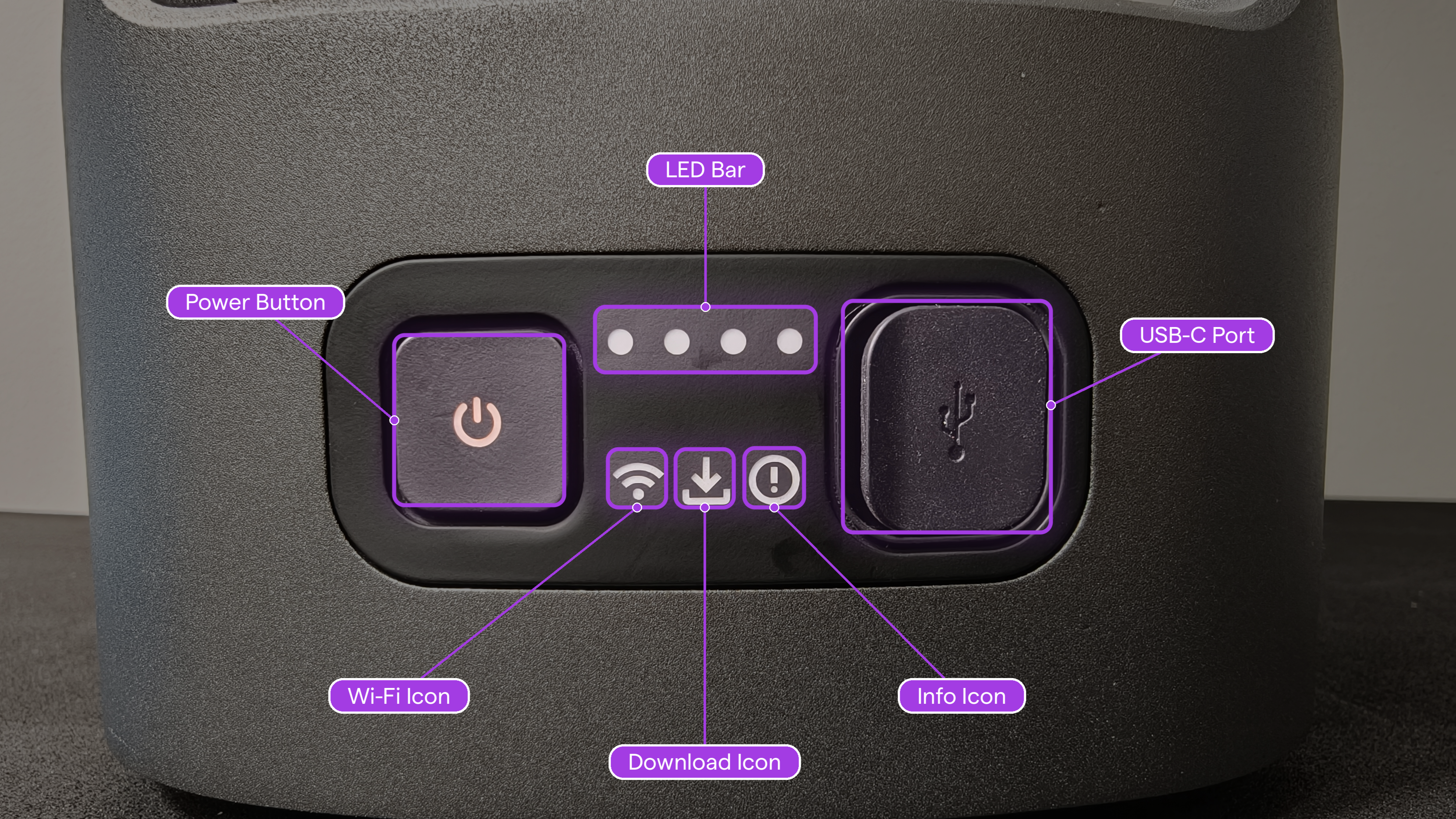
Power Button
The Power Button is the only button on the GX1 Control Panel. It powers the device on and off, and can also stop a running scan. See Power GX1 on and off.
Press type | Behavior |
|---|---|
Long press (3 seconds) when off | Power on and boot the GX1. |
Long press (3 seconds) when on | Power off the GX1. |
Battery capacity is always shown by the number of illuminated LEDs on the LED Bar.
Status Indicator Lights
The Status Indicator Lights communicate device state, connectivity, data activity, and error conditions through RGB LEDs.
Power Button Light
State | Pattern |
|---|---|
Off, no battery installed | Off |
Off, battery installed with charge | Dim orange |
Booting | Slow pulse, white |
On | Slow pulse, cyan |
Hardware error | Solid red |
LED Bar
The LED Bar is a row of four LEDs that shows battery level when the GX1 is on, and an animated power-off sequence.
State | Pattern |
|---|---|
GX1 on | Bar shows battery level in cyan |
Power Button held for power-off | LEDs turn off one by one, right to left, before the GX1 enters low-power standby |
Wi-Fi Icon
State | Pattern |
|---|---|
Wi-Fi access point broadcasting | Solid cyan |
Wi-Fi error | Solid orange |
Download Icon
State | Pattern |
|---|---|
Nothing connected to USB-C Port | Off |
Computer connected via USB-C | Solid cyan |
Downloading to computer | Quick pulse, cyan |
USB drive connected | Solid cyan |
Downloading to USB drive | Quick pulse, cyan |
Firmware update from USB drive | Quick pulse, orange |
Info Icon
The Info Icon lights solid red when a critical failure is asserted. If no failure is asserted, the Info Icon shows no light. For the full list of failures and how to respond, see Understand GX1 error states.
State | Pattern |
|---|---|
Critical battery | Solid red |
Critical storage | Solid red |
Data recording stopped | Solid red |
Interfaces
Interface | Purpose |
|---|---|
USB-C Port | Data transfer, firmware updates, and external power input. Protected by the USB-C Boot when not in use. |