
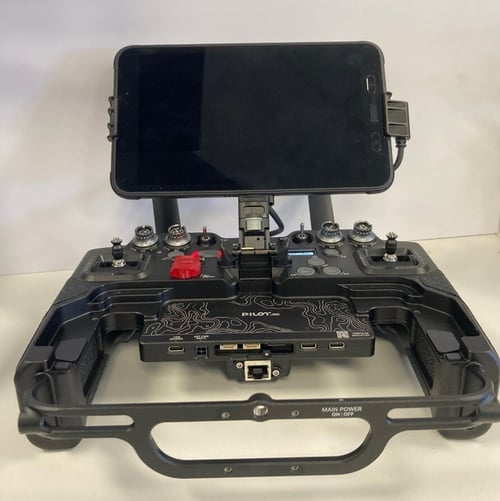
Commander can be installed on the Freefly Pilot Pro tablet. There are two methods. See below.
Option 1: Standard installation
-
Follow the How to Install Emesent Commander installation guide. When connecting the USB-C cable to the tablet, connect the external storage device containing the downloaded .apk file to one of the USB-C ports on the controller, not the tablet itself.
Option 2: Via the Freefly Updater App
For Freefly Pilot Pro tablet only
Step 1: Power On the PilotPro Tablet and Controller
-
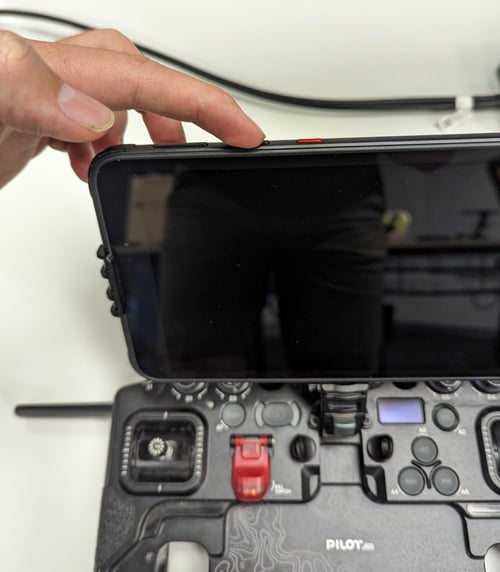
Hold the power button on the PilotPro tablet for 4 seconds.
-
This will power on both the tablet and the controller.
-
- Press the power button again when prompted on the controller to complete powering on.
-
-
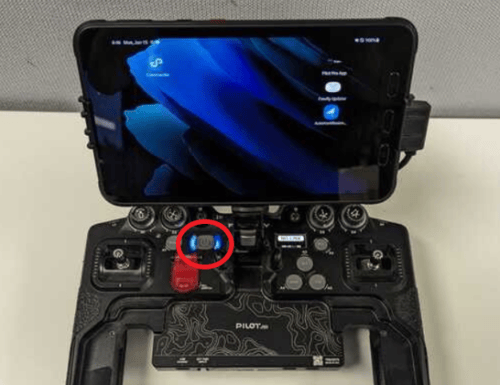
The PilotPro tablet screen turns on and a blue status light appears on the controller.
-
Step 2: Connect to the Internet
- Enable Wi-Fi on the tablet.
- Connect to a nearby wireless network or hotspot that has internet access.
Step 3: Add the Emesent Repository
- Open the Freefly Updater app.
- Tap the Settings icon, then go to the Repositories menu.
- Tap New Repository on the top right.
- In the repository address field, enter the following address and click ADD:
The above address begins with http:// not https:// - you need to clear out the pre-entered text and enter the one above.
5. Once the new repository has been added, it is marked as "Unsigned" in red.
-
-
Ignore this and continue with the installation process.
-
Make sure the toggle for the repository is enabled.
-
Step 4: Install Commander
- Tap the back arrow and go to the Latest menu.
- Pull down to refresh the list of apps.
- Tap the Commander app entry to open it, then tap Install.
- Follow the installation steps.
- Wait for the installation to complete.