Use Cortex recovery to recover a Hovermap that cannot start. When this occurs, the status LEDs show red flashing and do not change. The cause is usually a file system problem or a failed Cortex upgrade.
Recovery is available only for a Hovermap that already has Cortex 4.0.3 or later.
Recovery updates the Hovermap to the latest version of Cortex. After recovery, update Commander. Commander 2.3 cannot connect to Cortex 4.3.0 or later. Refer to Supported Devices & Compatibility.
Recovery deletes all the scans in the transferred folder of the Hovermap. Scans that are not offloaded stay on the Hovermap.
Equipment required
Item | Details |
|---|---|
USB drive | At least 8 GB of free space.
|
Hovermap |
|
Power source |
|
Tablet or phone |
|
Cortex recovery package | Emesent Client Support supplies the recovery package for the Cortex version of the Hovermap. The package includes the recovery file (cortex_recovery.gpg) and the install files. To get the recovery package, complete the Technical Support form. Select:
|
Recover the Hovermap
Step 1: Prepare the USB drive
Copy all the files in the recovery package to the top level of the USB drive. Do not put them in a folder.
Safely remove the USB drive from the computer.
Step 2: Insert the USB drive
Power off the Hovermap fully.
Insert the USB drive into the Hovermap.
Keep the USB drive in the Hovermap until recovery is complete.
Do not remove the USB drive before recovery is complete. If the USB drive is removed too early, the Hovermap can go into an unrecoverable state. Emesent cannot repair this remotely, and the Hovermap must go back to Emesent for repair.
Step 3: Start recovery
Connect the Hovermap to a reliable power source.
Power on the Hovermap.
Wait approximately one minute for recovery to start.
Make sure that the status LEDs show a fast blue swipe. This shows that recovery has started.
Step 4: Wait for recovery to complete
Do not interrupt recovery.
When recovery is complete, the fast blue swipe stops.
The Hovermap powers off and starts again automatically.
When the Hovermap starts, the LEDs show red flashing for approximately one minute.
Wait until the LEDs show breathing blue. This shows that recovery is complete.
If the LEDs do not show breathing blue after one hour, or show a different pattern, refer to Troubleshooting.
Step 5: Send the recovery log to Emesent
Remove the USB drive from the Hovermap.
On a computer, open the USB drive. Find the new cortex_recovery folder.
Send the contents of this folder to Emesent Client Support. Emesent uses it to find the cause of the problem.
Step 6: Make sure that recovery was successful
Open Commander on the tablet or phone.
Connect to the Hovermap.
Make sure that Commander connects to the Hovermap.
If Commander shows an incompatible firmware message, update Commander.
Troubleshooting
If recovery does not complete correctly, the status LEDs show the problem.
LED pattern | Meaning |
|---|---|
Slow flashing red | The Hovermap is still starting. Recovery has not started. |
Fast flashing red | A critical error occurred. The usual cause is a damaged recovery file or install file, for example from a bad download. For more data, read the feedback log. |
Fast flashing yellow | The Hovermap cannot find a file that recovery needs. For more data, read the feedback log. |
Fast swiping yellow | The Hovermap cannot write to the USB drive. Make sure that the USB drive has free space and the correct format. |
Fast swiping blue | Recovery is in progress. |
Feedback log
If recovery fails, read the feedback log before contacting Emesent Client Support.
During recovery, the Hovermap writes the log file cortex_recovery_feedback.log to the cortex_recovery folder on the USB drive.
The log tells why recovery failed. For example:
Install file <file name> not found on USB. Aborting.
If the problem can be corrected
Correct the problem. For example, copy the missing file to the USB drive.
Remove the cortex_recovery folder from the USB drive. Keep it in a safe location to send to Emesent later.
Start recovery again from Step 2.
Remove the cortex_recovery folder from the USB drive before starting recovery again.
If the problem continues
If recovery is not complete after 1 hour, remove the USB drive.
Send the contents of the cortex_recovery folder to Emesent Client Support.
Validate the USB drive
Connect the USB drive to a Windows computer.
In Windows Explorer, open This PC.
Right-click the USB drive and select Properties.
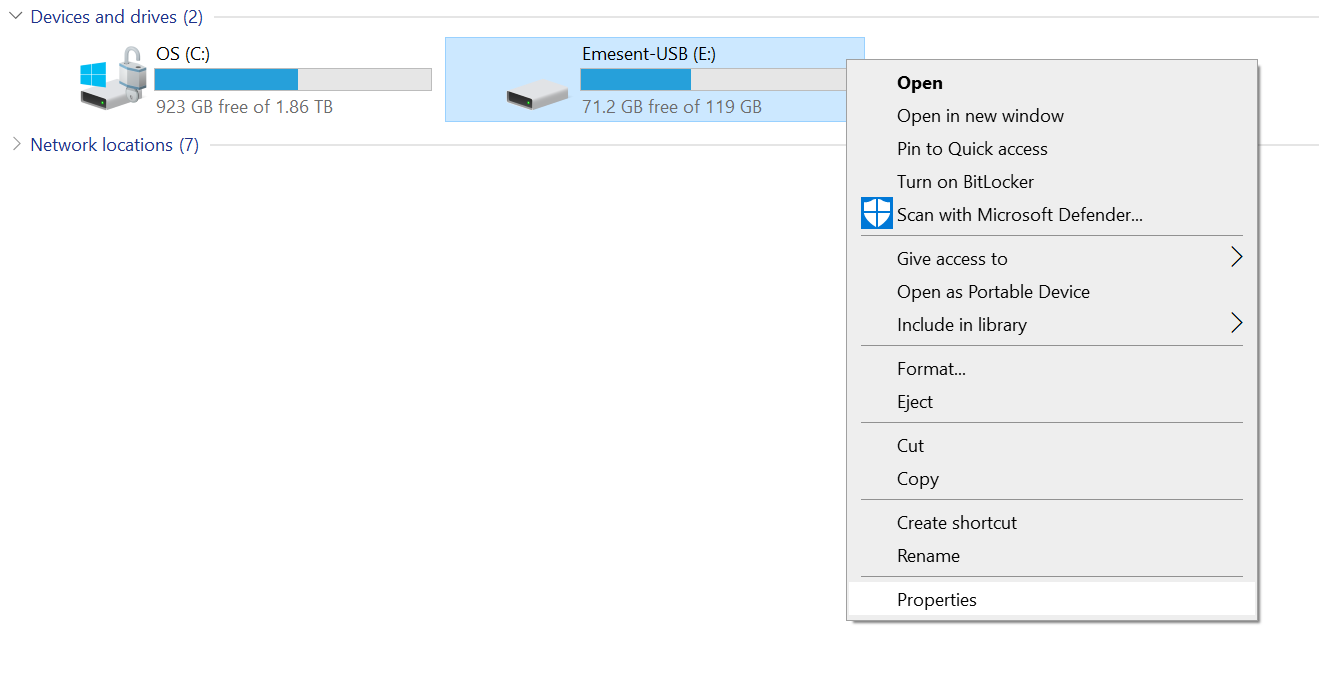
Look at the Device type field:
USB Drive: the USB drive is correct for recovery.
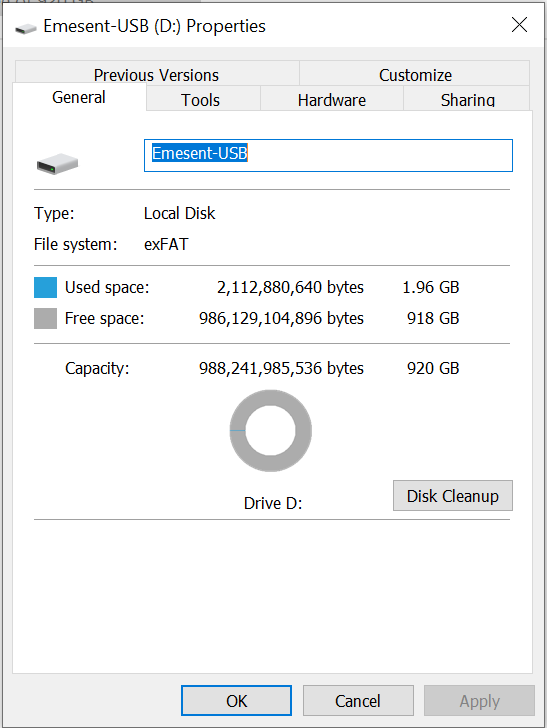
Local Disk: the USB drive is not correct for recovery. Use a different USB drive.