
This article explains how to use DJI Assistant 2 (Enterprise Series) to export onboard log files from a DJI M300 or M350 aircraft and save them to a computer. These logs capture performance and event details from the drone and are often required by the Emesent Client Support team to troubleshoot issues, investigate incidents, or confirm system status.
If the Hovermap has also been involved in an incident or near-miss, see Report an aircraft incident or near-miss for the full reporting process.
What you will need
A DJI M300 or M350 aircraft with sufficient battery charge.
A computer running Windows.
A USB-C cable to connect the computer to the aircraft.
Internet access to download DJI Assistant 2 (Enterprise Series).
Procedure
Step 1: Download and install DJI Assistant 2
Go to the official DJI download page: https://enterprise.dji.com/matrice-350-rtk/downloads.
Download DJI Assistant 2 (Enterprise Series).
Run the installer and follow the on-screen instructions to complete installation.
Use the Enterprise Series version, as other DJI Assistant editions may not support the M300 or M350.
.png)
Step 2: Connect the aircraft
Launch DJI Assistant 2 (Enterprise Series) on the computer.
Power on the DJI aircraft.
Connect the computer to the aircraft using a USB-C cable. On the M300 and M350, the USB-C port is located on the top-right of the aircraft body.
.png)
Step 3: Access the device in DJI Assistant 2
Once the aircraft is detected, an icon for the DJI device appears in DJI Assistant 2.
Click the icon to access the device menu.
.png)
Step 4: Export the logs
In the left-hand panel, select Log Export.
A list of available log files is displayed. Use the checkboxes to select the required log files:
If the required log is known, select it directly.
If unsure, select all logs from the relevant date range.
Click Save to Local to begin exporting.
.png)
Step 5: Choose a save location
In the file browser window that opens, navigate to the folder where the log files should be stored.
Click Select Folder to confirm.
.png)
Step 6: Wait for the download to complete
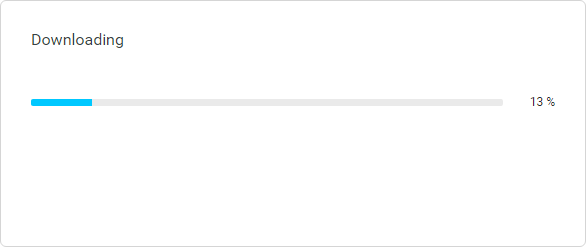
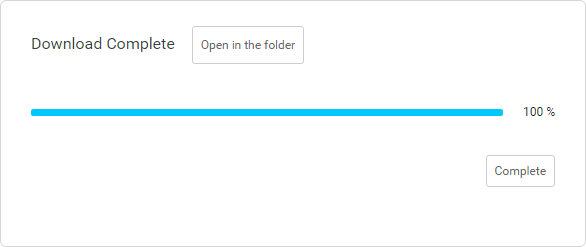
The log files download to the selected folder. A progress bar displays during the process. Once the export is complete, the dialog shows Download Complete.
Step 7: Locate the log files
Open the folder selected in Step 5, or click Open in the Folder from the download complete prompt shown in Step 6.
The exported log files are now available.
Outcome
The DJI onboard log files are downloaded and ready to share. Send the log files to the Emesent Client Support team if requested as part of an investigation.
Related documentation and support
Recover DJI flight records for retrieving controller-side flight records.
Report an aircraft incident or near-miss.
Recover Aura log files for Hovermap-side diagnostic data.
For assistance, contact the regional Emesent partner or the Emesent Client Support team.