
The DJI M300 and DJI M350 have four downward vision sensors. When Hovermap is attached, these sensors can report an 8012 error. This article explains why the error occurs, and how to cover the sensors.
What are the downward vision sensors?
The DJI M300 and DJI M350 each carry four downward-facing vision sensors on the underside of the airframe. The aircraft uses these sensors to sense obstacles below it.
The sensors operate independently of Hovermap. Hovermap uses its own lidar for obstacle avoidance and for navigation. Covering the DJI sensors does not affect Hovermap perception or the quality of the scan data.
The aircraft uses the downward sensors for its own obstacle sensing and position hold. Hovermap does not use them, so the downward obstacle sensor stays off when Hovermap is fitted.
Why the 8012 error occurs
The downward sensors detect low-light conditions. Hovermap sits directly below the airframe and blocks some, but not all, of the light that reaches them. This partial condition causes the aircraft to report an 8012 error.
Covering the sensors blocks the light completely. The aircraft then reports no error. Partial coverage has the same effect as the payload alone, so every sensor must be fully covered.
Some aircraft are more sensitive to this condition than others. On a sensitive aircraft, thin or translucent tape can let enough light through for the error to continue.
8012 is a general DJI error code. The aircraft uses it for several unrelated conditions. Refer to Other causes of an 8012 error if covering the sensors does not resolve the error.
What you will need
A DJI M300 or DJI M350 aircraft. The procedure is the same for both aircraft.
Sticky labels or tape, enough to cover four sensors. Use a material that does not leave adhesive on the airframe.
A DJI firmware version approved for use with Hovermap. Refer to Supported devices and compatibility.
Procedure
Step 1: Turn off the downward obstacle sensor in DJI Pilot 2
The Hovermap payload and mount affect the downward obstacle sensor. Turn the sensor off in DJI Pilot 2 as well as covering it.
Open Camera View in DJI Pilot 2.
Select the ... button in the top-right corner. The settings panel opens.
Select the second icon to open the Obstacle Sensing Settings.
Turn on Brake, Horizontal, and Upward.
Turn off Downward.
Check every setting again before leaving the panel.
Step 2: Prepare the aircraft
Hovermap does not use the downward obstacle sensor of the aircraft. Hovermap senses obstacles with its own lidar.
Power off the aircraft.
Turn the aircraft over, so that the underside faces up.
Locate the four downward-facing vision sensors on the underside of the airframe.
Step 3: Cover the four sensors
Cover the vision sensor lenses on the left and on the right as well as the infrared sensors. A common cause of a continuing 8012 error is that only the infrared sensors were covered.
Cover each sensor with an opaque sticky label or with opaque tape. Refer to the image below for the correct placement.
Cover all four lenses. Include the vision sensor lenses on the left and on the right.
Confirm that each cover is flat against the airframe.
Confirm that each cover fully obscures the sensor. A partly covered sensor causes the same error.
Confirm that no adhesive covers a propeller arm or a payload mount.
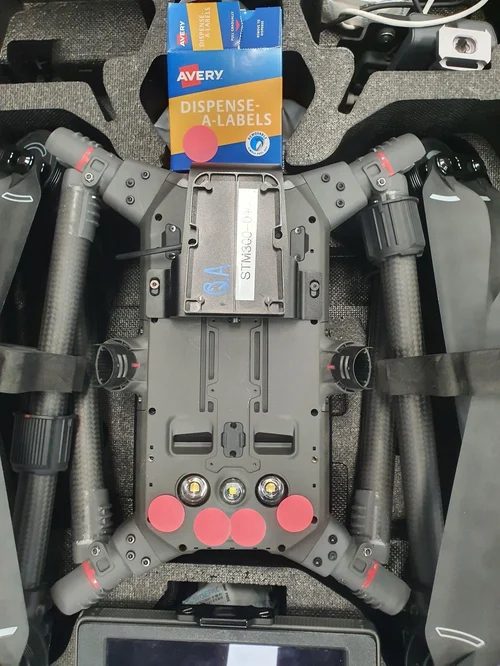
Sticker placement on the four downward vision sensors
Step 4: Return the aircraft to service
Power on the aircraft.
Complete the standard pre-flight checks.
Confirm that the 8012 error does not appear.
Outcome
The downward obstacle sensor is off in DJI Pilot 2, and all four sensors are covered. The aircraft no longer reports an 8012 error for a partly obscured sensor.
Other causes of an 8012 error
The aircraft reports 8012 for several conditions. If the error continues after all four sensors are covered, check the conditions below.
Condition | What to check |
|---|---|
Remote ID registration | DJI broadcasts the position of the pilot and the aircraft. Turn on location services on the tablet. Connect the tablet to the internet to register the remote controller. |
No recent GPS lock | An aircraft that has not held a GPS position can apply a flight restriction by default. Power on the aircraft outdoors with a clear view of the sky for 5 minutes, then restart it. |
Flight zone restriction | Open the health management system in DJI Pilot and look for a flight restriction message. Request an unlock from DJI for the operating area. |
Battery not accepted | Confirm that both batteries in the pair run the same firmware version, and that DJI Pilot reports the batteries as ready. |
An 8012 error does not appear in the Hovermap logs. Collect the DJI flight records as well as the Hovermap data when reporting the error.
Important considerations
Leave the covers in place between missions. There is no operational reason to remove them.
Inspect the covers before each mission. A cover that lifts at one edge leaves the sensor partly obscured, and the error can return.
Covering the sensors is a workaround for the behavior of the aircraft. It does not change how Hovermap perceives obstacles.
Covering the sensors alone does not always clear the error. Turn the downward obstacle sensor off in DJI Pilot 2 as well.
If the error appears, restart the aircraft. The error is reported by the aircraft, and a restart is necessary before the next takeoff.
An active 8012 error can hide other aircraft notifications. Clear the error before the mission rather than flying with it present.
If the error continues on a fully covered aircraft, add a second layer of opaque tape and test again.
Still not resolved?
If the issue persists after following the steps above, contact Client Support with the following information:
Product and version, including the aircraft model, the DJI firmware version, the Cortex version, and the Commander version.
Steps you have already tried, and a photograph of the covered sensors.
Any code shown beside the 8012 error. The 8012 code covers several conditions, and the companion code identifies which one.
Any error messages or logs, including a screenshot of the on-screen message, the Commander logs, the Hovermap scan data, and the DJI flight records.